


Physical Devices
Configure how RocketSim discovers, shows, and ignores connected physical iOS devices.
Use RocketSim → Settings → Physical Devices to control how RocketSim monitors connected iOS devices.
Physical device support lets RocketSim show a live preview window for a USB-connected iPhone or iPad, attach the side window to that preview, and use capture or comparison workflows on real hardware.
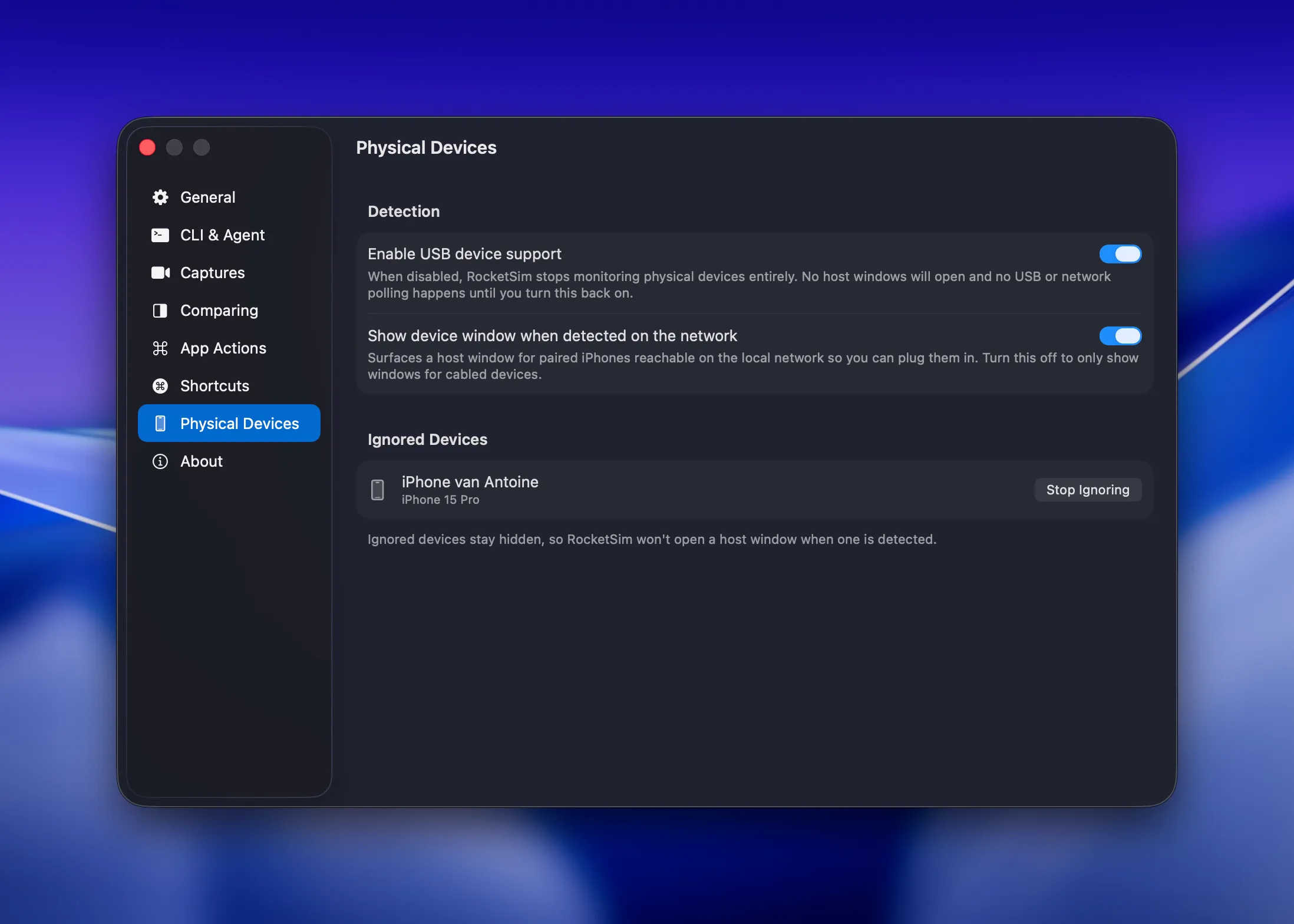
Enable USB device support
Section titled “Enable USB device support”Keep Enable USB device support turned on if you want RocketSim to detect physical devices connected by USB.
When you turn it off, RocketSim stops monitoring physical devices and closes any open physical-device windows. Turning it back on restarts monitoring without requiring an app restart.
Network-detected devices
Section titled “Network-detected devices”Some paired devices can appear as reachable on the local network even when they are not currently connected by USB.
Use Show device window when detected on the network to decide whether RocketSim should show these devices. Turning this off keeps RocketSim focused on cabled devices only.
USB-connected devices are still shown when USB support is enabled.
Ignored devices
Section titled “Ignored devices”If there is a device you do not want RocketSim to manage, use the device window menu and choose Ignore this device.
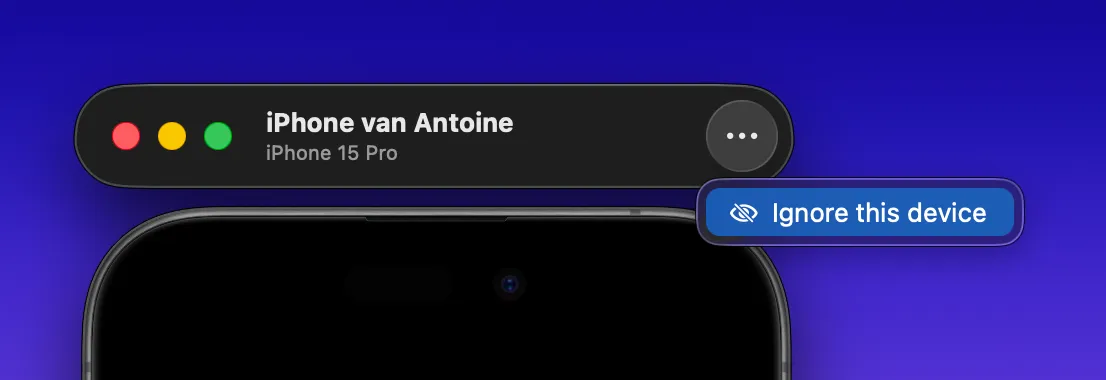
Ignored devices:
- Stop opening physical-device preview windows
- Stay ignored across app launches
- Appear in Settings → Physical Devices → Ignored Devices
- Can be restored by clicking Stop Ignoring
This is useful when multiple devices are connected but you only want RocketSim to work with one of them.