


Slow Animations
Enable Slow Animations in Xcode Device Hub or the iOS Simulator to inspect transitions, debug timing, and verify that UI animations look smooth.
Slow Animations makes an iOS Simulator transition slowly enough to inspect timing, movement, and visual details. It is particularly useful for finding unexpected jumps or comparing an implementation with a design.
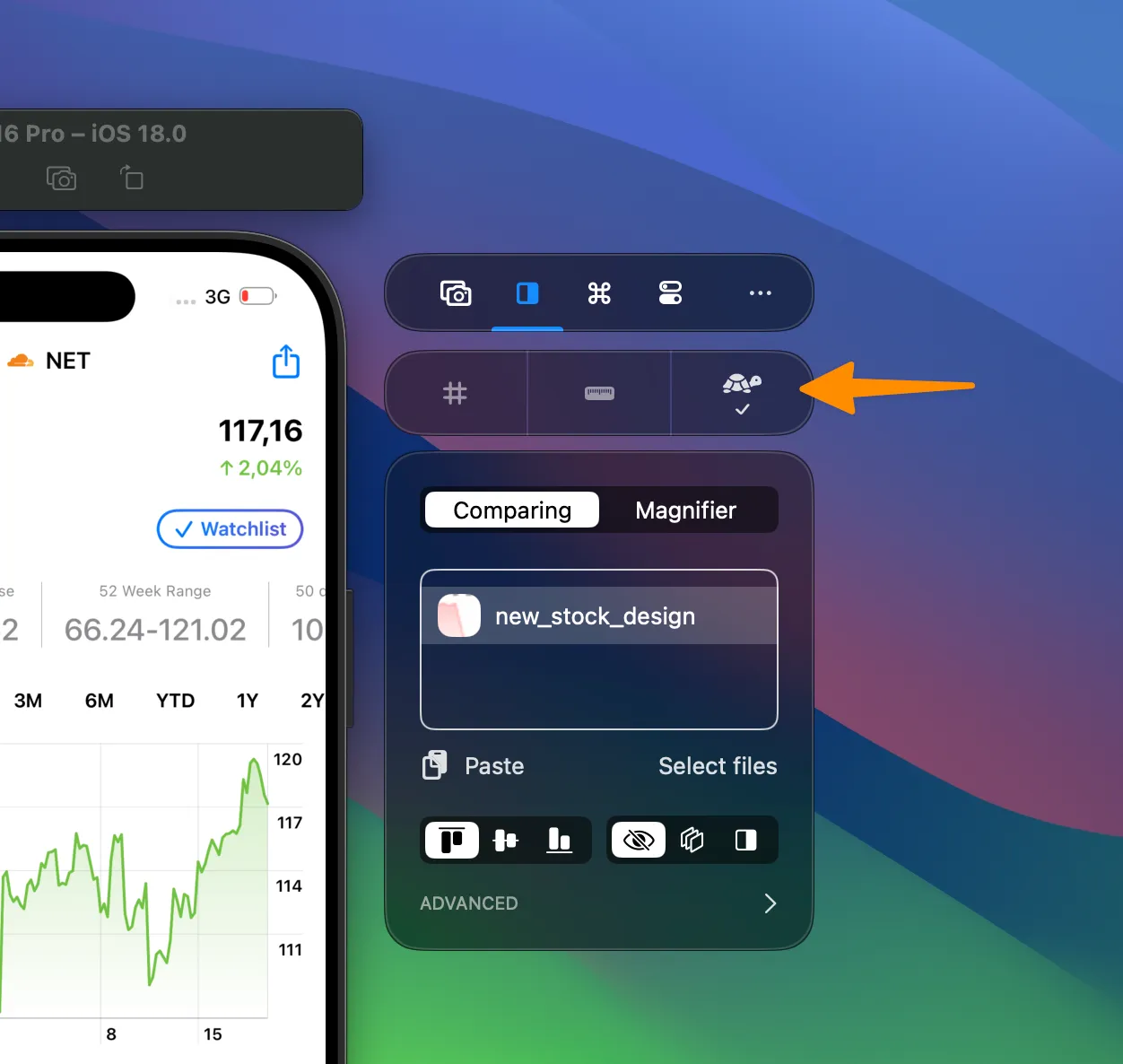
Enable Slow Animations
Section titled “Enable Slow Animations”- Focus the Simulator you want to control.
- Open RocketSim’s Comparing tab.
- Enable Slow Animations and choose the speed multiplier you want to inspect.
The control works with Simulator.app and Xcode 27 Device Hub. It remains available in Device Hub’s expanded mode because it does not require a screen-relative overlay.
Use a keyboard shortcut
Section titled “Use a keyboard shortcut”Open RocketSim → Settings → Shortcuts → Simulator and record a shortcut for Toggle slow animations. The shortcut is global, so you can use it while your app or Device Hub is frontmost.
RocketSim leaves the action unassigned by default to avoid taking over an existing key combination. See Shortcuts for conflict behavior and the complete Simulator action group.
Simulator-only support
Section titled “Simulator-only support”Slow Animations only supports Simulators. The action is unavailable when a physical device is focused.
For other controls missing from Xcode 27, including Shake, appearance switching, and memory warnings, read Simulator Actions. The Device Hub Support guide covers window modes and the complete integration.