


Test VoiceOver on the iOS Simulator
Visualize VoiceOver element order on the iOS Simulator with numbered overlays. Navigate elements with keyboard shortcuts and verify reading order without a device.
Testing VoiceOver used to mean grabbing a physical device, enabling VoiceOver, and swiping through your app. VoiceOver Navigator lets you stay in the Simulator: you get a visual overlay of the accessibility element order and keyboard-driven navigation, so you can verify reading order and rotor behavior without leaving your flow.
Introduction to the VoiceOver Overlay
Section titled “Introduction to the VoiceOver Overlay”When you open the VoiceOver tab in the Accessibility window of RocketSim’s side window, you can turn on Elements Overlay. Numbered labels appear on each accessibility element in the same order VoiceOver would use on a real device, so you can see at a glance whether your reading order makes sense. The panel lists every element with its role, such as Button, Heading, or StaticText, plus the total count. Use the Rotor dropdown to filter by category or leave it on All Elements.
The list only contains what VoiceOver users can reach. Controls inside a combined row aren’t listed or highlighted, because VoiceOver treats the row as a single element. The Actions rotor shows rows that expose custom actions, and the Containers rotor lists the containers on screen (it replaces the earlier Landmarks rotor). Refresh updates the list after the app’s UI changes.
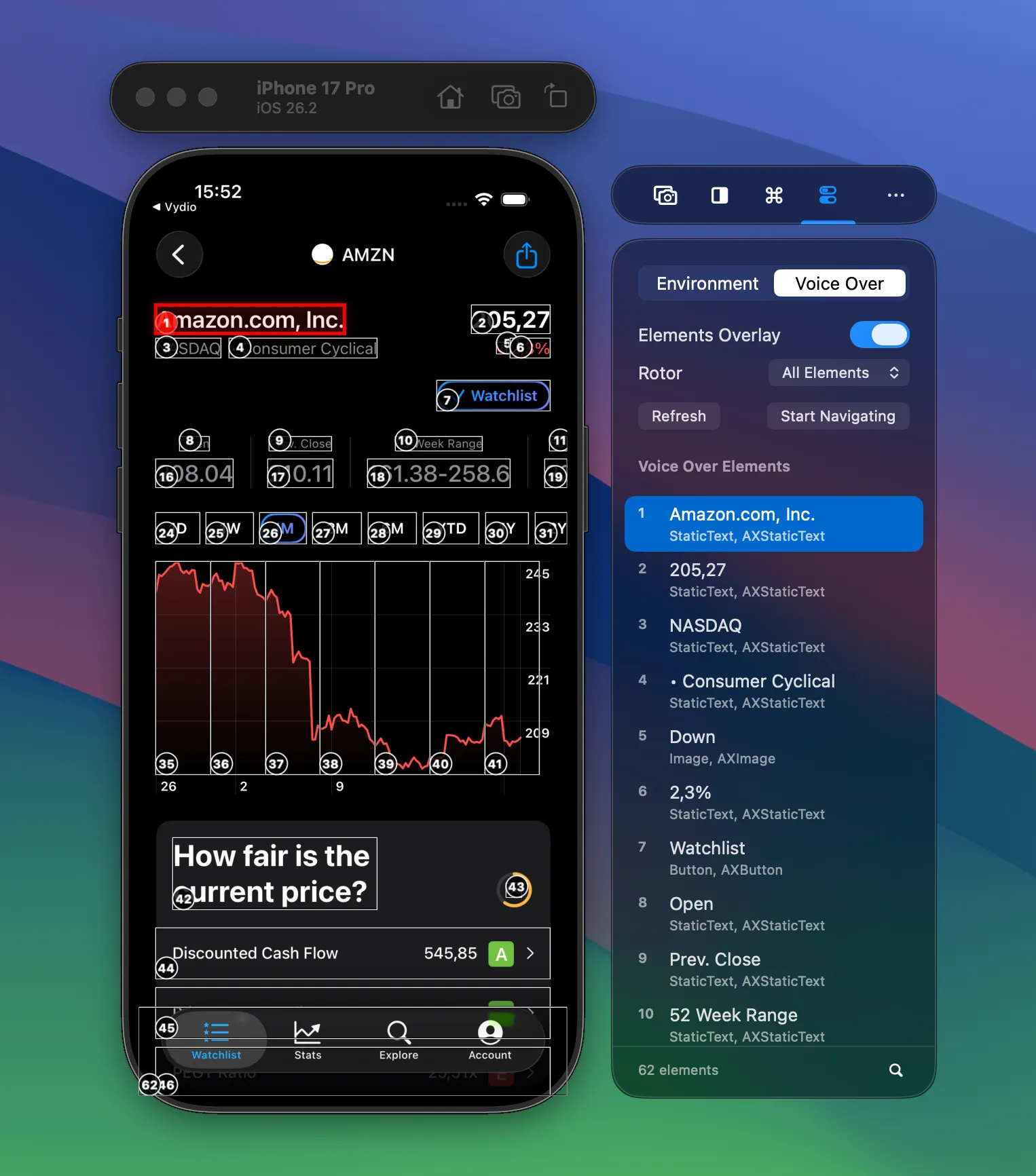
This view is read-only: you’re inspecting the tree and the overlay. When you’re ready to step through the experience the way VoiceOver would, use Start Navigating.
Using the VoiceOver Navigator
Section titled “Using the VoiceOver Navigator”In navigation mode, the overlay stays on screen and the panel shows the same element list, but the current focus is highlighted. You move through the app using the keyboard:
- ↑↓ — Move to the previous or next element in VoiceOver order
- ←→ — Switch between rotor categories (like swiping on device)
- ⏎ Enter — Activate the focused element (for example, tap a button); the app navigates and the overlay updates
- Esc — Exit navigation mode
You can search for elements, change the rotor category from the dropdown, and turn the overlay on or off from the panel. When you’re done, Stop Navigating returns you to the overlay-only view.
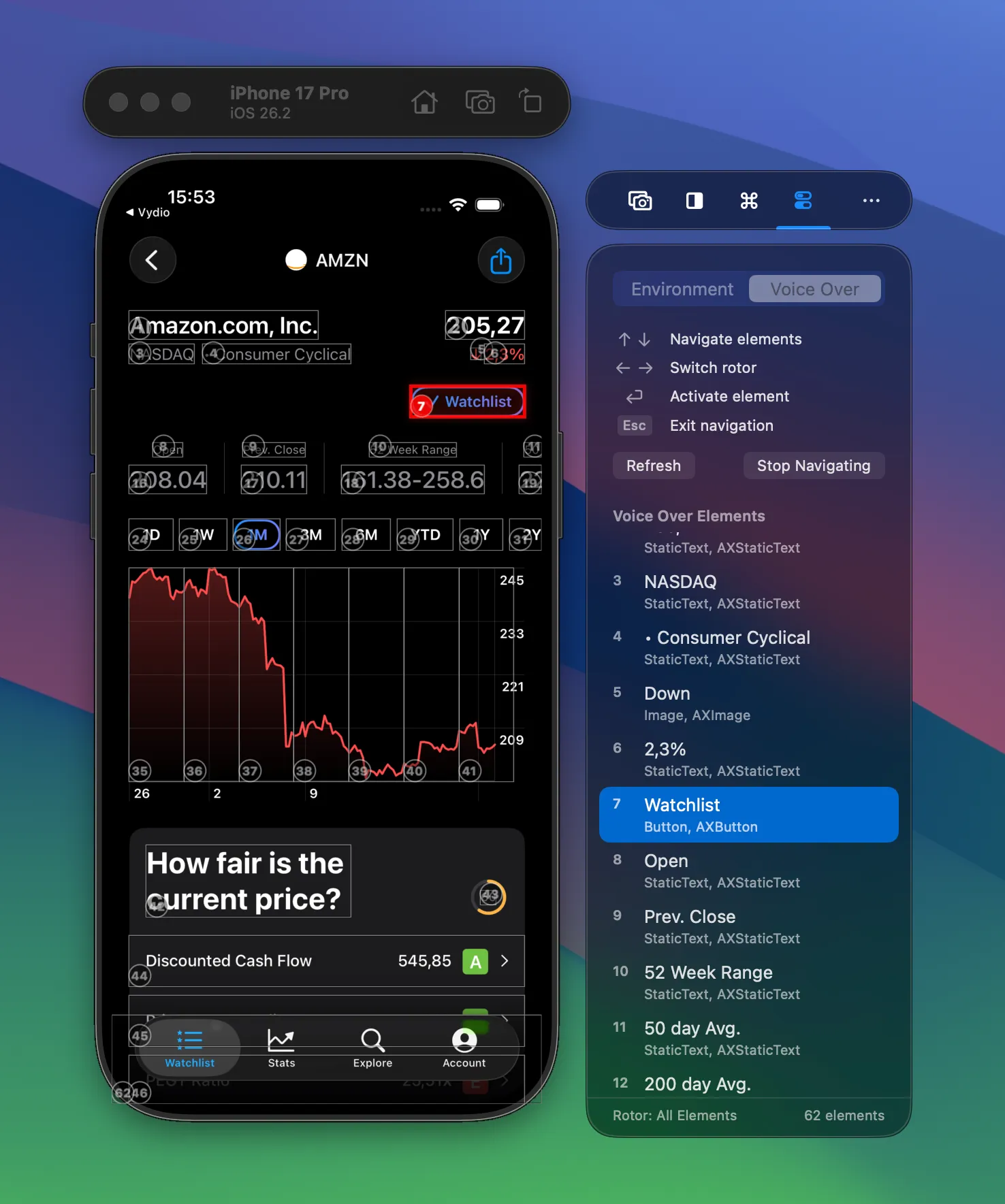
No device, no gestures, no context switch. You get a much quicker loop for checking reading order, rotor groupings, and activation flow while you develop.
Find issues automatically
Section titled “Find issues automatically”The navigator helps you check the experience by hand. To scan the current screen for missing labels, small tap targets, low contrast, and VoiceOver problems automatically, use the Audit tab. Read Accessibility Audit to learn how it works in the UI and from the CLI.