Grids & Rulers
Add grid overlays and rulers to the iOS Simulator or a connected physical device for precise layout alignment.
Aligning elements based on grids and rulers allows you to create a balanced design.
RocketSim 16 supports grids and rulers on both Simulator windows and connected physical-device preview windows, so you can inspect spacing on real hardware as well.
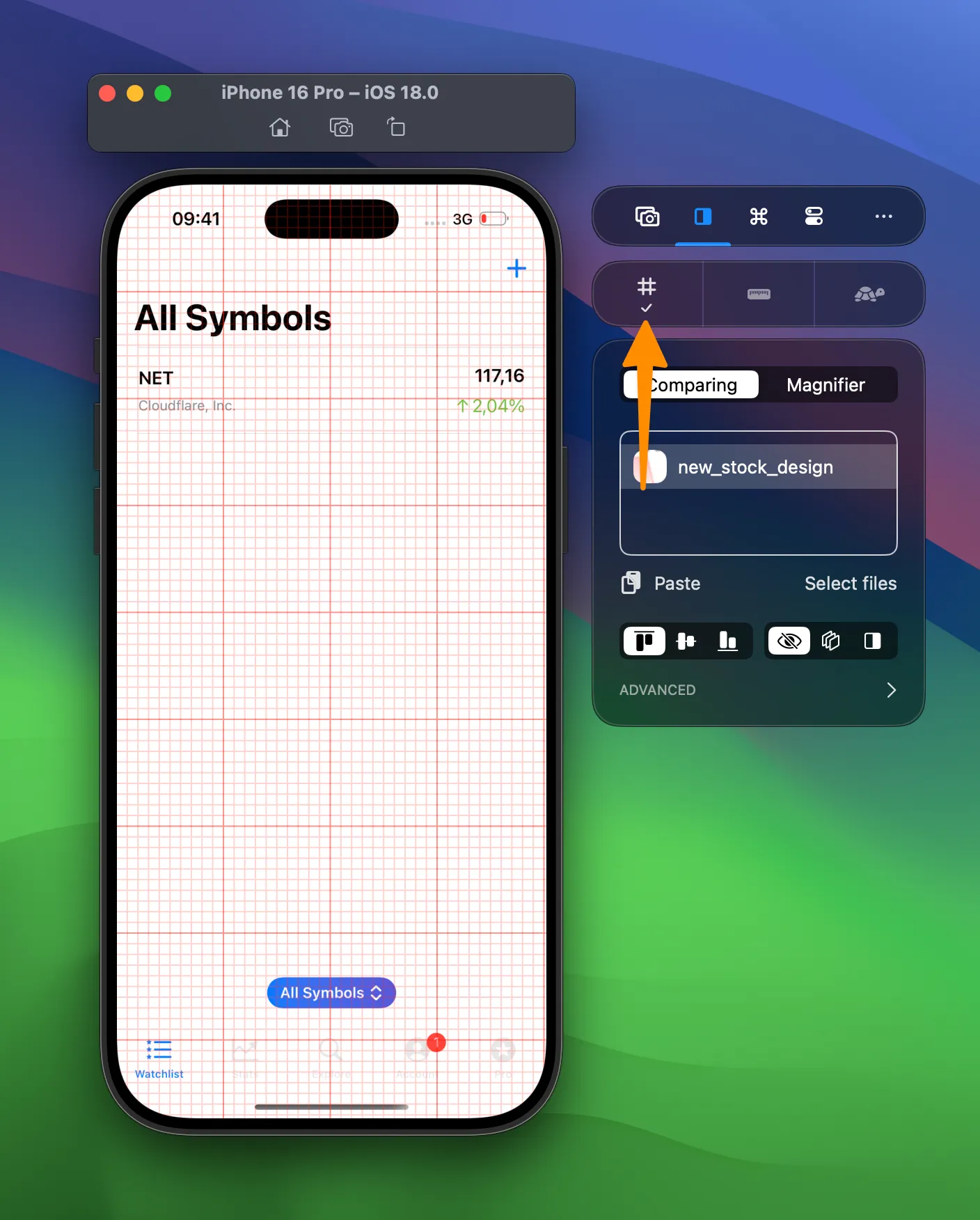
Showing the Grid
Section titled “Showing the Grid”- Open the Simulator or connect a supported physical iOS device
- Select the comparing tab
- Click on the Grid button:
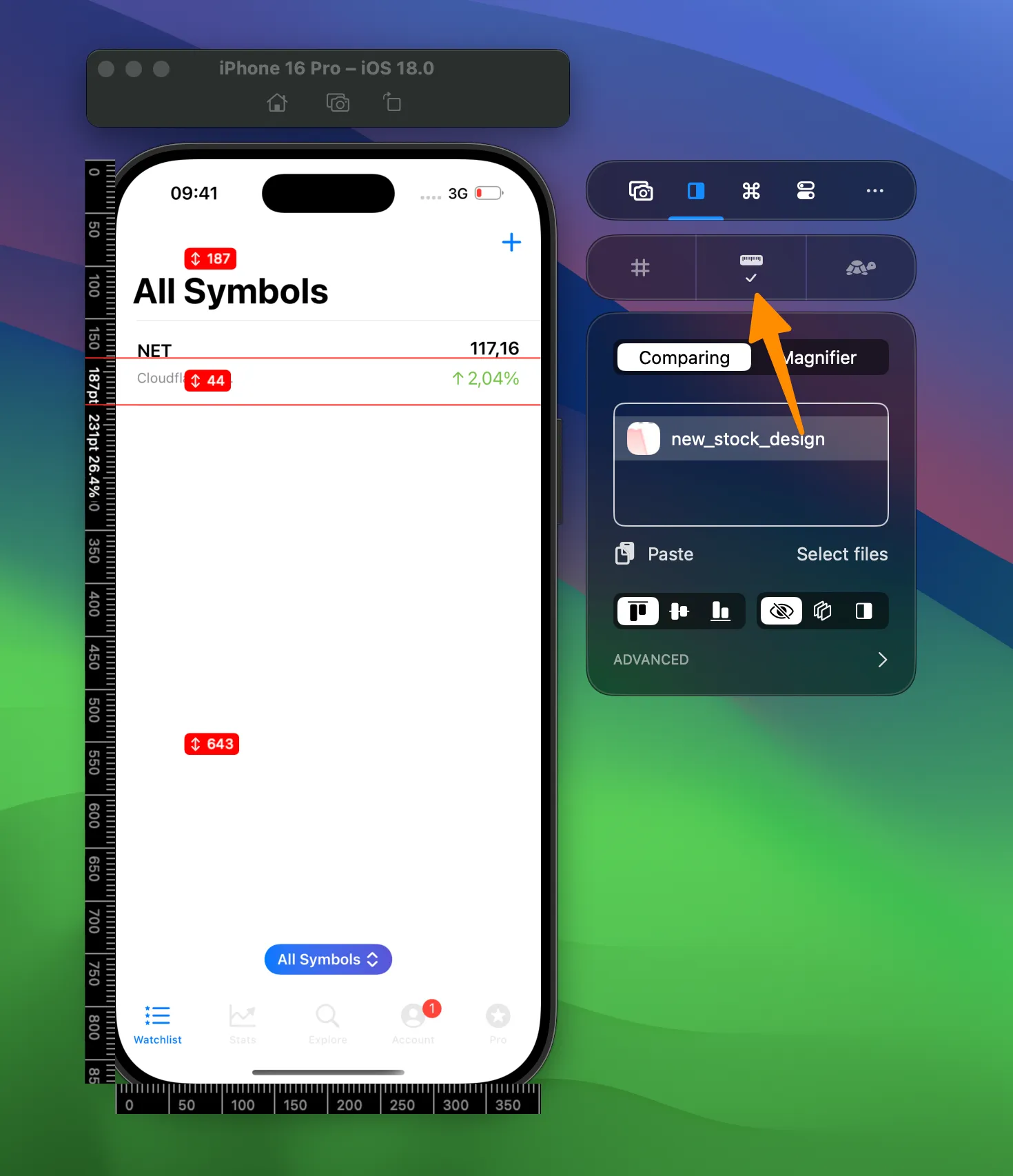
Showing Rulers
Section titled “Showing Rulers”- Open the Simulator or connect a supported physical iOS device
- Select the comparing tab
- Click on the Rulers button
- Hover over the horizontal or vertical ruler and left-mouse click to store a ruler:
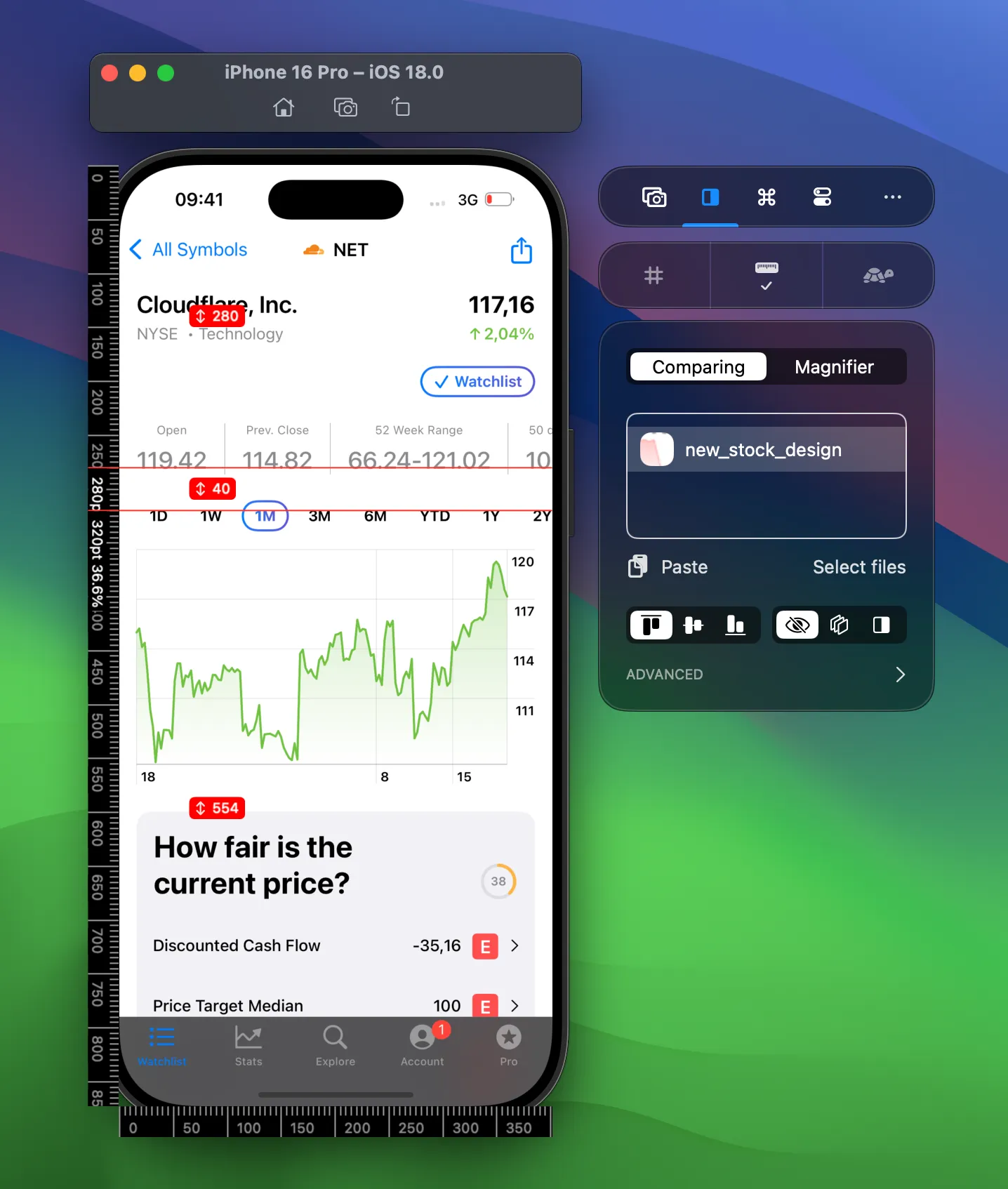
Showing the distance between rulers
Section titled “Showing the distance between rulers”By tapping ⇧ Shift while your rulers are visible, you’ll be able to see the distance between Rulers and the edges:
Deleting a ruler
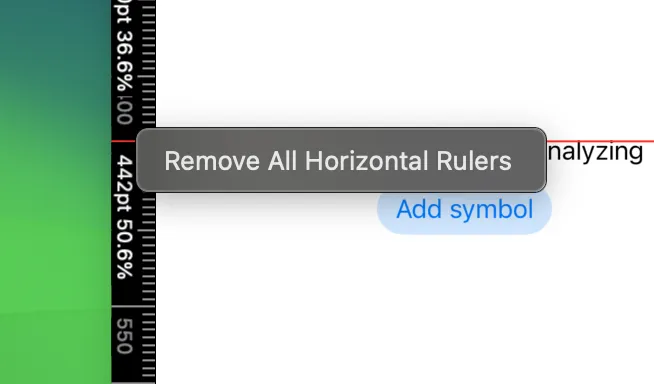
Section titled “Deleting a ruler”You can delete a ruler by dragging it outside of the Simulator’s view or by right-clicking the ruler bar:
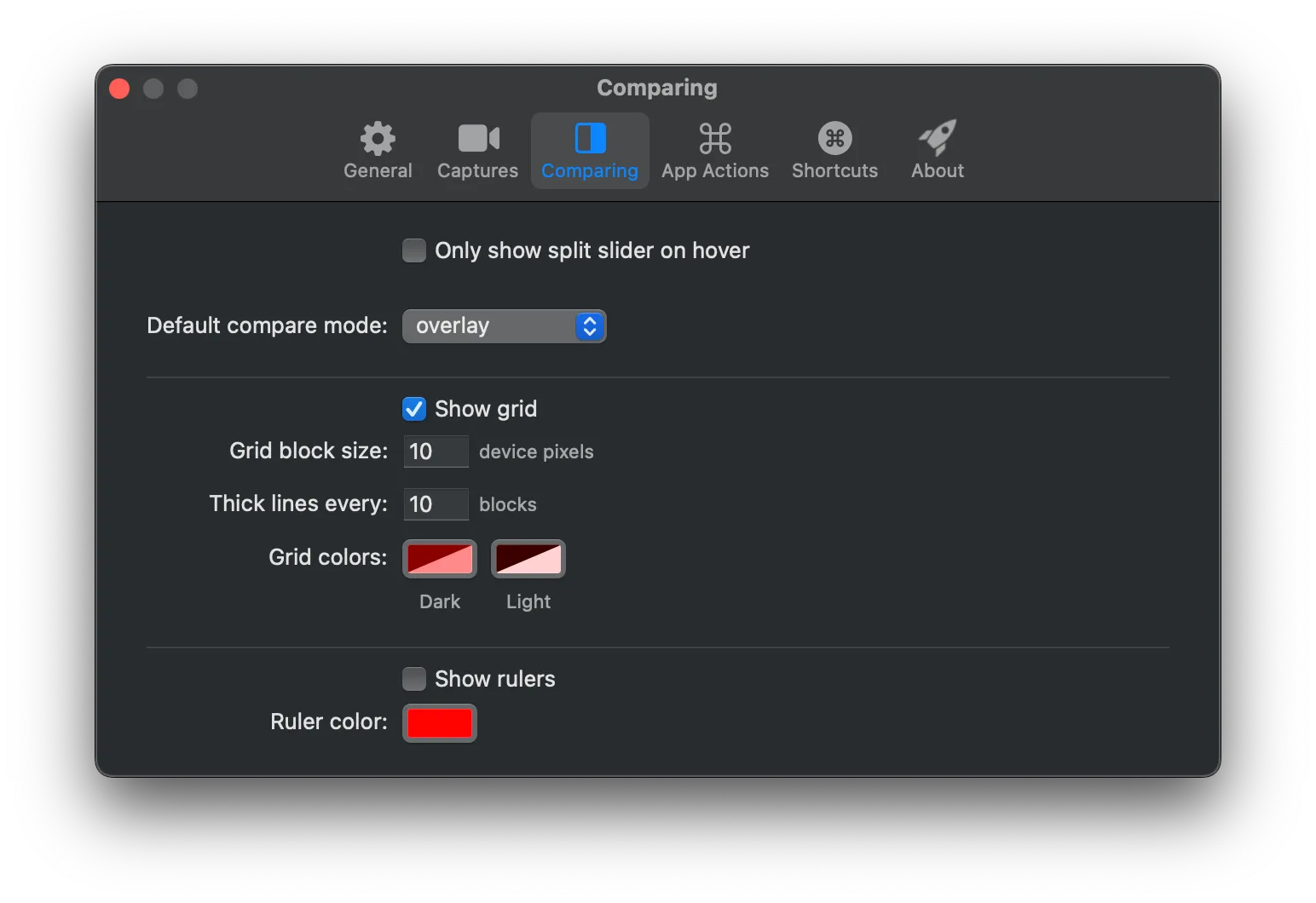
Adjusting the grid size, color, and Ruler settings
Section titled “Adjusting the grid size, color, and Ruler settings”From within the Settings page, you can adjust the size of the grid, as well as the colors of both grid and rulers: