


Location Simulation on the iOS Simulator and Devices
Simulate GPS locations, custom coordinates, driving routes, and walking routes on the iOS Simulator or a physical iPhone or iPad with RocketSim.
Testing location-aware apps should not require driving around with a MacBook. RocketSim lets you simulate GPS updates on the iOS Simulator and, starting with RocketSim 16.4 and Xcode 27, on a connected physical iPhone or iPad.
Quick location controls
Section titled “Quick location controls”Open the Locations tab in the RocketSim side window for the focused Simulator. From there you can reset the current simulated location, run a built-in scenario, or pick a custom location from the map.
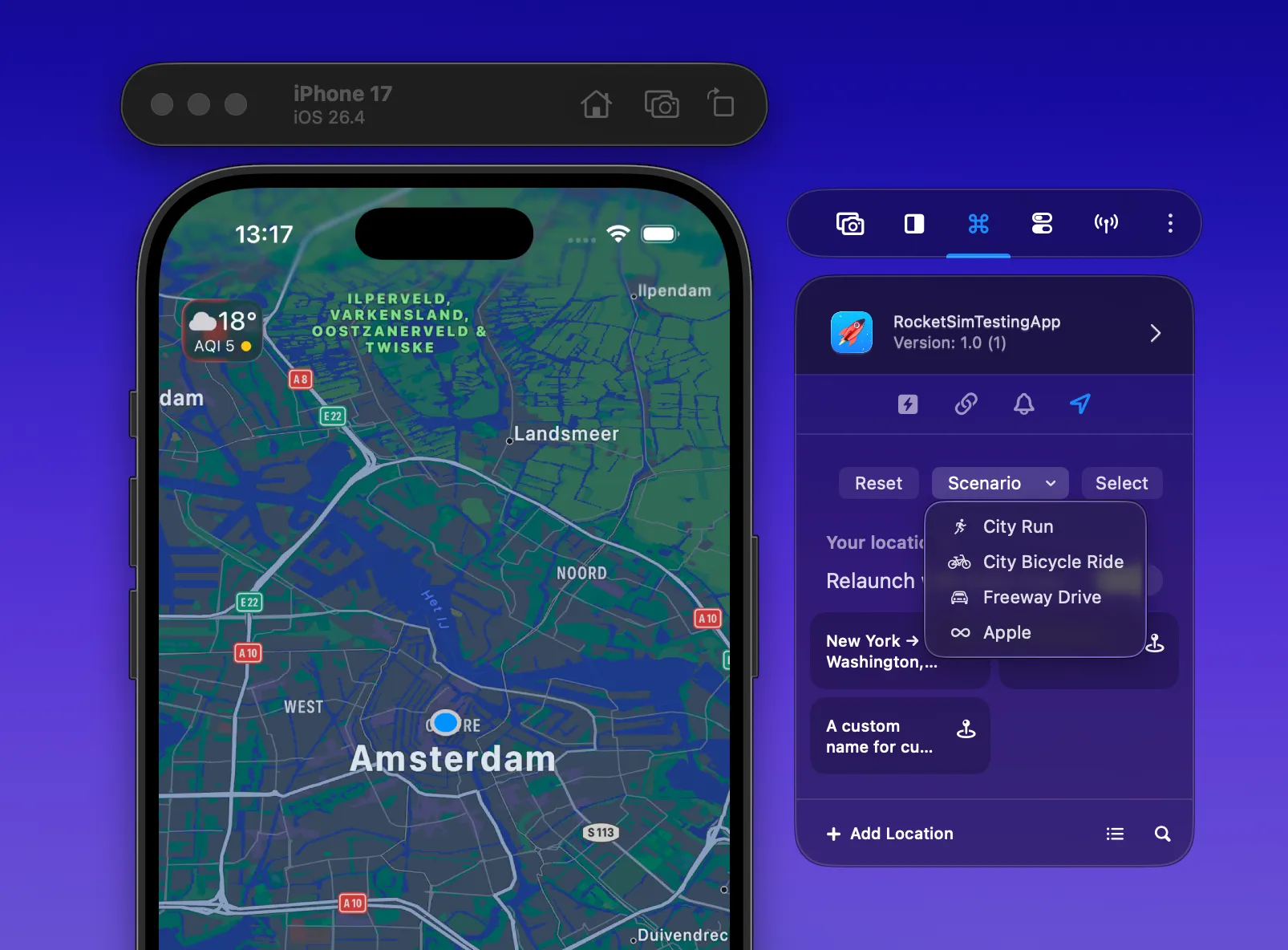
The Scenario menu uses the Simulator’s built-in location scenarios:
- City Run
- City Bicycle Ride
- Freeway Drive
- Apple
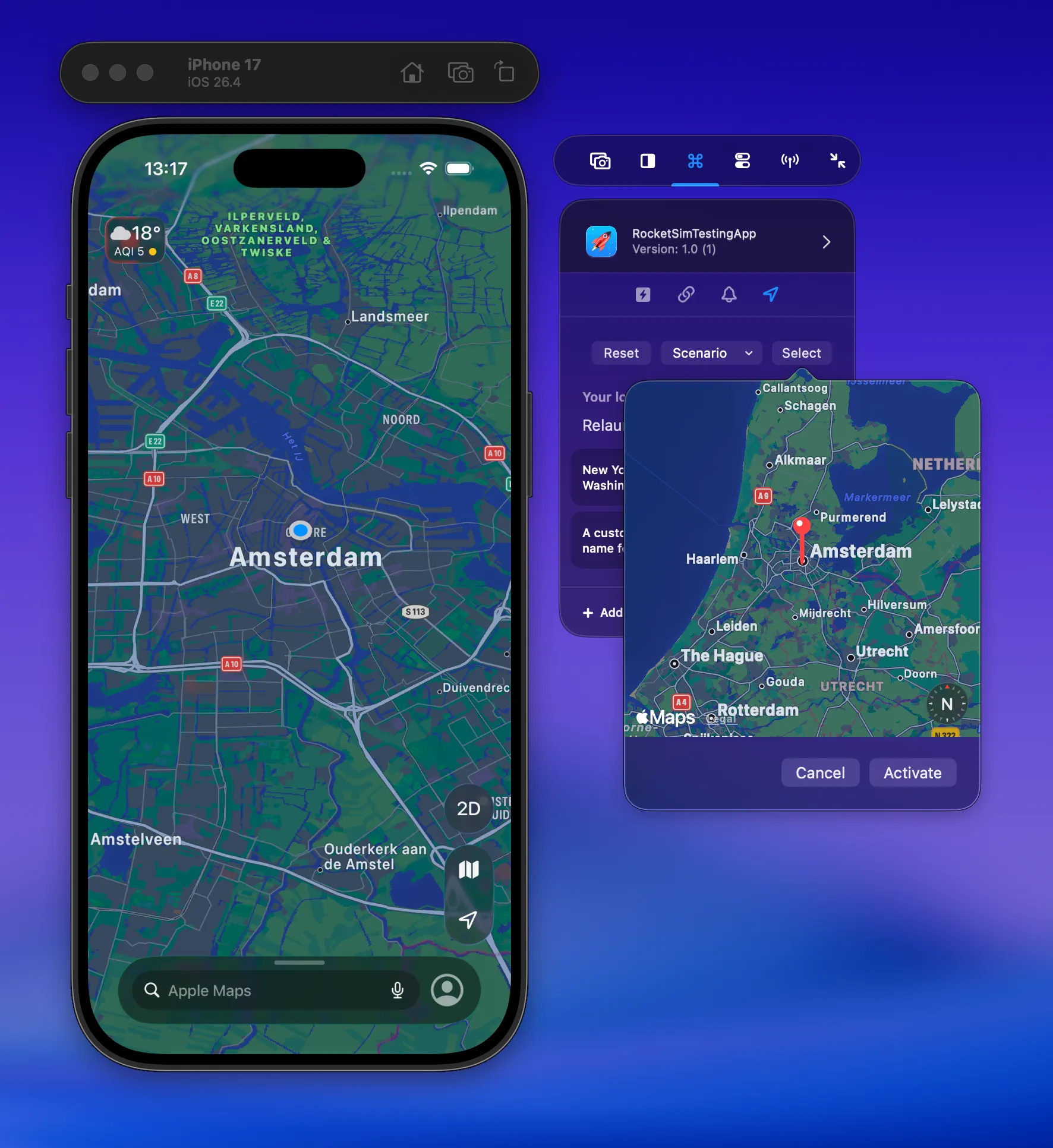
Use Select when you want to test a one-off location. Move the map so the pin points at the desired place and press Activate.
Save locations as App Actions
Section titled “Save locations as App Actions”For locations you use often, create a saved location App Action in Settings → App Actions. Saved locations are linked to your app’s bundle identifier and appear in the side window whenever the matching build is selected.
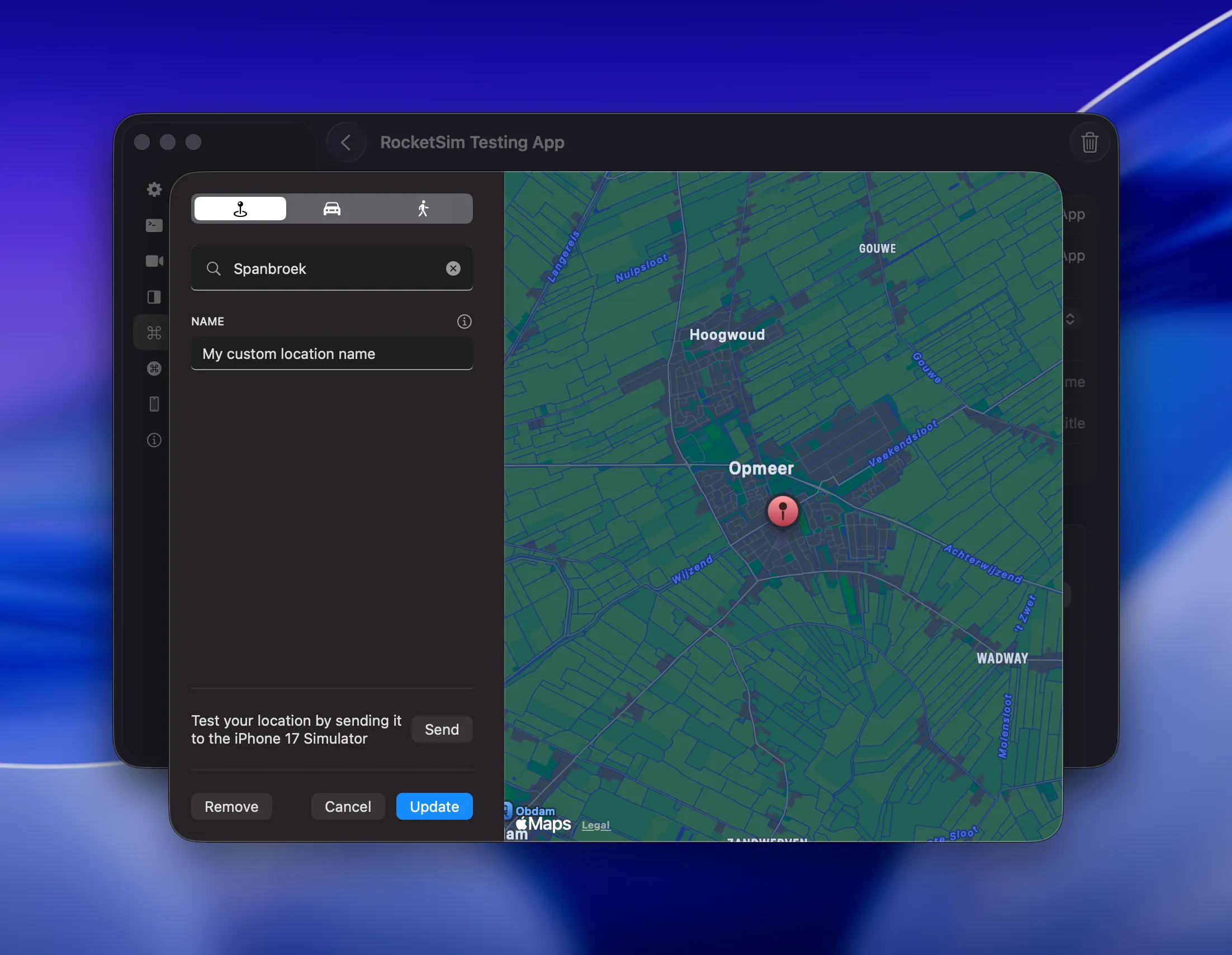
RocketSim supports three saved location types:
- Single location: set the Simulator to one coordinate.
- Car route: simulate a driving route between two locations.
- Walking route: simulate a walking route between two locations.
You can provide a custom name so the action is easy to recognize in the side window. Use the Send button while editing to test the location before saving it.
Use custom coordinates
Section titled “Use custom coordinates”The location search fields accept addresses and raw coordinates. Enter coordinates as latitude, longitude, for example:
52.371807, 4.896029When RocketSim recognizes the format, it shows the result as Custom Coordinates. This works for single locations and for the start or destination of routes.
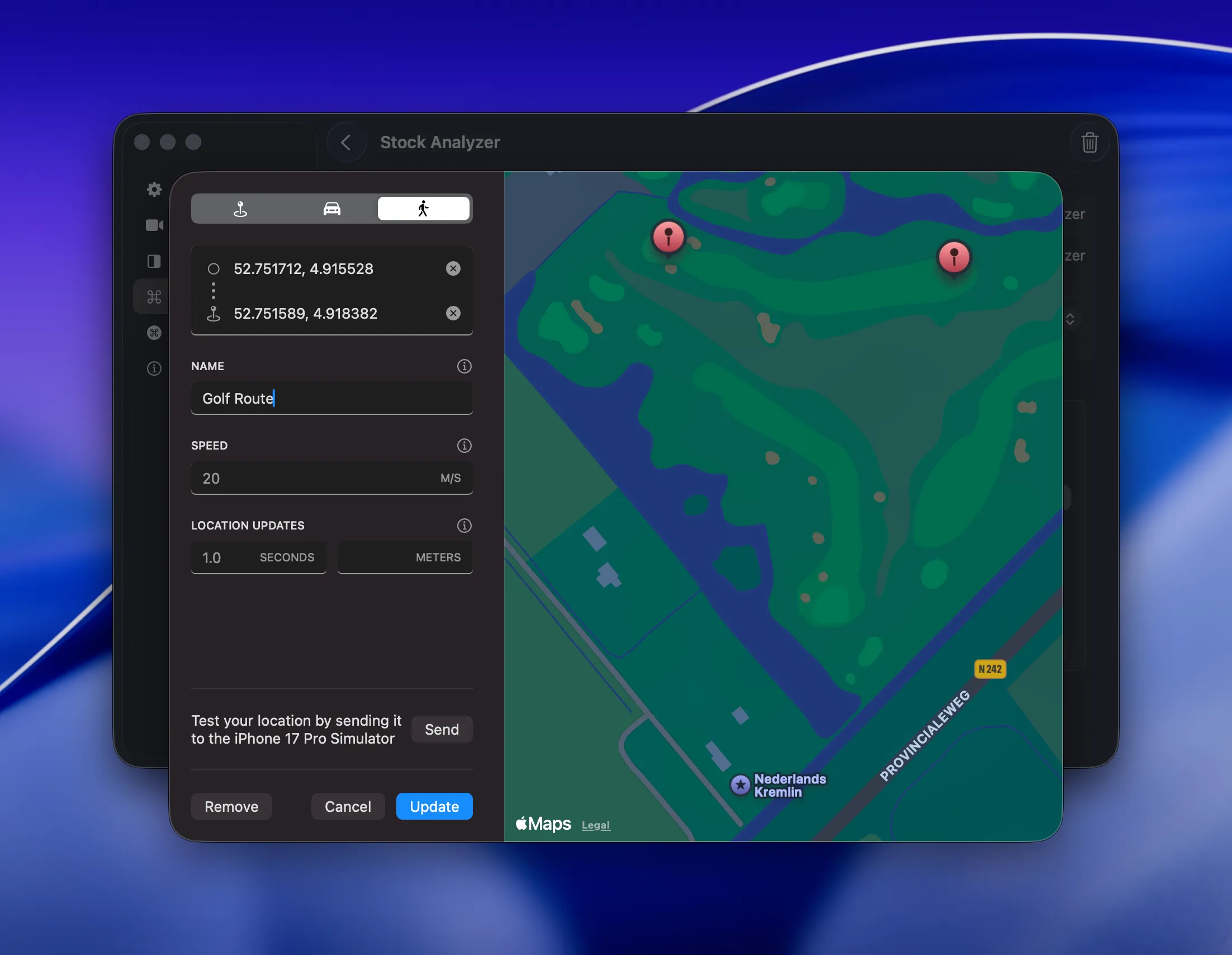
Custom coordinates are useful for testing repeatable real-world paths. For example, a golf app can save a route from one hole coordinate to another and replay that route whenever you need to validate distance, map rendering, or location update handling.
Pick waypoints from the map
Section titled “Pick waypoints from the map”RocketSim 16.0.2 adds coordinate picking directly from the map. Focus the From, To, or single Location field, then long-press a point on the map to fill that field with the selected coordinates.
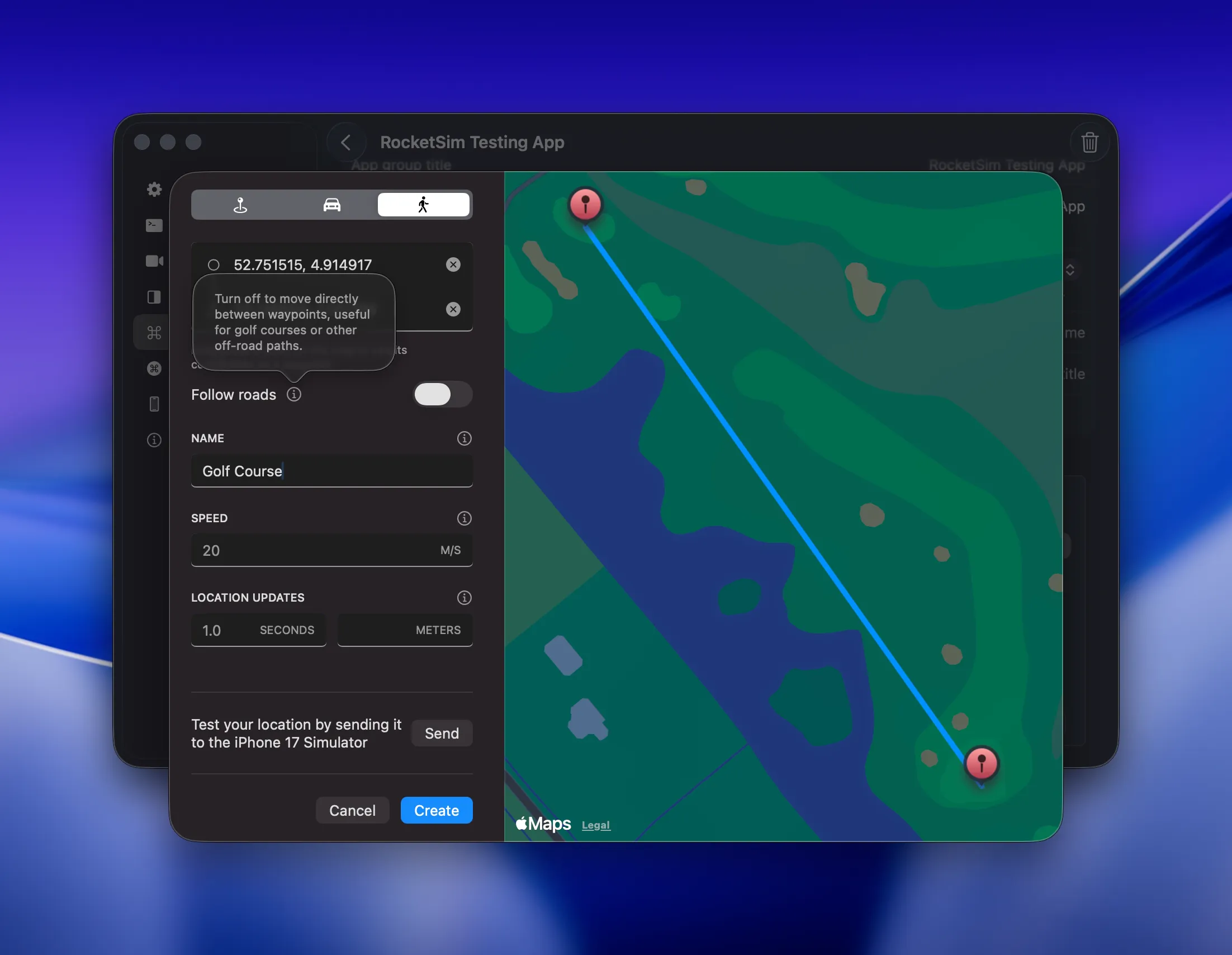
For routes, use Follow roads to choose how RocketSim connects both waypoints:
- Enabled: calculate a car or walking route using Apple Maps directions.
- Disabled: move directly between the two selected waypoints, which is useful for golf courses, hiking paths, indoor routes, or any other off-road scenario.
Simulate car and walking routes
Section titled “Simulate car and walking routes”Choose the car or walking icon in the location editor to create a route. With Follow roads enabled, RocketSim calculates the route using Apple Maps directions and previews it on the map before you save it.
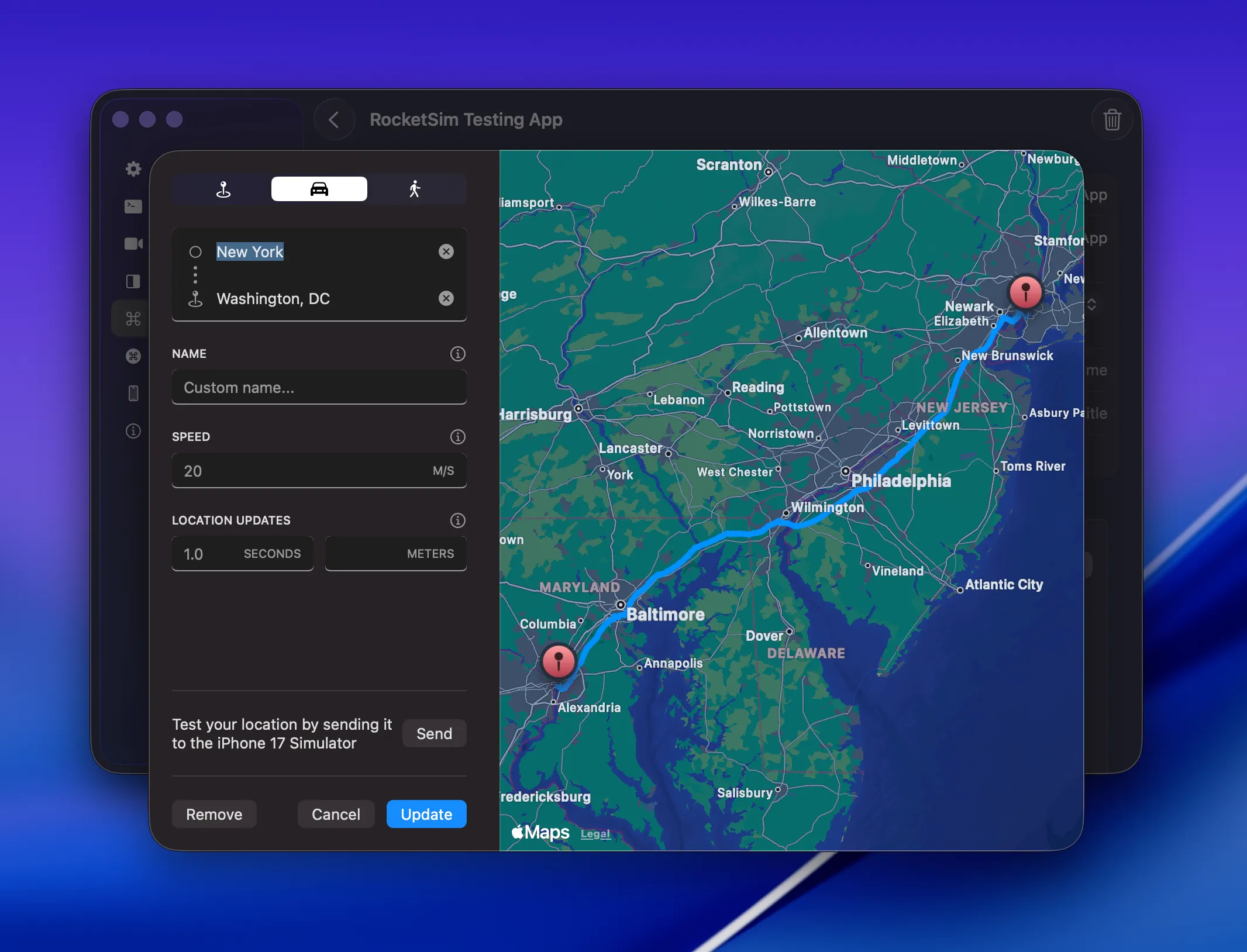
Route App Actions support optional tuning:
- Speed: meters per second. If empty, the Simulator uses
20 m/s. - Interval: send location updates at a fixed number of seconds. If empty, the Simulator uses
1.0second. - Distance: send location updates every number of meters traveled.
Use interval or distance depending on what you want to validate. Interval-based updates are useful for UI refresh behavior, while distance-based updates are useful for apps that react to traveled distance.
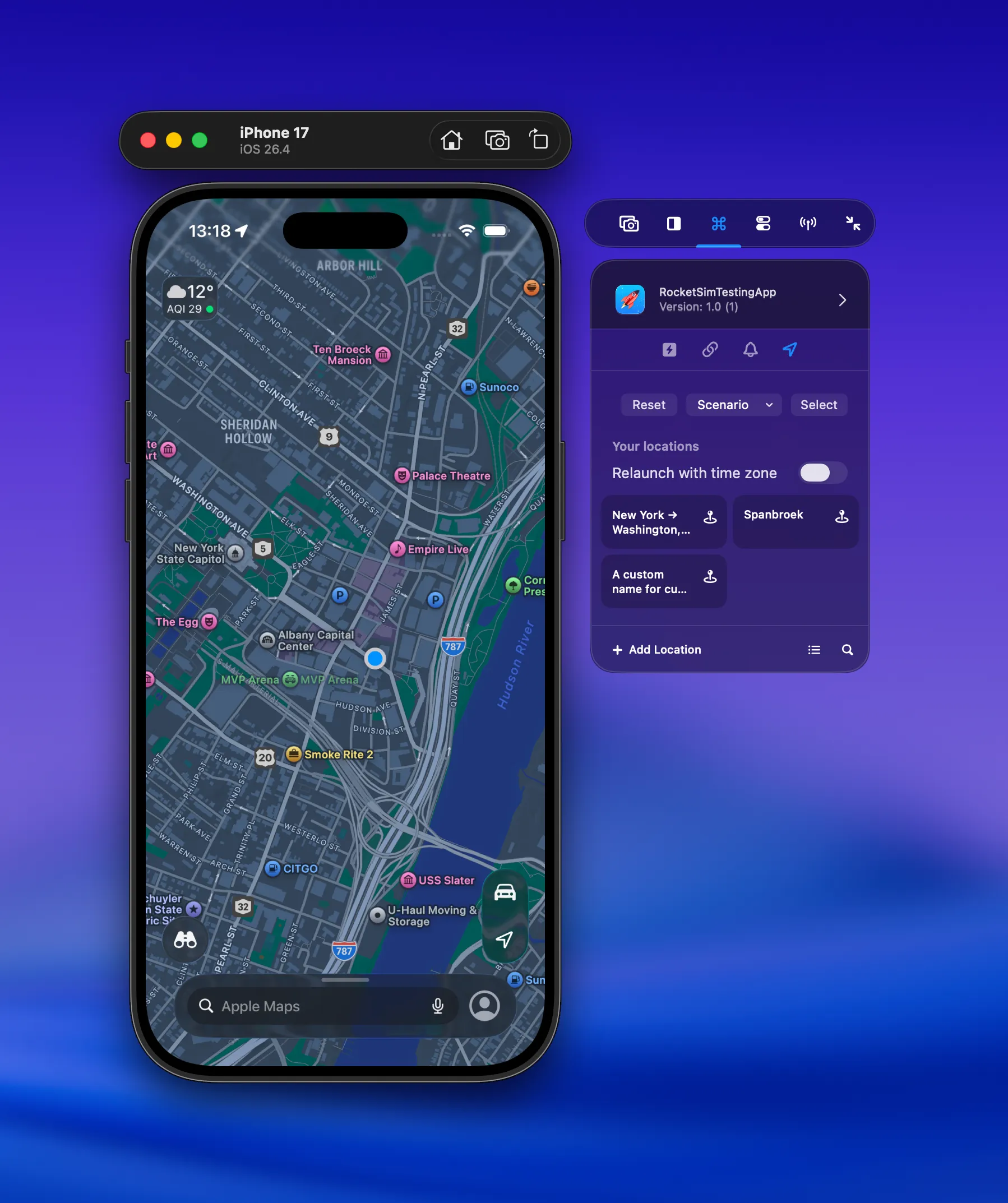
Saved routes currently use a start and destination. Multi-stop paths are not exposed as a saved App Action route, but you can still create precise point-to-point routes by entering custom coordinates or by long-pressing the map for both fields.
Relaunch with the matching time zone
Section titled “Relaunch with the matching time zone”Enable Relaunch with time zone in the Locations tab when your app needs its process time zone to match the simulated location. RocketSim reverse-geocodes the simulated location, terminates the selected app, and launches it again with the matching time zone environment.
This is helpful for apps that combine location and date logic, such as calendars, travel apps, delivery apps, or booking flows.
This explicit relaunch option is for Simulator apps. On a physical iOS device, iOS can instead update the device’s automatic system time zone from the simulated coordinate. See Physical-Device Location and Time-Zone Simulation for requirements and behavior.
Simulate locations on a physical device
Section titled “Simulate locations on a physical device”RocketSim 16.4 reuses the Locations workflow for physical-device builds when Xcode 27’s device-control service supports it. You can select a coordinate, run an available scenario, reset the simulation, or execute a saved single-location or route App Action.
The physical workflow requires an app run from Xcode and selected under the device’s Recent Builds tab. See the physical-device location guide for setup, system time-zone testing, and beta limitations.
Share location actions with your team
Section titled “Share location actions with your team”Saved location App Actions are included when you sync App Actions to JSON, including their route option, Follow roads setting, speed, interval, distance, and waypoints. This lets a team keep common test locations and routes in Git next to deeplinks and push notifications.
See How Large Teams Use RocketSim for more on sharing App Actions using Git.
Related testing
Section titled “Related testing”Location simulation changes the Simulator’s GPS location. If you also need to test permission states, use Privacy & Permissions to grant, revoke, or reset Location and Location Always permissions.
Push notification and privacy App Actions remain Simulator-only. RocketSim filters unavailable actions when a physical target is selected.
For more background, read Location Simulation in Xcode’s Simulator.