


CLI & Agent
Install RocketSim's command line tool and bundled Agent Skill from Settings so agents and scripts use the latest installed app version.
Use RocketSim → Settings → CLI & Agent to install the rocketsim command line tool and the RocketSim Agent Skill.
This is the recommended setup for agentic development. The command line tool gives agents a fast way to interact with the running Simulator through RocketSim, while the Agent Skill teaches your AI coding tool how to use that CLI reliably.
Install the command line tool
Section titled “Install the command line tool”- Open RocketSim → Settings → CLI & Agent
- In Command Line Tool, click Install Command Line Tool
- Choose the default selected folder if it is on your
PATH, or pick another folder such as/opt/homebrew/binor/usr/local/bin - Confirm the installation
RocketSim creates a rocketsim symlink in the folder you choose. The real executable stays inside RocketSim.app.
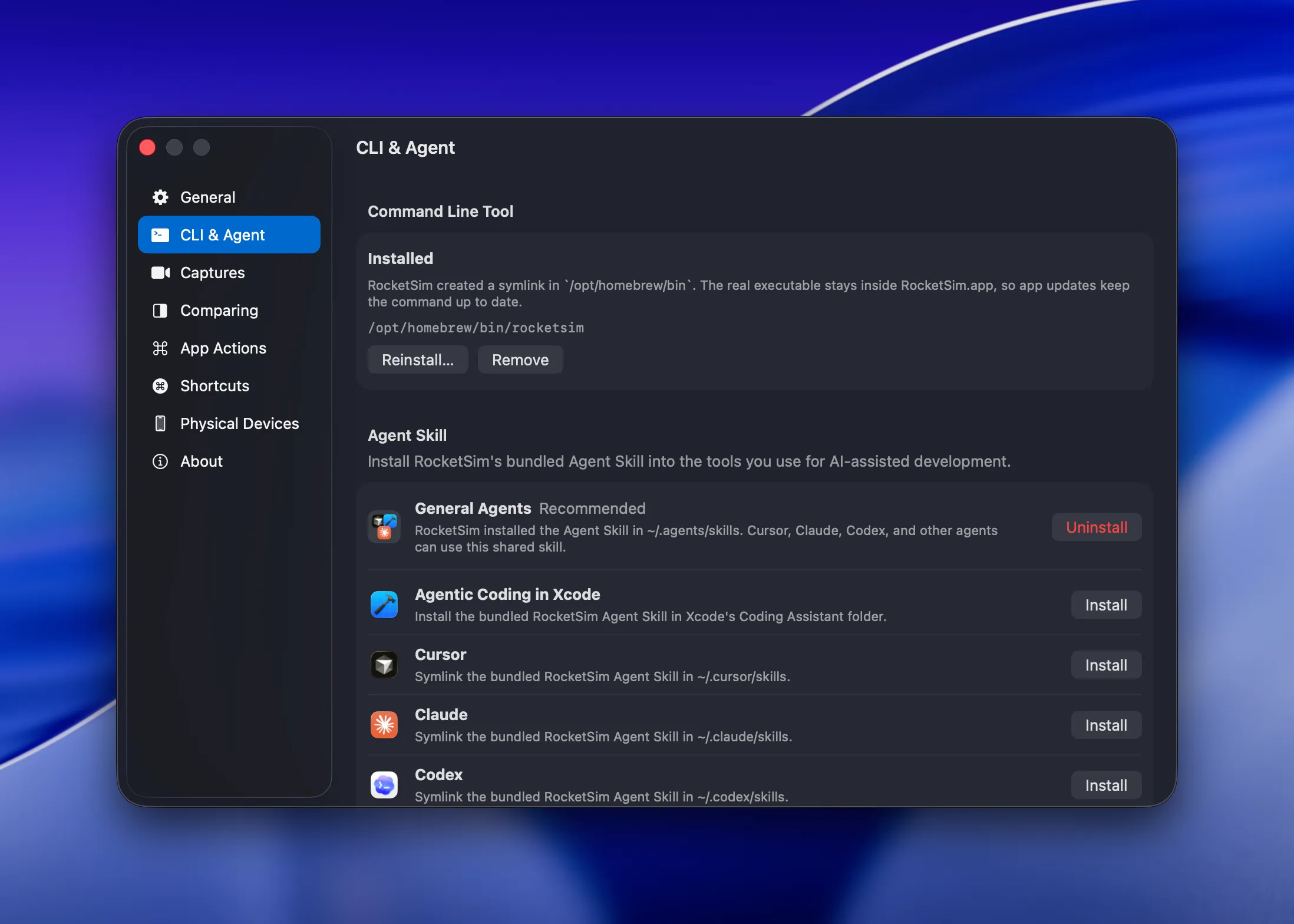
That means:
rocketsimis available from Terminal, agents, and CI scripts- The command stays tied to the RocketSim app you installed
- App Store updates keep the command up to date automatically
- Repairing the install updates the symlink if RocketSim moved
Install the Agent Skill
Section titled “Install the Agent Skill”The Agent Skill is installed from the same settings page.
- Open RocketSim → Settings → CLI & Agent
- Install the command line tool first if it is not installed yet
- In Agent Skill, choose General Agents for broad support or Agentic Coding in Xcode for Xcode’s built-in coding assistant
- Click Install
- Restart or refresh your tool if it does not detect new skills automatically
RocketSim installs the skill as a symlink to the bundled skill inside the app. The skill and CLI are version-matched, so your agent receives instructions that match the RocketSim version it is controlling.
We recommend General Agents because it installs into the shared .agents/skills location. Multiple AI coding tools can reuse that same version-matched RocketSim skill.
Use Agentic Coding in Xcode when you want Xcode’s built-in Claude Agent or Codex integration to discover RocketSim. Xcode stores coding assistant configuration under ~/Library/Developer/Xcode/CodingAssistant, separate from Claude Code’s ~/.claude/skills folder.
Use a tool-specific destination only if your tool does not scan the shared location.
Why this setup is recommended
Section titled “Why this setup is recommended”The RocketSim Mac app is already running beside the Simulator. It can keep state, cache expensive work, and optimize repeated agent loops. The CLI exposes that running app to agents, and the Agent Skill helps agents use the CLI in the right order.
Compared with other tools available to control the iOS Simulator, RocketSim produced over 99% less command output, had an about 95% lower byte-based context estimate, and used about 24% less measured command time in our July 2026 head-to-head benchmark. Read how we test the CLI and Agent Skill for the scenarios, methodology, and improvement findings.
Verify the setup
Section titled “Verify the setup”Run:
rocketsim doctorThe doctor command checks whether RocketSim, the CLI install, the Simulator, accessibility permissions, and agent workflow state are ready. Run it when setup appears broken, not before every interaction. RocketSim 16.4.2 also discovers booted Simulators shown through Xcode 27’s Device Hub.
Then ask your AI coding tool:
Use RocketSim to inspect the visible elements in the focused Simulator
If everything is installed correctly, the agent should use RocketSim to read the current screen and continue from there.
Troubleshooting
Section titled “Troubleshooting”The command is not found
Section titled “The command is not found”Agent shells can have a different PATH than Terminal. Check /opt/homebrew/bin/rocketsim, /usr/local/bin/rocketsim, ~/.local/bin/rocketsim, and /Applications/RocketSim.app/Contents/Helpers/rocketsim. If none is available, reinstall from Settings → CLI & Agent and choose a folder on the agent’s PATH.
RocketSim says the command needs repair
Section titled “RocketSim says the command needs repair”The existing rocketsim symlink points somewhere unexpected. Click Repair Command Line Tool to point it back to the current RocketSim app.
My agent does not see the skill
Section titled “My agent does not see the skill”Some AI coding tools only scan skill folders when they start. Restart the tool or reload its workspace after installing the skill.
If you are using Claude Agent inside Xcode, install Agentic Coding in Xcode instead of the Claude destination. The Claude row installs into ~/.claude/skills, while Xcode’s built-in coding assistant reads from its own ~/Library/Developer/Xcode/CodingAssistant configuration folders.
I use a custom skill folder
Section titled “I use a custom skill folder”Use Choose Custom Skill Folder… in the Agent Skill section and select the folder your tool scans for skills.
Device Hub is open, but no Simulator is found
Section titled “Device Hub is open, but no Simulator is found”RocketSim 16.4.2 resolves booted Simulators through Device Hub as well as Simulator.app. If only one Simulator is booted, RocketSim selects it automatically. If several are available, focus one or pass its UDID using --udid <udid>, then run rocketsim doctor again.
A network command asks for approval
Section titled “A network command asks for approval”Open RocketSim’s Networking window and approve the Network Extension once. macOS requires this user action and agents cannot complete it headlessly. If a command reports a timeout instead, retry once; RocketSim 16.4.2 now fails after a bounded wait instead of hanging indefinitely.