


Setting Up RocketSim Connect
Enable RocketSim Connect for network monitoring and Simulator Camera with RocketSim's automatic, debug-only Xcode LLDB setup.
RocketSim Connect enables features like Simulator Camera and Network Traffic Monitoring by establishing a local connection between your Simulator app and the RocketSim Mac app. Without it, those features simply won’t work.
How it works
Section titled “How it works”RocketSim Connect uses a small framework bundled inside RocketSim.app. Xcode loads that framework into your app while it runs in the iOS Simulator, after which it finds the RocketSim Mac app through Bonjour and establishes a local connection.
The recommended setup does not add a package, framework, build phase, or source-code change to your Xcode project. It only runs when Xcode launches an iOS Simulator app under the debugger, so archived and App Store builds are unaffected.
Where to find the onboarding
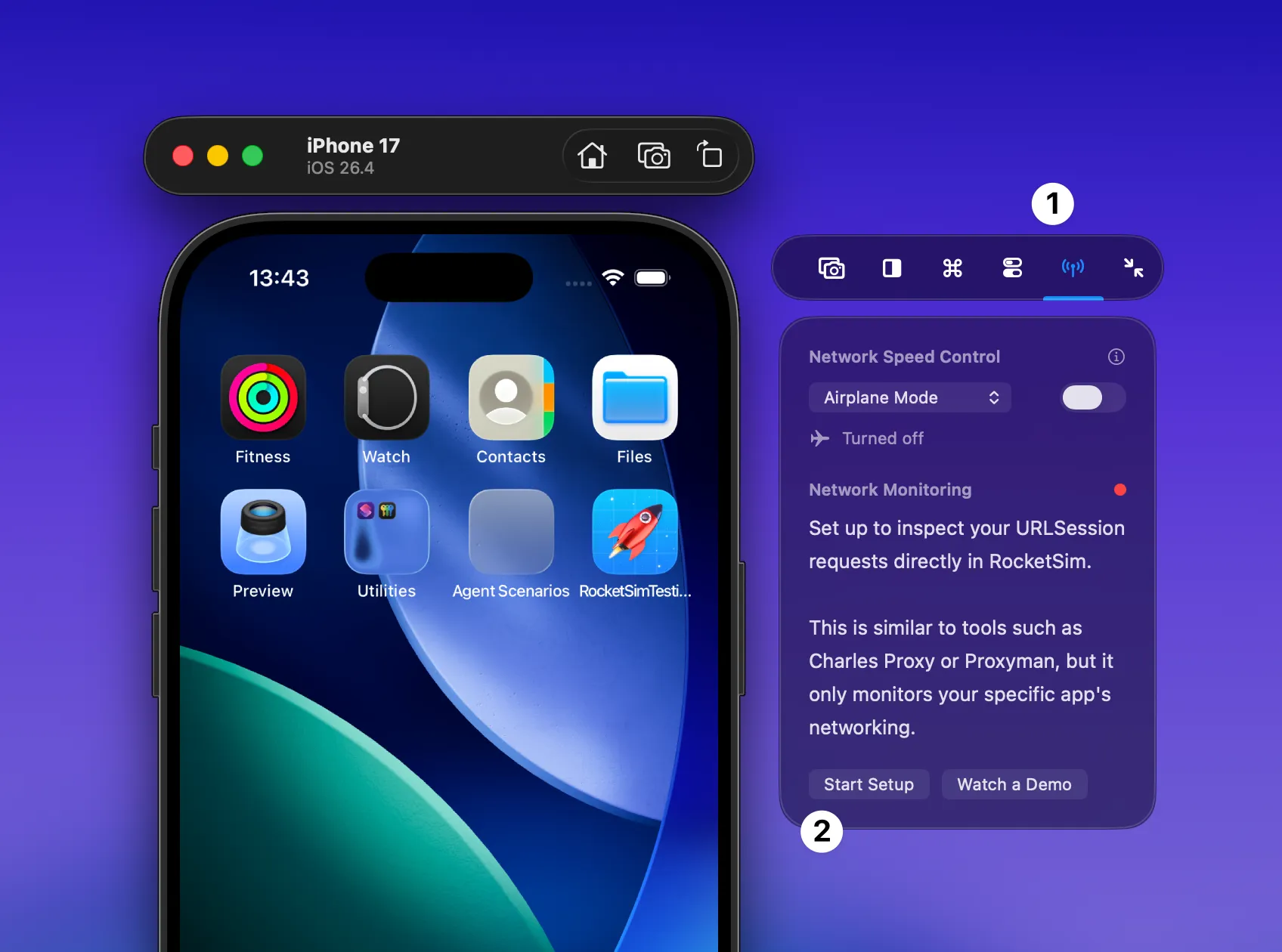
Section titled “Where to find the onboarding”Select the side window’s Networking tab with the antenna icon, then press Start Setup.
Recommended: automatic Xcode setup
Section titled “Recommended: automatic Xcode setup”RocketSim configures Xcode through its ~/.lldbinit-Xcode file. This is the recommended setup because it works automatically for every Simulator app you debug and keeps RocketSim Connect matched to your installed RocketSim version.
What is .lldbinit-Xcode?
Section titled “What is .lldbinit-Xcode?”LLDB is the debugger used by Xcode. Each time Xcode starts a debugging session, LLDB reads the hidden ~/.lldbinit-Xcode file from your home folder.
In simple terms, the file tells Xcode: “When I debug an iOS Simulator app, also load RocketSim Connect.”
RocketSim adds a small, clearly marked block:
# BEGIN RocketSim Connect LLDB Hookcommand source "/Users/<you>/Library/Application Support/com.swiftlee.RocketSim/rocketsim-connect-lldbinit"# END RocketSim Connect LLDB HookThe block only points to a RocketSim-managed helper script. RocketSim leaves your other LLDB settings untouched and can update or remove its own block independently.
What happens when you run your app?
Section titled “What happens when you run your app?”- Xcode starts an LLDB debugging session and reads
~/.lldbinit-Xcode. - The managed RocketSim script waits until the app reaches
main. - It confirms the target is an iOS Simulator app. Mac apps and physical-device processes are ignored.
- LLDB loads the
RocketSimConnectLinkerframework from your installed RocketSim.app. - RocketSim Connect discovers the RocketSim Mac app locally and enables features such as Network Monitoring and Simulator Camera.
The helper uses LLDB’s standard process load command. Nothing is permanently embedded in your app, and changing projects requires no additional setup.
Install the LLDB init hook
Section titled “Install the LLDB init hook”Press Start Setup and follow the displayed steps:
- If
~/.lldbinit-Xcodealready exists, choose Select ~/.lldbinit-Xcode and select that exact file when macOS asks for access. - If it does not exist, choose Create ~/.lldbinit-Xcode and confirm the hidden filename.
- Run your app from Xcode.
- The setup view completes after the first debug-launched app connects.
RocketSim 16.4.2 also offers Validate Later when you want to finish onboarding before launching a debug build. The LLDB init hook remains installed, and RocketSim validates the connection the next time an eligible Simulator app starts.
If file access does not work, RocketSim also provides an inspectable Terminal command. It creates the helper script and updates only RocketSim’s managed block. The command does not use sudo or request broad access to your home folder.
Existing symbolic-breakpoint setups are considered legacy. RocketSim can prompt older installations to move to the LLDB init workflow so Connect setup remains consistent across projects.
Why RocketSim uses a separate helper script
Section titled “Why RocketSim uses a separate helper script”Keeping the implementation in RocketSim’s Application Support folder leaves your personal LLDB init file readable and minimal. It also lets RocketSim repair a stale framework path if RocketSim.app moves or is reinstalled. RocketSim 16.4.2 reduces the work performed during LLDB startup, making Connect initialization faster in both Xcode 26 and Xcode 27.
After a RocketSim update, the setup continues to load the framework from the installed app. If RocketSim reports that the hook is outdated, reopen the Connect setup and let RocketSim repair it.
Troubleshooting automatic setup
Section titled “Troubleshooting automatic setup”- Make sure you run the app from Xcode with the debugger attached.
- The hook supports iOS Simulator targets; it intentionally ignores physical devices and Mac apps.
- If RocketSim lost access to
~/.lldbinit-Xcode, select the file again from the setup screen. - If RocketSim.app moved, use the setup screen to repair the generated helper script.
- Existing custom commands in
.lldbinit-Xcodecan remain; RocketSim owns only the block between itsBEGINandENDcomments. - Restart the current Xcode debug session after installing or repairing the hook.
Check or remove the setup in Settings
Section titled “Check or remove the setup in Settings”RocketSim 16.5 added a Connect pane to RocketSim’s settings (RocketSim → Settings → Connect). It shows the connection status, LLDB setup diagnostics, and manual setup commands, and it lets you remove the Xcode debugger integration when you no longer want RocketSim Connect to load.
If you installed the hook through Terminal earlier, run the copied setup command again from Settings → Connect after updating. Xcode 27 and macOS 27 load the hook from RocketSim.app, and RocketSim repairs existing installs automatically when it launches.
Alternative: copy the debug code
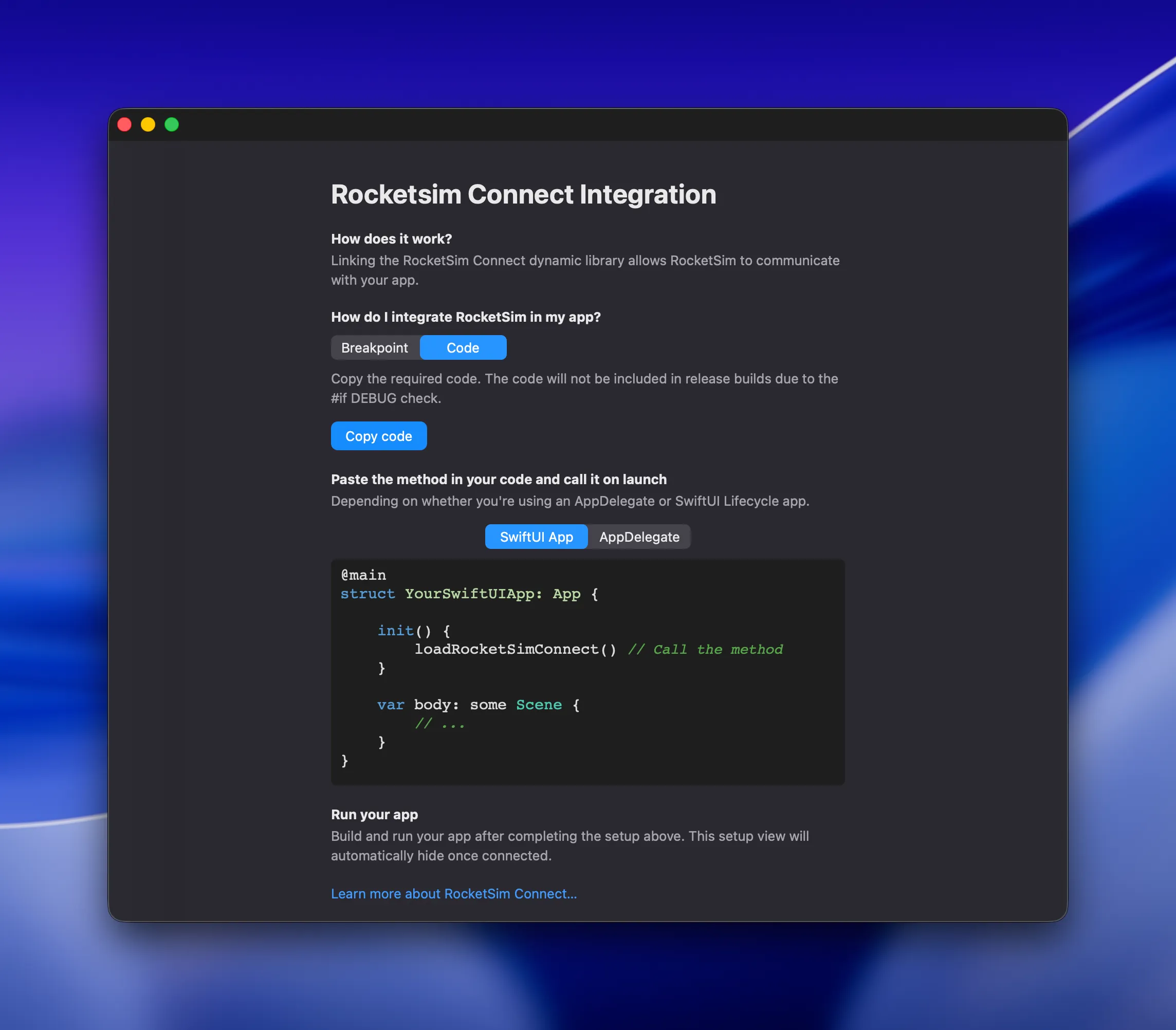
Section titled “Alternative: copy the debug code”If your team prefers an explicit integration, use the Code tab and press Copy code inside RocketSim. The generated snippet is tailored to the current RocketSim install and should be used instead of copying the example below. Add the generated code to your app and call it at launch, for example in your app delegate or @main entry point:
/// This is for example purposes. Use the Copy Code button inside RocketSim for a correct version of the code.#if DEBUGBundle(path: "/Applications/RocketSim.app/Contents/Frameworks/RocketSimConnectLinker.nocache.framework")?.load()#endifAdjust the path if you’ve installed RocketSim elsewhere. The .nocache suffix ensures the framework isn’t cached by the system.
Features using RocketSim Connect
Section titled “Features using RocketSim Connect”Once set up, these features become available:
Privacy
Section titled “Privacy”All RocketSim Connect communication stays local on your Mac. The LLDB hook only loads for iOS Simulator processes running under Xcode’s debugger, and no data is transmitted to external servers.