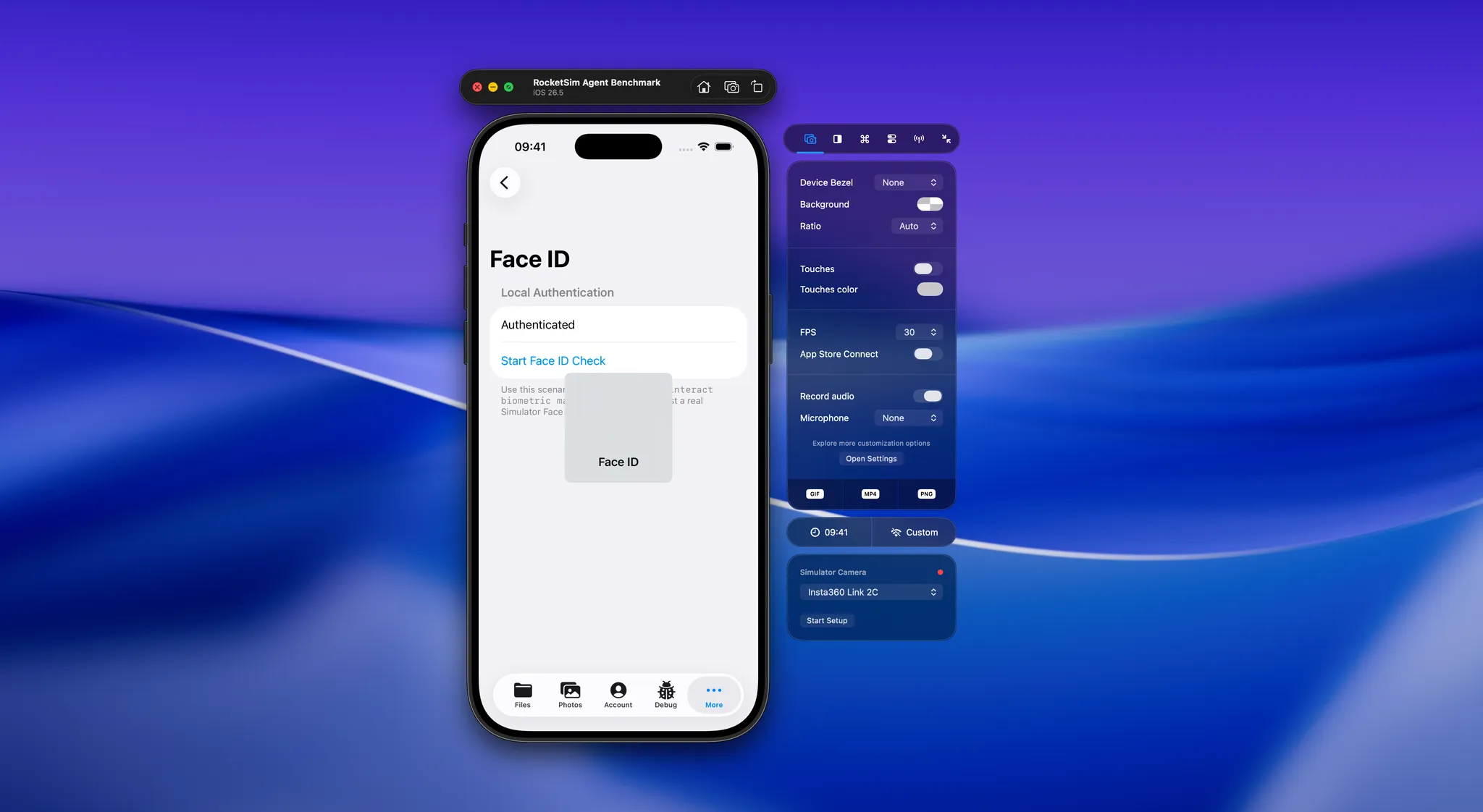
Testing AI agents for the iOS Simulator requires more than asking an agent to tap through an app once. A successful run can be luck, while a failed run can come from the model, the CLI, the Agent Skill, or the app itself. We wanted a repeatable way to tell those causes apart.
That is why we built AgentScenarios: a small, deterministic iOS app for testing and improving the RocketSim CLI and Agent Skill. It helps us reproduce difficult Simulator interactions, benchmark the complete command workflow, and turn every weakness into a scenario we can run again.
Why agent testing needs scenarios
An agent usually follows a short loop: inspect the screen, choose a target, interact, wait for the UI to change, and inspect again. Each step looks simple until the app contains two buttons with the same label, a web view with sparse accessibility data, or an image that only makes sense visually.
Those are exactly the situations a happy-path demo skips. AgentScenarios deliberately includes them:
- Nested navigation with repeated row structures
- Duplicate button labels that require surrounding context
- A photo target that needs visual reasoning
- Sparse web content and native-to-web transitions
- Face ID prompts backed by
LocalAuthentication - Upside-down orientation and coordinate mapping
- A hidden debug menu that requires accessibility activation
- Swipe, long-press, text-entry, two-finger, and Home-button delivery
- Multi-step command batches that need to refresh screen state correctly
The app is intentionally local and deterministic. We can reset it before every run, start each tool from the same screen, and verify the result through visible state in the app. This gives us a much better signal than testing against a changing third-party app.
The scenarios also complement Apple’s regular UI testing tools. Apple recommends preparing apps for automation with accessibility and writing stable, high-quality automation code in its UI automation guidance. RocketSim uses that same structured UI foundation, but exposes it to coding agents that need to inspect and control the app while working on your code.
Testing the CLI and Agent Skill together
A CLI command can be correct while an agent still uses it incorrectly. The command surface and the instructions therefore need to be tested as one workflow.
The RocketSim CLI provides compact element reads, semantic interactions, screen-change waits, screenshots, biometric controls, and setup diagnostics. The RocketSim Agent Skill explains when and how an agent should combine those commands.
For example, the skill encourages an agent to:
- Read compact visible-element output
- Prefer an element identifier or semantic selector
- Include the current screen identifier when interacting
- Wait for the screen to change
- Read again before deciding on the next step
- Fall back to a screenshot when accessibility data is not enough
You might wonder why the Agent Skill is part of the measurement if the CLI performs the actual interaction. The skill itself uses context, and its guidance can add or remove command turns. Our byte-based context estimate therefore includes the skill size, scenario prompt, and textual command output.
AgentScenarios reproduces orientation and interaction cases so changes to RocketSim can be verified against the same UI repeatedly.
This setup also keeps RocketSim’s CLI and Agent Skill version-matched. Both ship inside the RocketSim app, and their installed symlinks continue to point at the current version after an update. New commands and new guidance can evolve together instead of slowly drifting apart. For you as a developer, this means you only have to keep RocketSim updated to the latest App Store version. Your agents will automatically use the latest guidance and the best available way to interact with the Simulator.
How we benchmark agent workflows
Our latest benchmark combines fifteen AgentScenarios flows with five workflows in the iOS Settings app. The fixture app covers nested navigation, duplicate labels, visual targets, web login, native-to-web transitions, hidden accessibility activation, Face ID, upside-down orientation, command batches, swipe, long-press, text entry, two-finger input, and Home-button delivery. The Settings scenarios add realistic scrolling, account entry, toggles, and stale-screen recovery.
Every comparable scenario ran three times in a single session against three pinned tools: RocketSim 16.4.2 build 326, AXe 1.8.0, and XcodeBuildMCP 2.7.0, driven through its MCP server interface. The latest run, dated July 31st, contains 156 records in total: 150 head-to-head tool/scenario records and six RocketSim-only capability records.
One thing worth stating clearly, with credit to Cameron Cooke, the author of both AXe and XcodeBuildMCP, for this nuance: these two tools sit at different layers. AXe is deliberately a raw, non-agentic primitive layer. Returning the full accessibility tree is a design choice, not a flaw, and it leaves filtering to whatever builds on top of it. XcodeBuildMCP is such a layer: it builds on AXe and adds state management and compact output. That compact output follows the approach of rs/1, the agent protocol we designed for RocketSim. Cameron mentioned to me that the rs/1 approach was a good direction that he also incorporated into XcodeBuildMCP. I consider that a great validation of the design. Keep these layers in mind when reading the multipliers below.
Not every scenario could run on every tool. Face ID and two-finger input remain RocketSim-only capability records because neither AXe 1.8.0 nor XcodeBuildMCP 2.7.0 offers equivalent commands. XcodeBuildMCP 2.7.0 also sat out the web login, hybrid web, cross-screen batch, and coordinate swipe scenarios: its runtime snapshot does not expose WKWebView content, it has no coordinate tap or swipe fallback, and its batch command only accepts same-screen steps. Those scenarios stay head-to-head between RocketSim and AXe.
The runner uses dedicated Simulators, pins the tested tools and Agent Skills by version and SHA-256, automates AgentScenarios setup, and scopes orientation and biometric state to the selected device. This run used RocketSim 16.4.2 build 326, Xcode 26.6, iOS 26.5, and macOS 26.5.2. It separates comparable scenarios from capability-only checks and records timing distributions instead of relying on a single run.
For each scenario, we record:
- Command turns
- Standard output and error bytes
- A byte-based context estimate
- Total elapsed time
- Wrong taps
- Unexpected failures
The byte-based context estimate includes the skill, prompt, and textual command output. For XcodeBuildMCP, it charges the MCP tool catalog once per scenario, symmetric with how the skill files are counted for the CLI tools. It is a reproducible comparison proxy rather than actual model-token or billing usage. Screenshots are stored as artifacts, but their binary file contents are not included.
The scenario scripts are frozen, and so are the results. When current iOS 26 Settings UI drift makes a step fail, that failure stays in the recorded results for every tool instead of being normalized away.
Freezing the scenarios makes the comparison repeatable, but it also means this is a benchmark of the agent substrate rather than a ranking of AI models. Fixed drivers execute documented command patterns, so the run measures the tools and their recommended workflows without measuring an LLM’s reasoning quality. Model choice, context, caching, and decision-making can still change the result of a real coding session.
What the benchmark taught us
The most important results are not the byte multipliers, but correctness and capability coverage. RocketSim completed every scenario type in the run, including Face ID, two-finger input, web login, cross-screen command batches, and coordinate swipes. AXe 1.8.0 covered everything except Face ID and two-finger input. XcodeBuildMCP 2.7.0 ran fourteen of the twenty scenarios head-to-head, sitting out the six described above.
No tool had a perfect run, including ours. RocketSim recorded seven wrong interactions and one unexpected failure: six wrong interactions came from the frozen Settings scripts, and the Face ID scenario recorded one wrong interaction and one unexpected failure in round three. AXe recorded fifteen wrong interactions and XcodeBuildMCP nine. Almost all of them, across all three tools, came from the frozen Settings scripts hitting current iOS 26 UI drift. XcodeBuildMCP additionally tapped through a stale element reference in the stale-navigation scenario in all three rounds, where RocketSim recovered. We keep those failures visible instead of normalizing the scripts until every run passes.
On efficiency, the largest multipliers come from the raw AXe comparison. Against AXe 1.8.0, the frozen run shows 119.3× fewer output bytes, a 21.0× lower byte-based context estimate, and 66.5 seconds less total command time. That still rounds to over 99% less command output and about a 95% lower context proxy, but it is a comparison against a primitive layer that returns the full accessibility tree on purpose.
The XcodeBuildMCP comparison is the fairer one, because its compact output builds on the same rs/1 approach that RocketSim introduced. Over the fourteen scenarios both tools ran head-to-head, XcodeBuildMCP produced 3.0× RocketSim’s tool-response bytes, an 8.2× higher byte-based context estimate (which charges its MCP tool catalog once per scenario, exactly like the skill files for the CLI tools), and finished 171.5 seconds slower in total. RocketSim used more command turns to get there: XcodeBuildMCP needed 0.79× as many turns, and AXe 0.70×.
Those numbers still support the design behind rs/1, the compact agent protocol we designed for RocketSim. Seeing other tools adopt the same approach confirms the direction, and this benchmark shows the original implementation still leads. An agent usually does not need a full accessibility tree for every step. It needs enough information to identify the target, interact safely, and verify what changed.
We consider that result valuable. A benchmark should reveal what to improve, not just produce a marketing number. Comparing the latest run with our earlier baseline shows how measured weaknesses can turn into product improvements:
- Face ID interactions now provide reliable completion notifications
- Accessibility failures return typed, actionable errors
- Multi-step command batches can start without requiring a seeded snapshot
- Refresh failures remain correctly wrapped in the agent protocol response
The latest harness also automates hidden debug-menu activation, upside-down orientation, swipe, long-press, text entry, two-finger input, and Home-button checks. Face ID and two-finger input remain RocketSim-only capability scenarios because neither AXe 1.8.0 nor XcodeBuildMCP 2.7.0 offers equivalent commands. Whenever the CLI or Agent Skill changes, these focused scenarios make it easier to verify the behavior that motivated the change. And to be fair to ourselves too: the Face ID failure in round three is exactly the kind of weakness the next iteration should turn into a fix.
Why this matters for agentic iOS development
Agentic development becomes useful when an agent can close the feedback loop. Editing Swift code is only half the work; the agent should also navigate to the changed screen and verify the result in the iOS Simulator.
Reliability matters more as those flows become longer. One wrong tap near the start of onboarding can invalidate every step after it. Oversized element output can fill the context window before the agent reaches the screen it needs. A missing wait can make a correct interaction look like a failure.
RocketSim’s agentic iOS Simulator development tools are built around these constraints. The running Mac app keeps Simulator state warm, the CLI exposes a compact interaction layer, and the Agent Skill teaches coding tools how to use that layer consistently.
Testing all three parts against repeatable scenarios gives us confidence that an improvement works beyond a single demo. It also keeps the product honest: if a richer response costs too many tokens or a faster interaction causes more wrong taps, the benchmark makes that trade-off visible.
Conclusion
Testing AI agents for the iOS Simulator works best with small, repeatable scenarios and measurements that cover more than success or failure. AgentScenarios lets us measure output size, byte-based context estimates, elapsed time, and wrong interactions while continuously expanding our regression coverage.
If you want your coding agent to inspect and navigate a running app, install RocketSim from the Mac App Store, then open RocketSim → Settings → CLI & Agent to install the CLI and Agent Skill. Feel free to contact us or open an issue on GitHub if you have a difficult Simulator workflow we should add to AgentScenarios.
Thanks!