


Navigation Flows
Save repeatable Simulator navigation paths as compact flow files, replay them with one command, and review the latest run on an interactive flow page.
Navigation flows ship with RocketSim 17.0.0. They save repeatable navigation paths for an app in the Simulator so agents (and you) do not rediscover the same taps on every task or relaunch. Each flow is a small .rsflow text file on your Mac, scoped to the app’s bundle id.
Flows run with the same reliability as rocketsim do, including checkpoints that catch wrong turns early. After a successful run, RocketSim can open a flow review page with real screenshots, arrows from tapped elements, and tools for visual feedback.
Why flows exist
Section titled “Why flows exist”Agent tasks often restart the app or bounce between branches. Without flows, every session repeats the same login, settings, or onboarding taps. With flows:
- You save a path once from the steps the agent already performed.
- You replay it with
rocketsim flow <name>instead of many separate interact commands. - Leading
flow <prerequisite>steps run only when needed, so shared setup stays DRY.
Discover and run flows
Section titled “Discover and run flows”List the flows RocketSim knows for the app in the foreground (or pass --app <bundle-id> to scope another app):
rocketsim flow listEach line is short: name, optional prerequisites, parameters, health markers such as (stale), and a one-line about summary. Use --match <text> to filter the list.
Run a flow by name:
rocketsim flow loginrocketsim flow open-settings --app com.example.approcketsim flow <name> accepts the same --udid and --app options as other Simulator commands, plus --from <step> to resume after an environmental interruption and --force when a flow is marked stale but you want to retry anyway.
Example: save and run a login flow
Section titled “Example: save and run a login flow”After signing in once (manually or with rocketsim do), save the path:
rocketsim flow save --name login --about "Sign in with the test account" --last 3Without --last, save uses the last five successful session steps. Use --from-step and --to-step to save a specific portion of the log instead.
RocketSim writes minimal selectors, inserts expect checkpoints between screen changes, and never stores secrets—only placeholders. A typical login flow looks like this:
name: loginabout: Sign in with the test accountparam: user = $TEST_USERparam: password secret = $TEST_PASSWORDtap --identifier login.emailtype '{user}'tap --identifier login.passwordtype '{password}'tap --label 'Sign In'expect --label 'Home'Run it with environment variables or explicit parameters:
export TEST_USER=aliceexport TEST_PASSWORD=...rocketsim flow loginFor secrets, prefer shell expansion so values do not land in agent transcripts:
rocketsim flow login --param user=alice --param password=$TEST_PASSWORDComposition and prerequisites
Section titled “Composition and prerequisites”Flows can call other flows. Leading flow <name> lines before the first real step are prerequisites. At run time RocketSim skips a prerequisite when that flow’s final expect already holds (for example you are already on the home screen after sign-in). Any flow line after the first non-flow step always runs.
name: open-settingsabout: Open the settings screen from homeflow logintap --label 'Settings'expect --identifier settings.titleRun rocketsim flow open-settings; the flow login block runs only when you are not already signed in and on the expected screen.
Parameters and secrets
Section titled “Parameters and secrets”Declare parameters in the flow header:
| Declaration | Meaning |
|---|---|
param: user | Required |
param: user = default | Literal default |
param: user = $ENV_VAR | Default from the environment |
param: password secret = $TEST_PASSWORD | Secret; value never persisted |
Use {name} in step text. Values resolve in order: --param name=value (or inline flow login user=alice) → environment variable → literal default.
Passwords and other secrets are never written into .rsflow files, session logs, or failure output. When save detects secure fields, steps become type '{password}' with a secret parameter. Typed passwords in failure replies are redacted the same way.
When saving, bind literals to env names with --secret-env name=ENVVAR and replace typed secret text with --param name=literal.
When a flow fails
Section titled “When a flow fails”A failed run stops at the first bad step and returns one compact reply (exit code 1) with the current screen in the same payload, so the agent can continue manually without restarting the app.
- Drift (UI changed): the flow is marked stale. Navigate the corrected path, then run
rocketsim flow fix <name>to merge your manual steps into the file. RocketSim may heal an unambiguous single-element rename automatically and persist the fix only if the rest of the run still passes. - Environmental blockers (alerts, wrong app in foreground, missing parameters): fix the blocker, then resume with
rocketsim flow <name> --from <step>. Step numbers appear in the failure output and stay stable when prerequisites are skipped.
rocketsim flow verify replays one or all flows proactively to catch drift before a task starts.
Where flows are stored
Section titled “Where flows are stored”Flows live in RocketSim’s sandbox on this Mac, under Application Support:
RocketSim/Flows/<bundle-id>/flows/<name>.rsflow
They are per app bundle id, not per Xcode project or git branch. The same app on the same Mac shares flows across worktrees. rocketsim flow list is the supported way to see what is available; agents should not read .rsflow bodies for routine navigation.
Sharing flows through a project repository is planned; today they stay local.
Flow review page
Section titled “Flow review page”Every complete flow run records checkpoint screenshots and accessibility snapshots. Open the review UI from Terminal:
rocketsim flow openrocketsim flow open loginflow open returns a token-protected localhost URL on the same browser preview server as rocketsim preview. The link stays valid for the RocketSim preview session (it outlives a single agent task but not an app restart). A newly saved flow shows its steps until the first successful run adds screens.
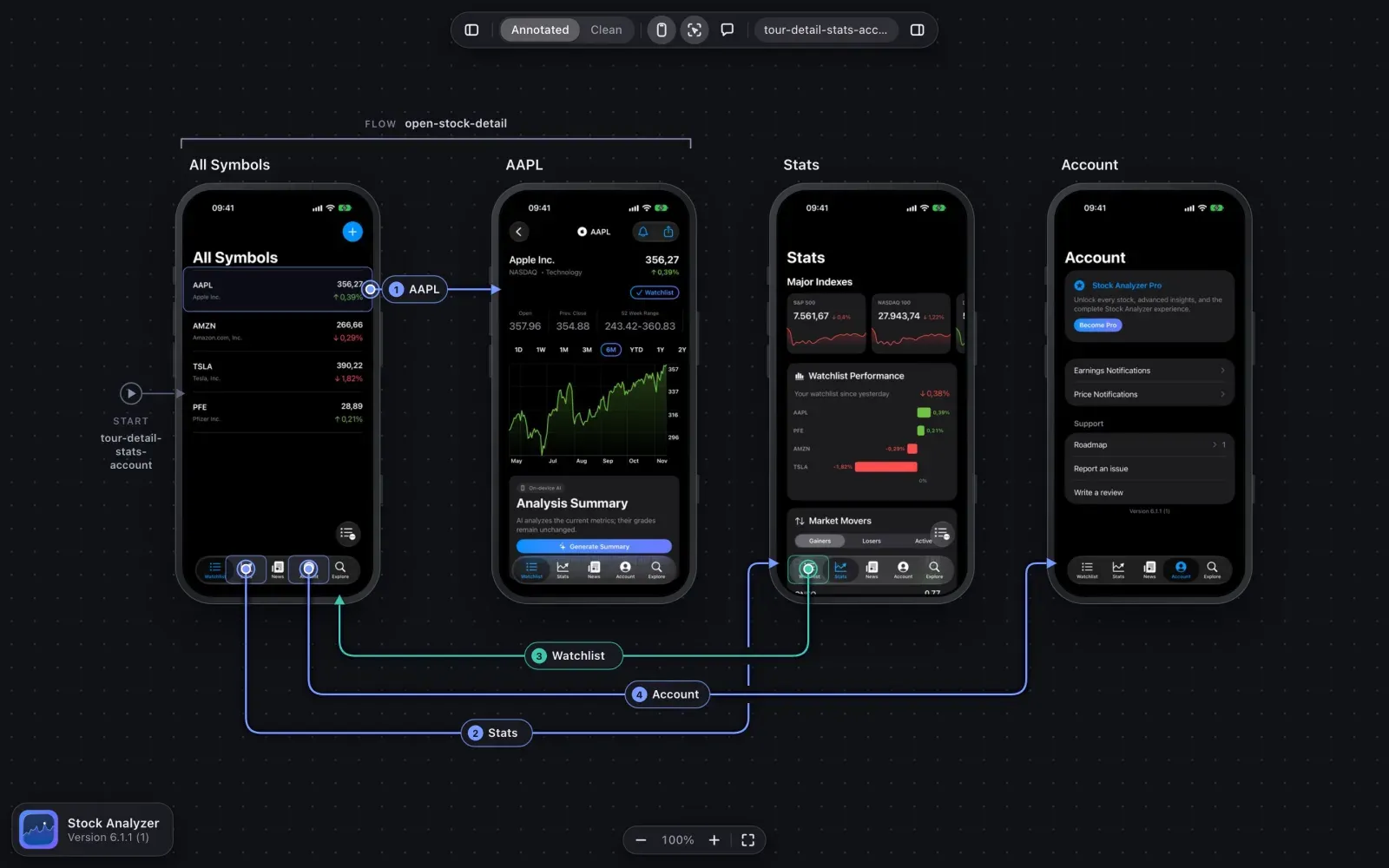
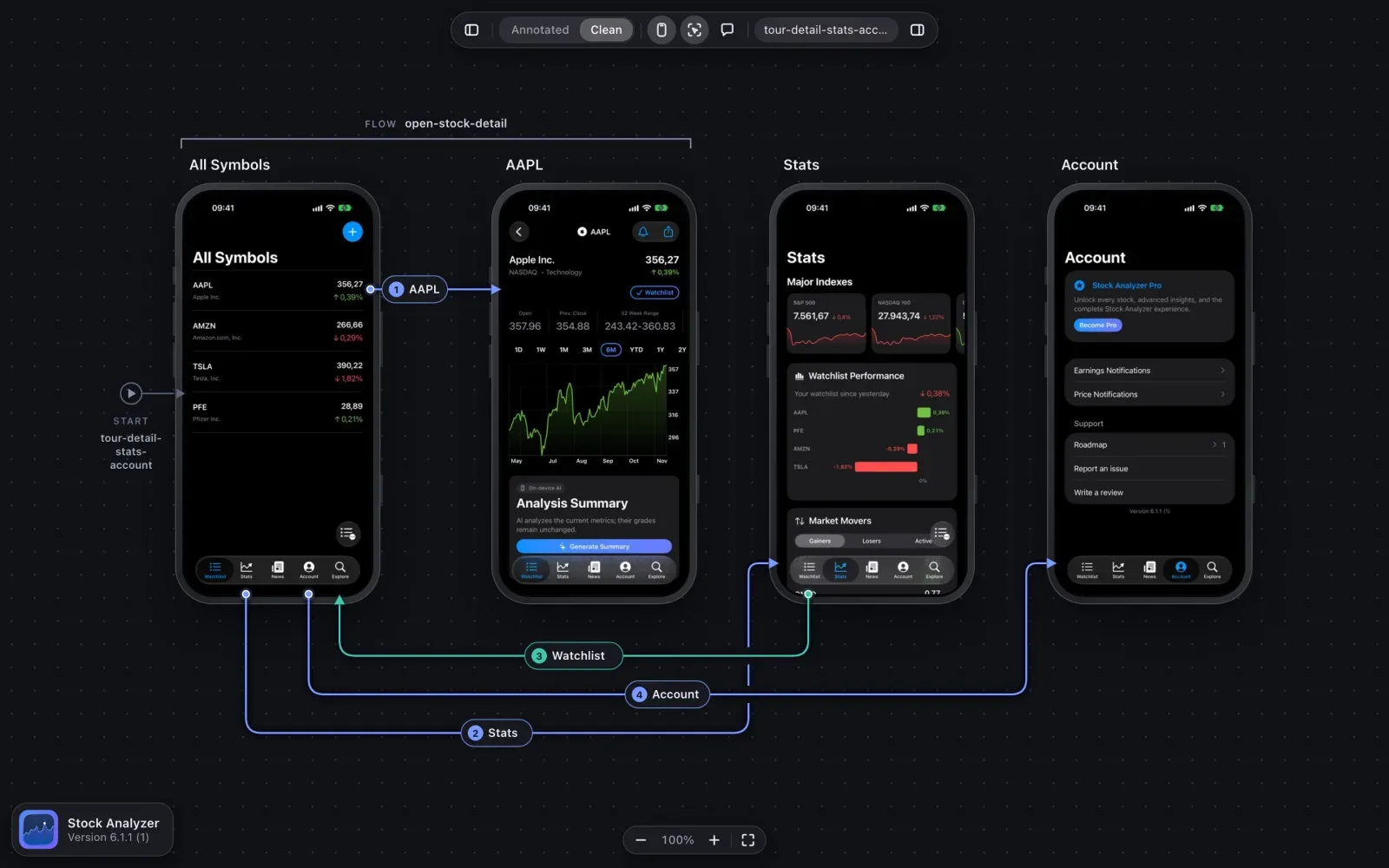
The overview board shows each distinct screen once, with connectors from the tapped element to the next screen. Toggle Annotated (default) or Clean routes, show or hide the device bezel, and turn accessibility overlays on or off. Hover and select elements to inspect labels and identifiers; the Screens sidebar lists the element tree with search and keyboard navigation.
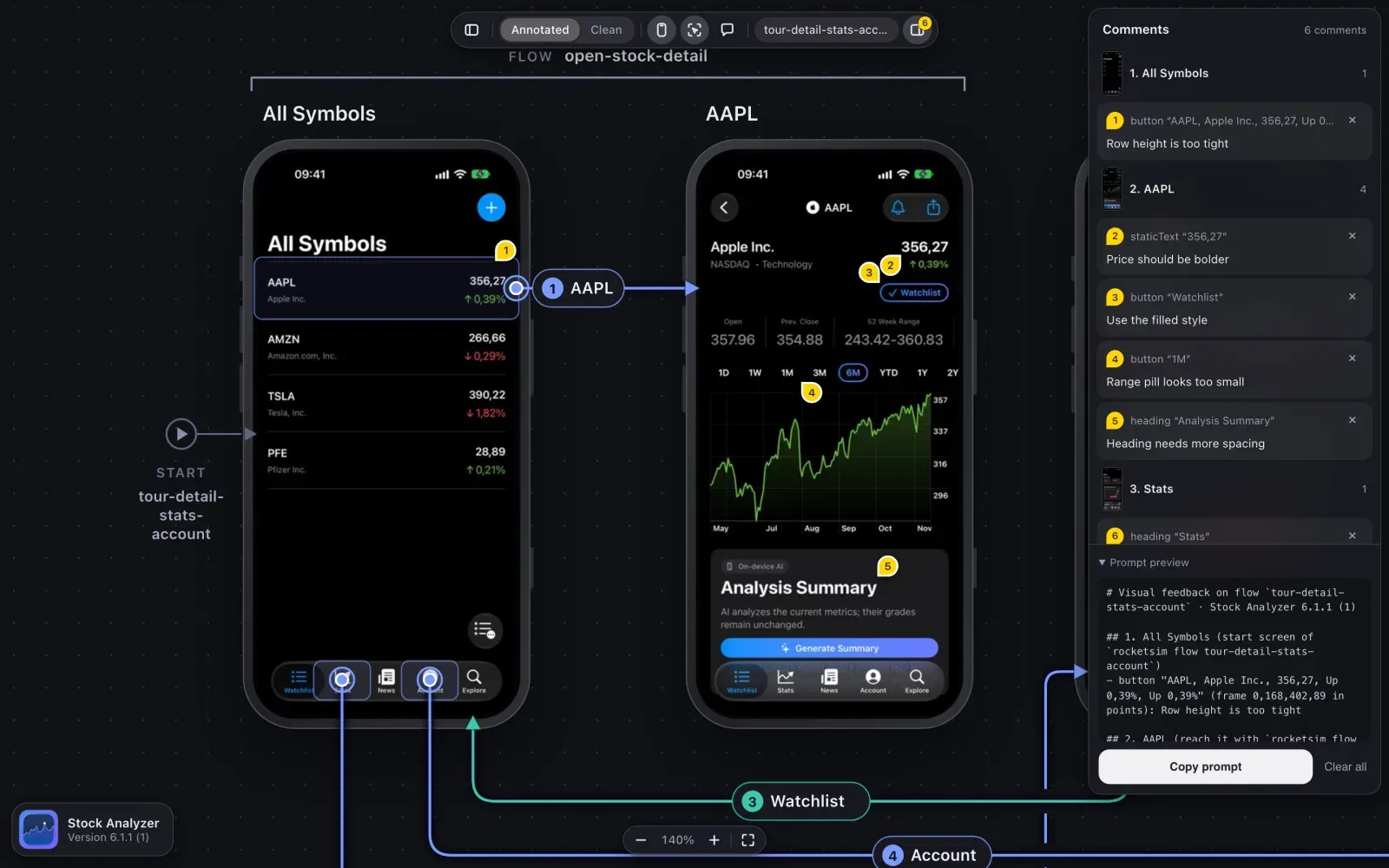
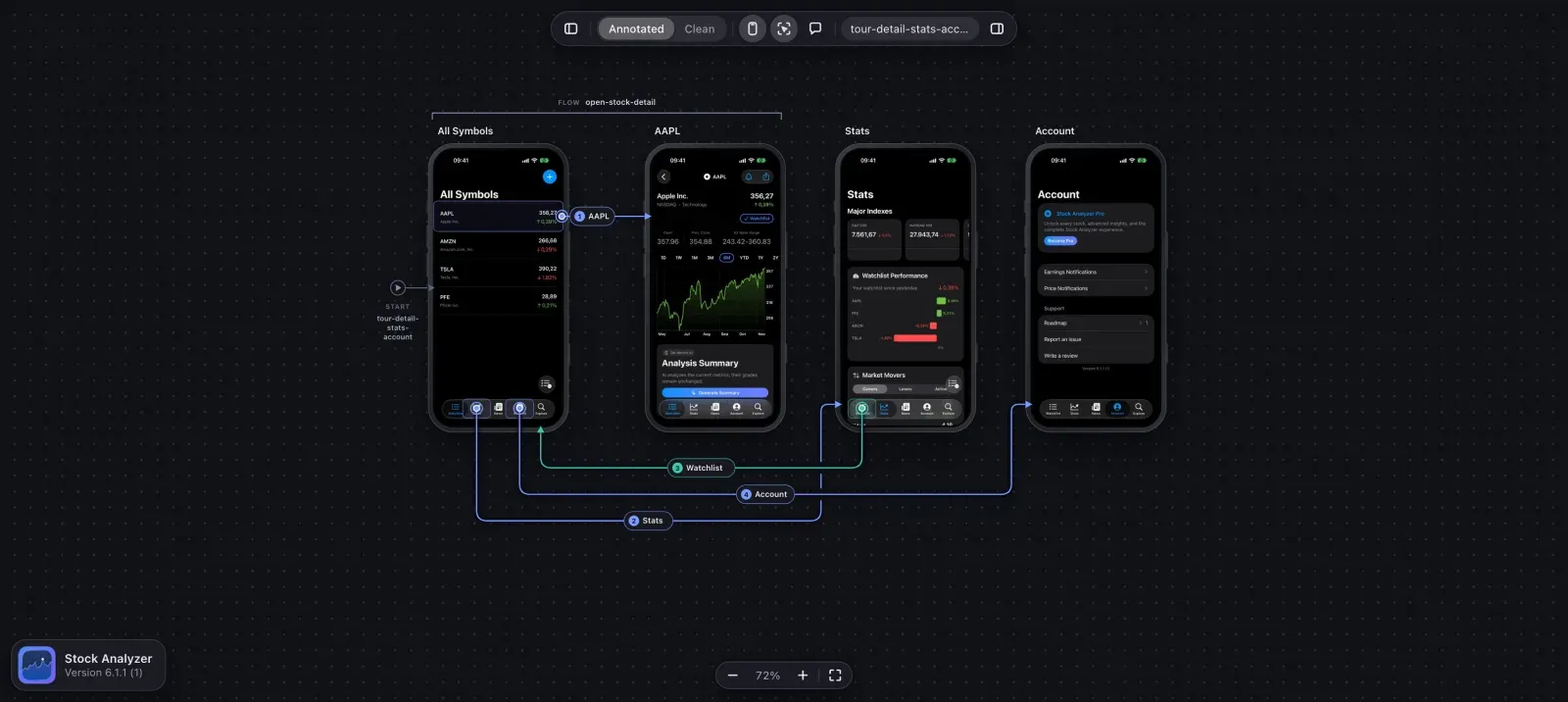
Pan and zoom the canvas with the mouse, trackpad, or keyboard. Comment mode (C) lets you attach notes to elements; pins appear on the screenshot. The Comments sidebar groups notes by screen, includes a prompt preview, and Copy prompt builds an agent-ready message from your comments. Comments are stored in the browser’s localStorage for that flow run—they are not written into the flow store.
Keyboard shortcuts
Section titled “Keyboard shortcuts”On the flow canvas (when focus is not in a text field):
| Key | Action |
|---|---|
C | Toggle comment mode |
+ / = | Zoom in |
- / _ | Zoom out |
0 | Actual size (100%) |
F or 1 | Fit the board |
| Arrow keys | Pan (hold Shift for a larger step) |
Esc | Clear selection |
Double-click the canvas to fit the board. In comment mode, Cmd/Ctrl+Enter submits a new comment.
Successful flow save and flow run replies may include flow_url the first time and again about every ten minutes—surface it once as Flow review: <url> for humans following along.
Limits and requirements
Section titled “Limits and requirements”Flows need a booted Simulator session with your app reachable the same way as other rocketsim commands. flow open starts or reuses a browser preview tied to that Simulator; it cannot serve a flow page without a booted device.
Flow commands count toward the same agent-session allowance as other interaction and capture commands. When the allowance is exhausted, RocketSim returns quota_exceeded and agents should stop further flow runs for that task; read-only inspection still works. Open RocketSim → Settings → CLI & Agent to view the allowance or upgrade to Pro.
Keep individual flows to about 15 steps; split longer paths with a leading flow prerequisite. Prefer descriptive names and flow list over hand-editing files—use flow show or flow write only when you need to author a flow manually.
Learn more
Section titled “Learn more”- RocketSim CLI — the broader command surface flows build on
- Browser Preview — the localhost preview server flows reuse
- Agent Skill — how agents discover
flow list, handle failures, and use the flow review URL - CLI & Agent settings — install the CLI and check agent-session allowances