

Touch Indicators
Display touch indicators in your iOS Simulator recordings and screenshots. Show taps visually for App Preview videos and demo recordings.
Touch indicators make your recordings more engaging by showing exactly where you’re interacting with the app. This is especially useful for demo videos and presentations where viewers need to follow your actions.
Enabling touch indicators
Section titled “Enabling touch indicators”You can configure touch indicators in the Captures tab of the side window or in Settings → Captures. Enable Show touches in recordings (a circle appears on each tap), Show stroke around touches (adds a border around touch circles), and set Touches color to any plain color. The same options are used for both screenshots and recordings.
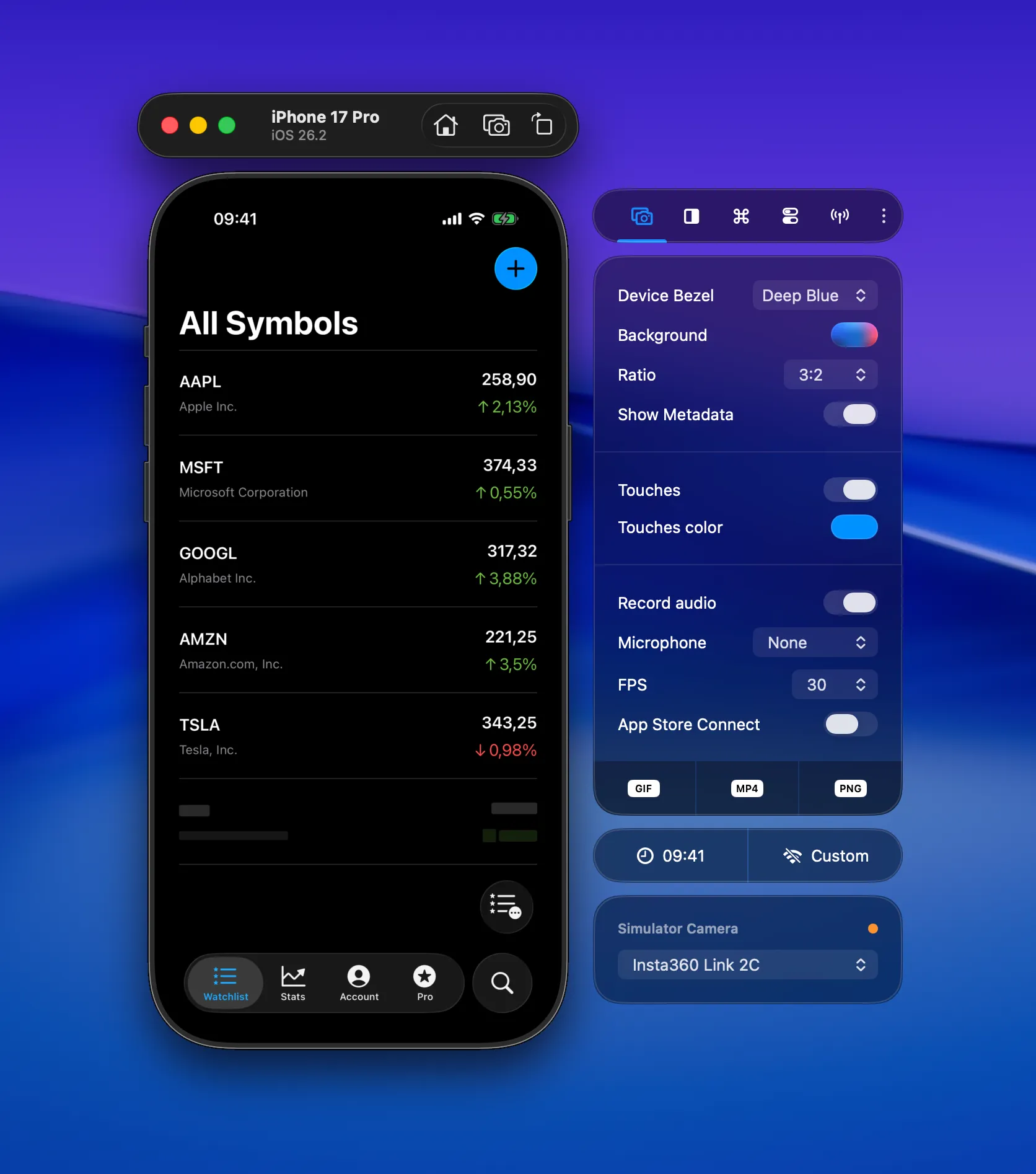
Touch attention mode
Section titled “Touch attention mode”This is the standout feature. When enabled, a constant touch indicator follows your mouse pointer throughout the entire recording. Apple uses this same technique in their demo videos — it helps viewers keep track of where the action is happening.
Touch indicators work in both GIF and MP4 recordings. For the full set of capture options (bezels, ratio, background, and more), see Creating Recordings.
Pinch and rotate gestures
Section titled “Pinch and rotate gestures”RocketSim 15.1 also shows both touch points when you record Simulator pinch and rotate gestures. Hold Option to simulate the second finger, then hold Shift as well when you want to move the gesture center before pinching.
That means your exported videos no longer just show a single interaction point for zoom gestures, making demos of maps, charts, and media viewers much easier to follow.