

Floating Thumbnail
Use the floating thumbnail to quickly preview, trim, copy, save, or drag your Simulator captures directly into other apps without extra steps.
After every screenshot or recording, a floating thumbnail appears in the bottom-right corner of your screen. It’s the fastest way to share, save, preview, or continue editing your captures.
Available actions
Section titled “Available actions”Use the thumbnail buttons to Copy to clipboard, Save (hold Cmd and click for Save As…), open the Post Editor, or Delete (trash icon). For recordings, RocketSim also gives you a trim/editing flow so you can refine the clip before exporting.
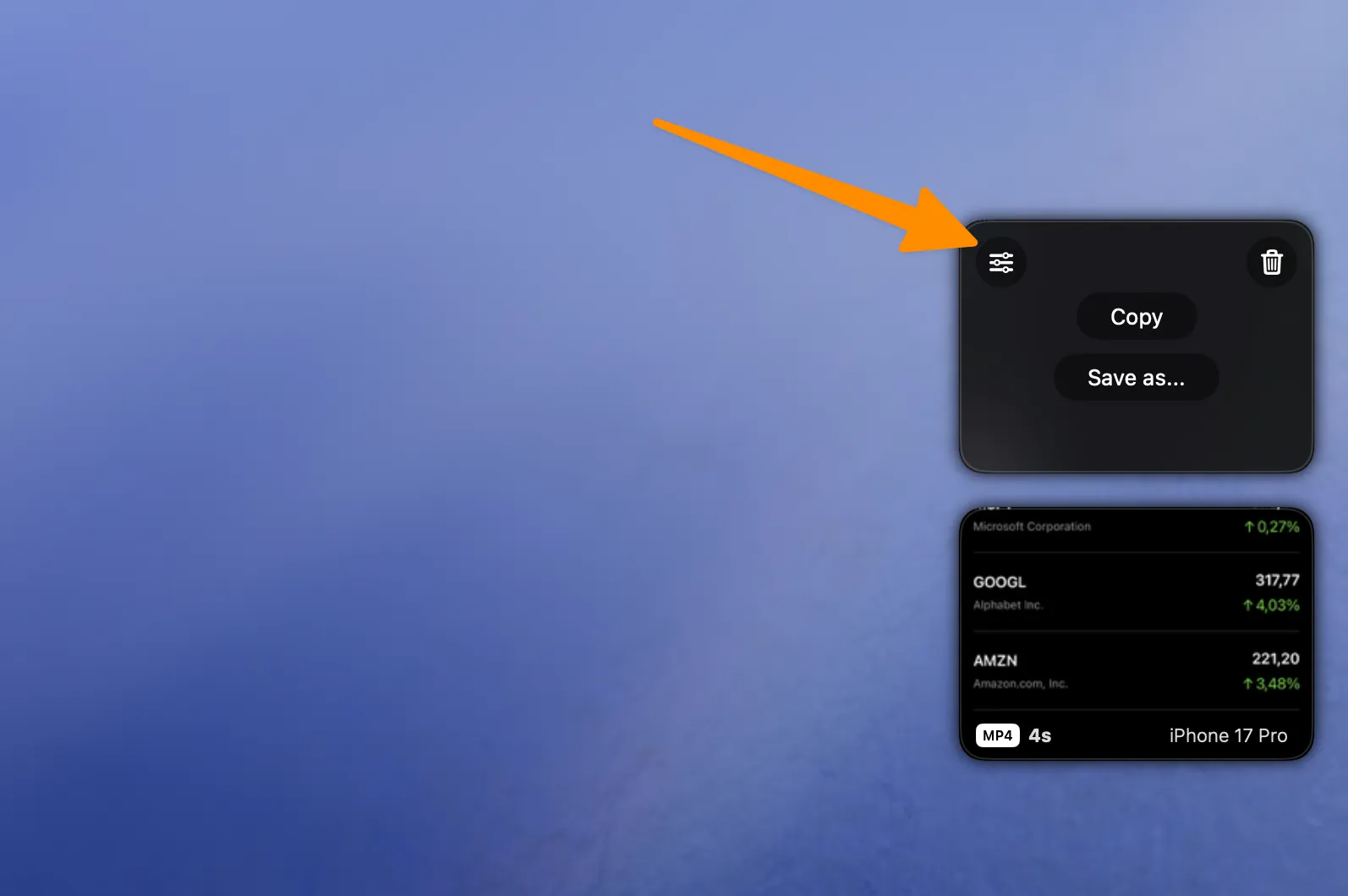
Drag and drop
Section titled “Drag and drop”The real power is drag-and-drop. Drag the thumbnail directly into Slack, GitHub, iMessage, App Store Connect, or any other destination. No need to find the file in Finder first.
Preview and dismiss
Section titled “Preview and dismiss”Hover over the thumbnail and press Spacebar for a quick preview. Swipe the thumbnail to dismiss it.
Continue editing after capture
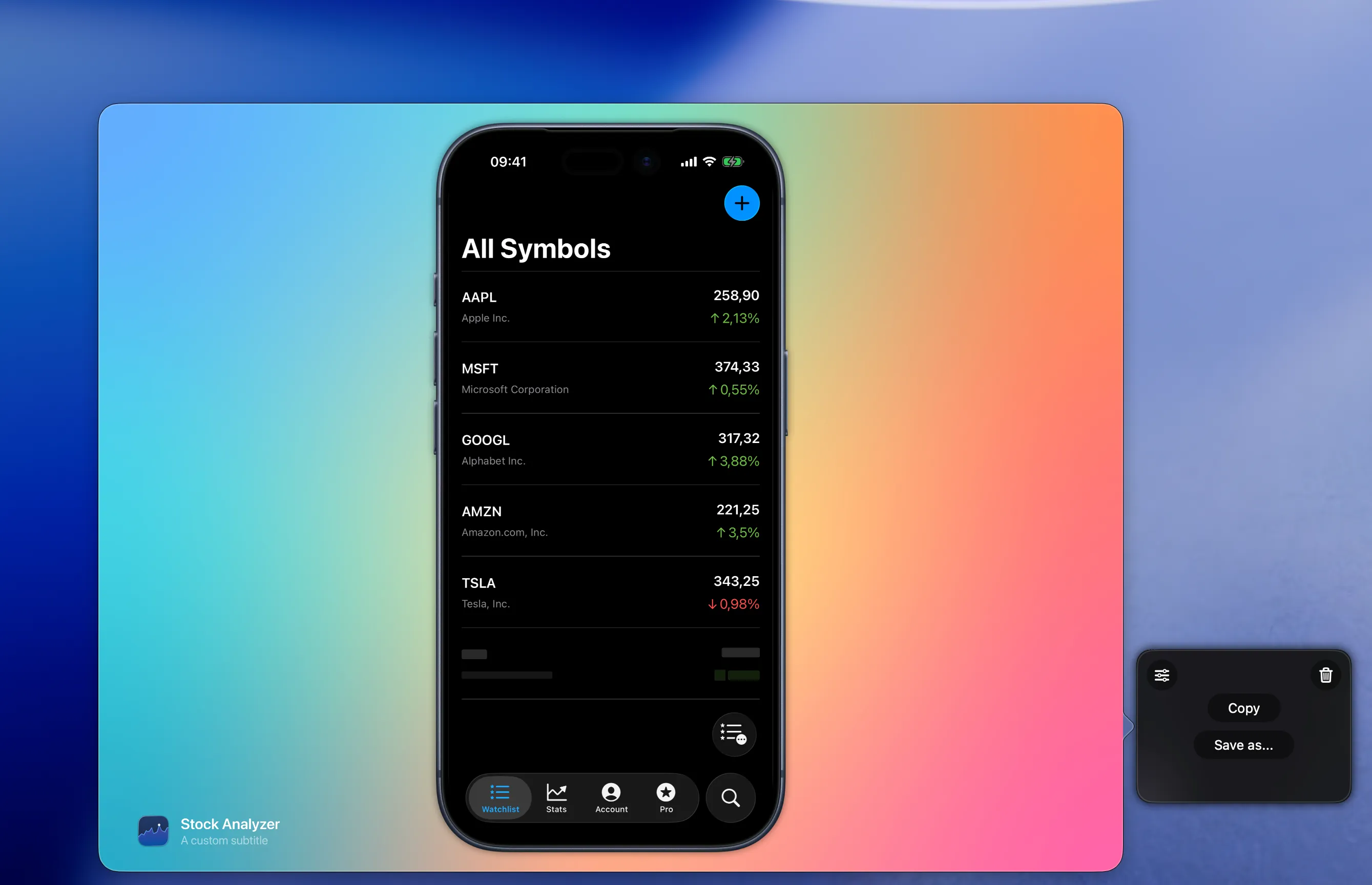
Section titled “Continue editing after capture”The floating thumbnail is also the handoff point into RocketSim 15’s Post Editor. That makes it easy to capture first and decide on the final framing, metadata, ratio, or trim afterwards.