Side Window
Configure RocketSim's side window placement, visibility, and behavior. Reposition, minimize, or hide the window while keeping menu bar access.
RocketSim’s side window is always accessible when you’re testing your app in the Simulator. You’re in full control of how it appears — reposition it, minimize it, or hide it entirely. Every feature in the side window is also accessible from the menu bar, so the side window is always optional.
Hiding the Side Window
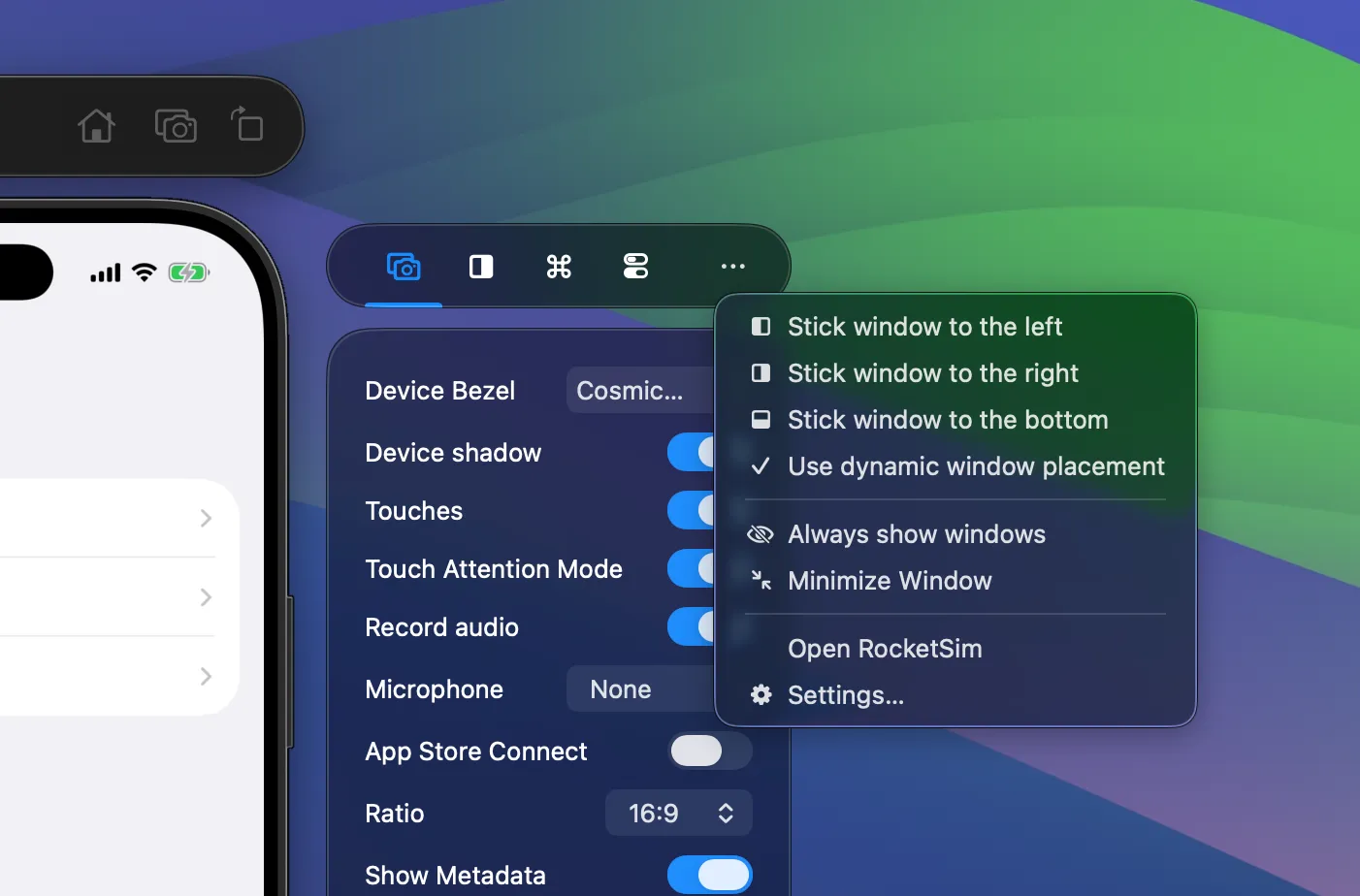
Section titled “Hiding the Side Window”Using the more button (⋯) on the side window:
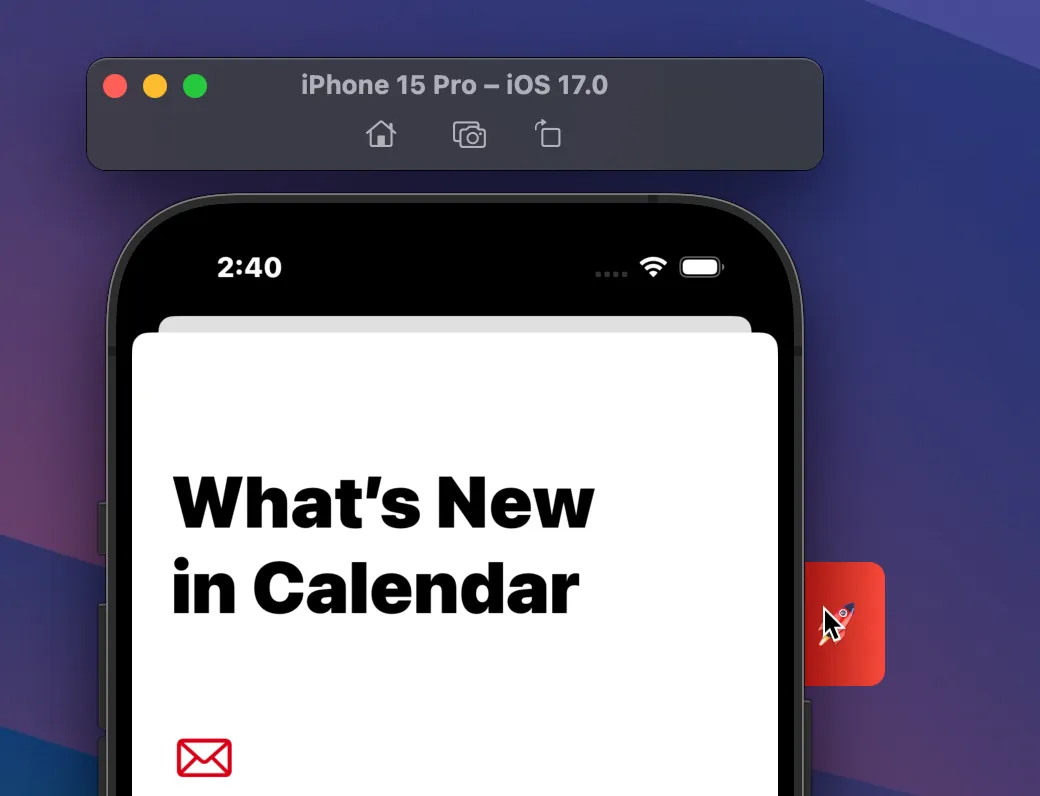
You can hide the Side Window and move it into a red label:
Sticky window placement
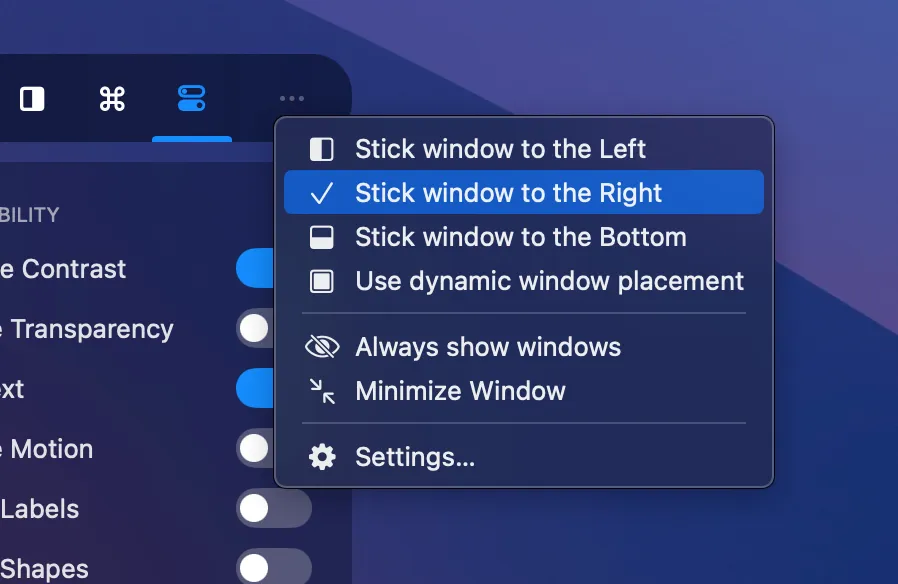
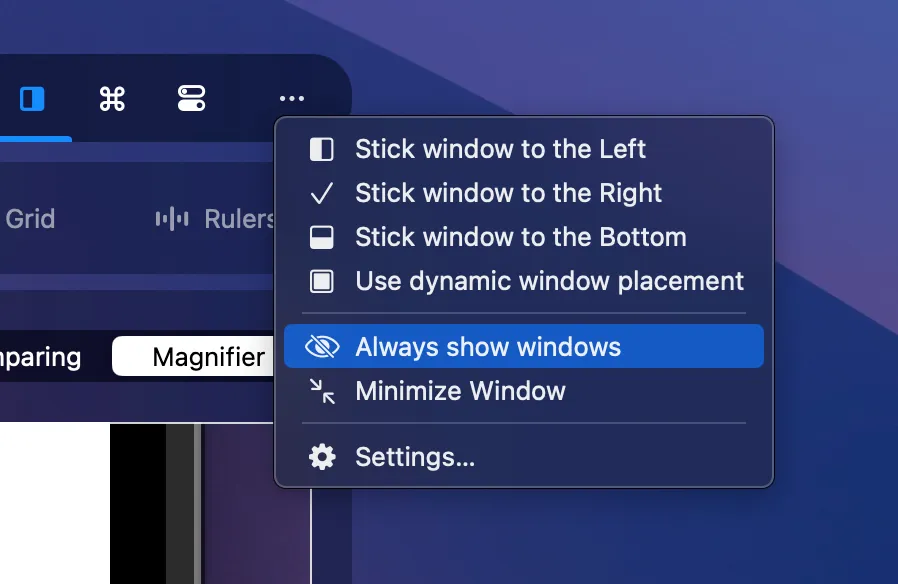
Section titled “Sticky window placement”By default, the side window uses dynamic placement (left or right based on available space). You can instead stick it to the left, right, or bottom of the Simulator. Use the more button and select your preference:
Always show windows
Section titled “Always show windows”In some cases, you want the side window to never hide. From within the more menu, you can enable this mode:
Minimized Capturing Window
Section titled “Minimized Capturing Window”The captures section is built for new users, explaining each available feature. However, you might enjoy a minimized version:
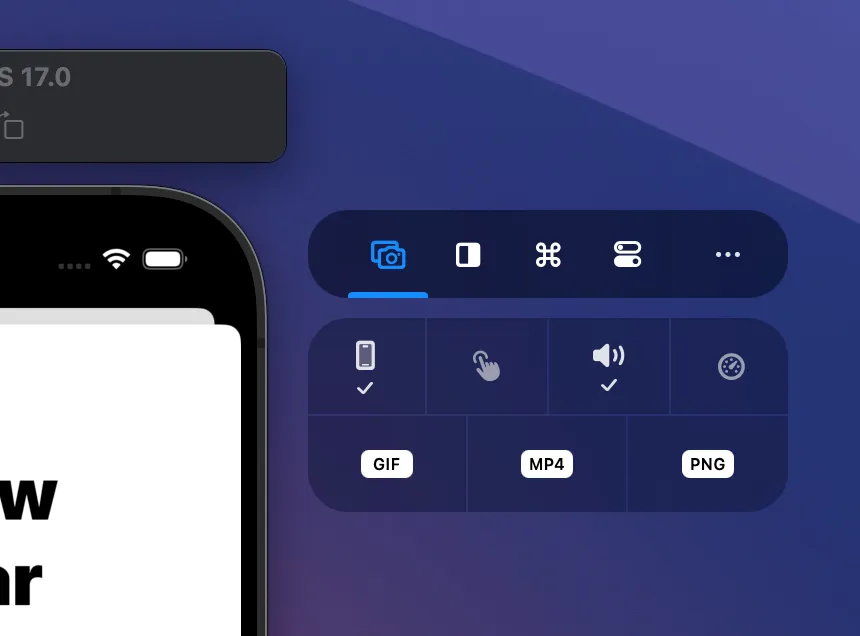
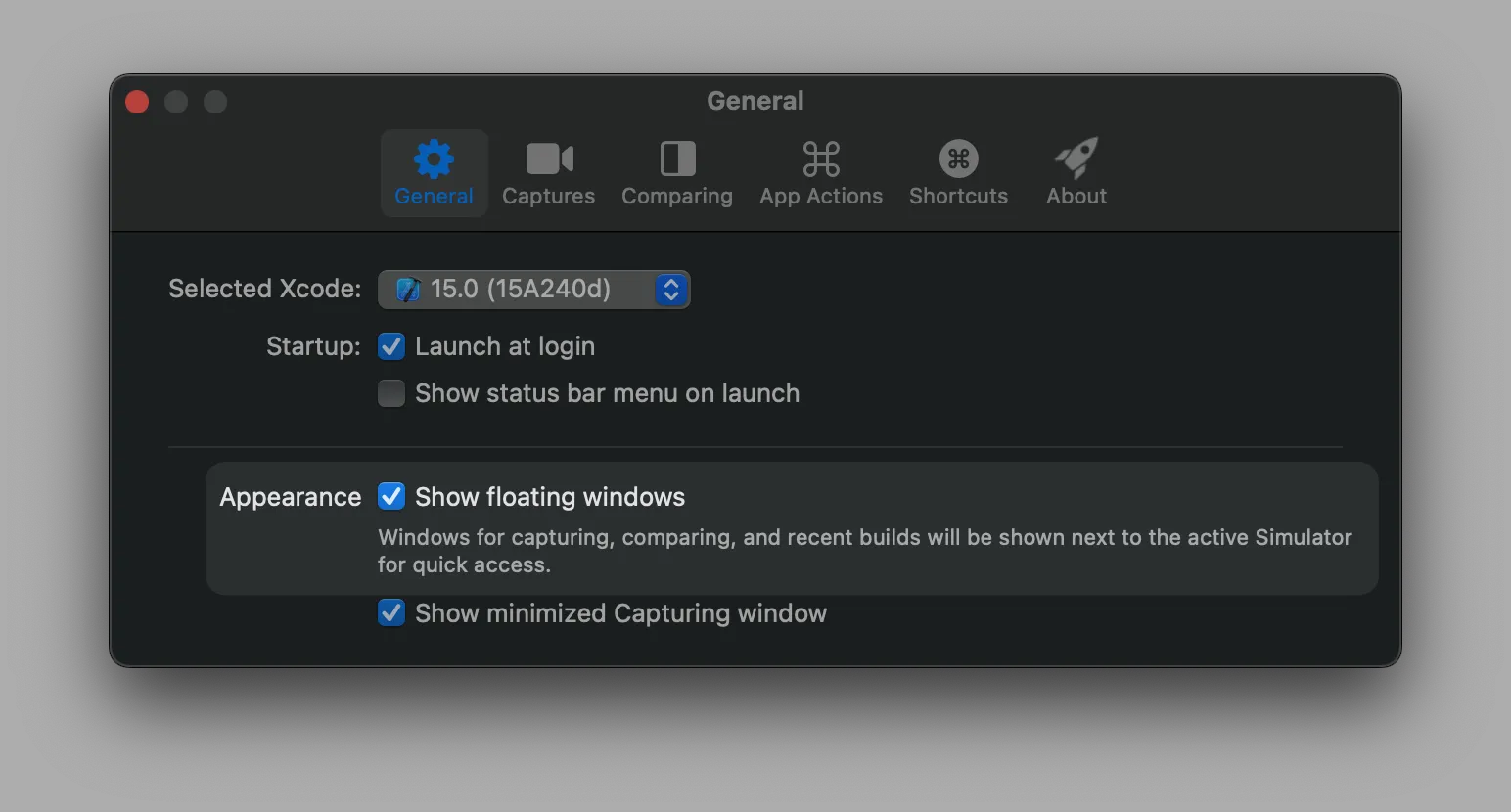
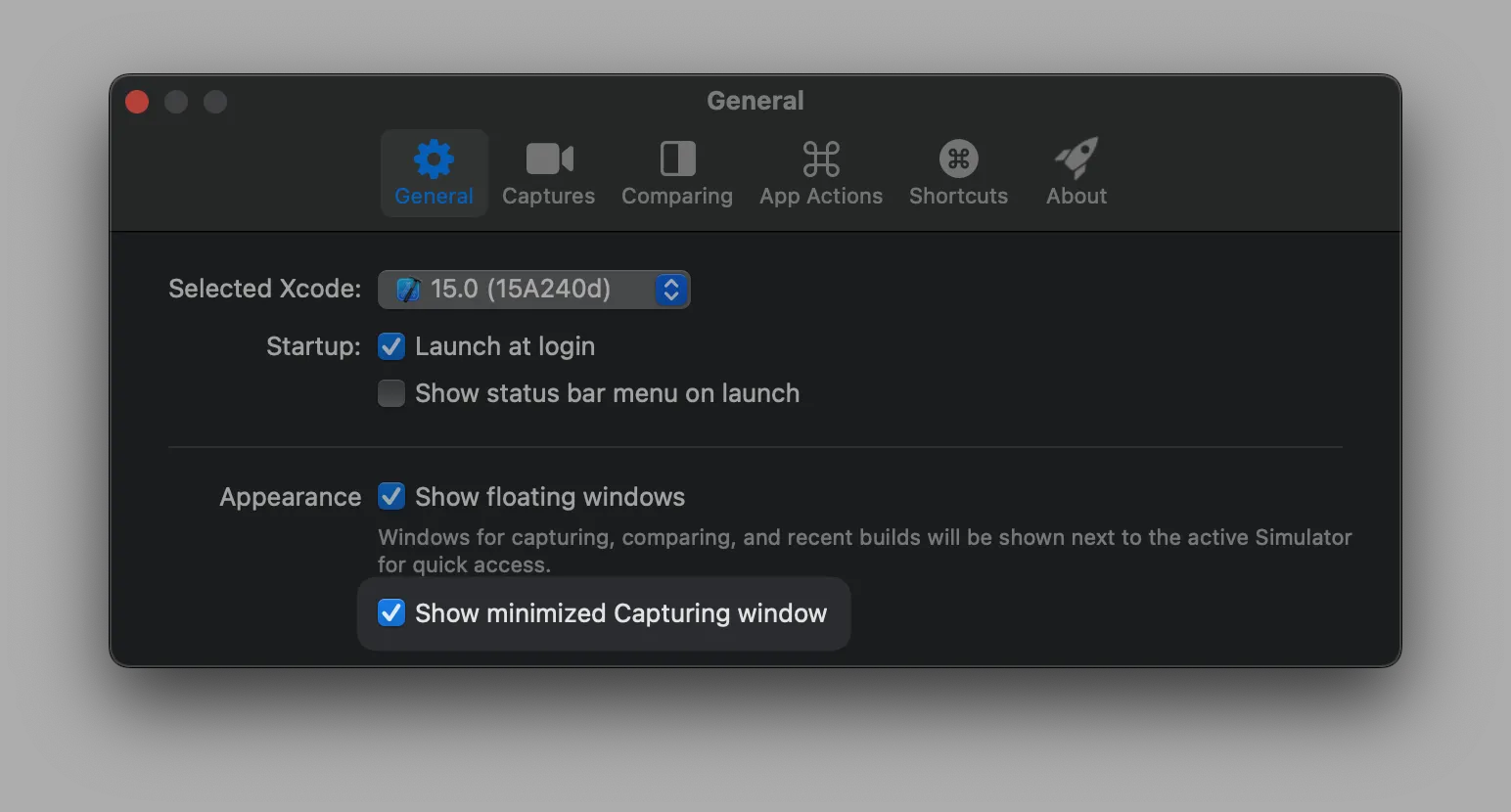
Which you can enable from the general settings page:
Always hide the Side Window
Section titled “Always hide the Side Window”The Side Window is not required to access all functionality. When the side window is hidden, you can use RocketSim’s status bar menu instead:
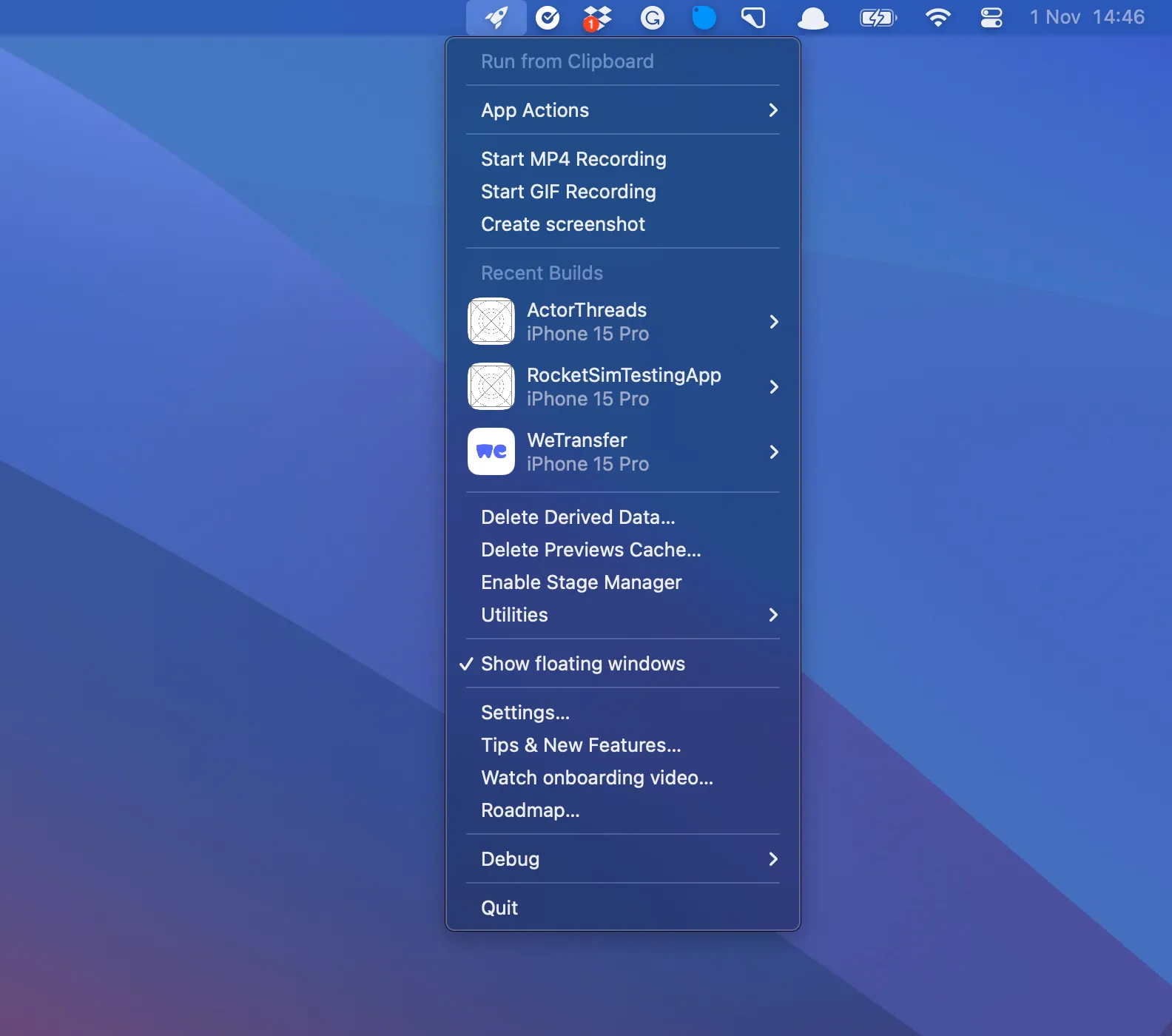
From the general settings page, you can disable the floating window completely: