

App Store Connect Optimization
Automatically convert iOS Simulator captures to App Store Connect specifications. Create correctly sized screenshots and App Preview videos ready for upload.
App Store Connect rejects assets that don’t match its exact specs: wrong resolution, wrong codec, PNG with transparency, or video without a proper audio track. Without RocketSim you end up resizing screenshots per device, converting PNG to JPEG and stripping alpha, re-encoding videos to H.264/HEVC, adding silent audio so previews don’t get rejected, and trimming to the right duration — all while keeping Apple’s resolution table open. It’s tedious and easy to get wrong.
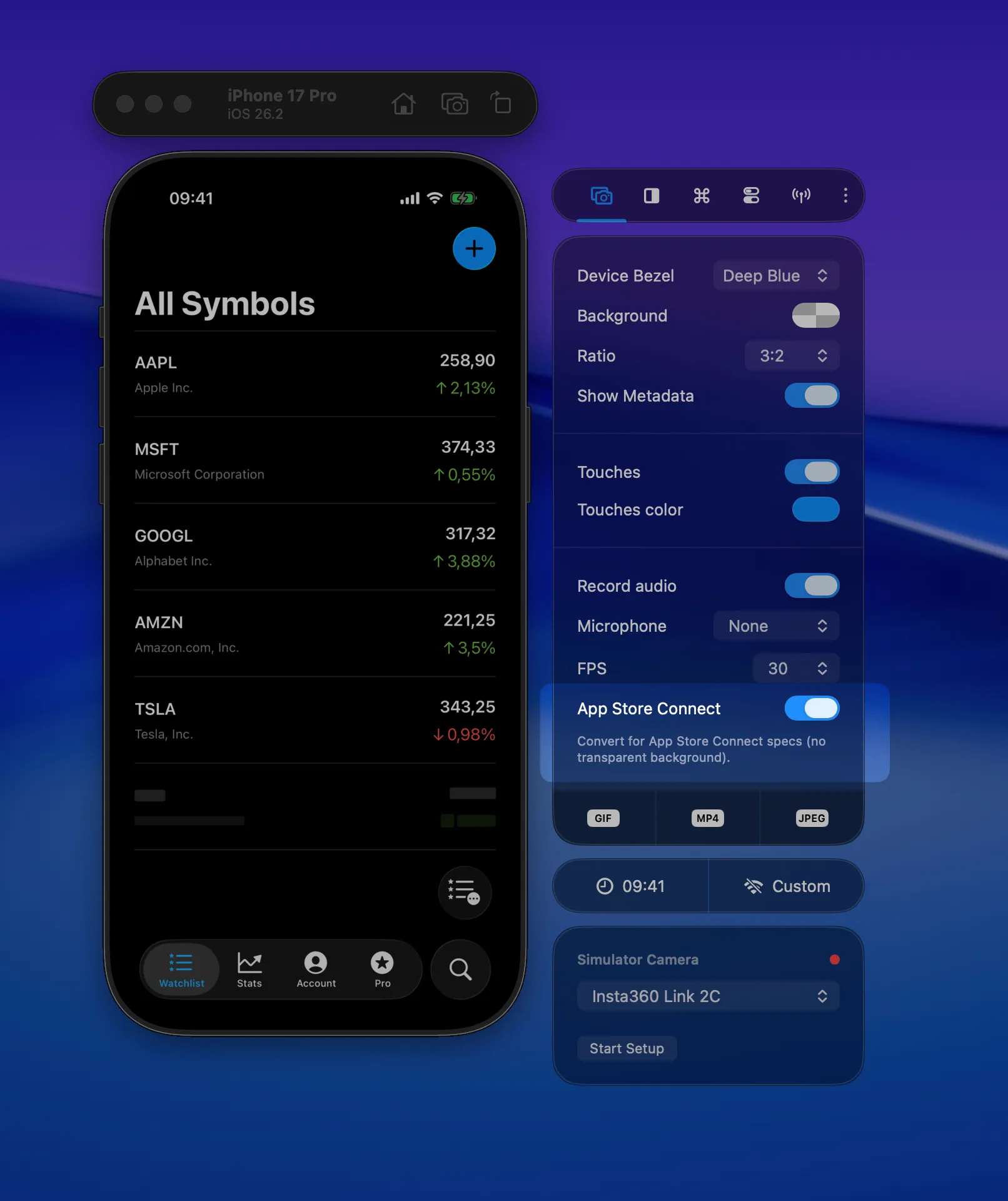
RocketSim does it for you. Turn on App Preview Optimized once, and every screenshot and recording is converted to App Store Connect–ready specs. Capture, then drag into App Store Connect. No manual conversion, no rejections. This is a Pro feature.
How to enable
Section titled “How to enable”Open RocketSim Settings → Captures and enable App Preview Optimized. From then on, every screenshot and recording is automatically converted to the correct format and resolution for the Simulator device you used.
What gets optimized
Section titled “What gets optimized”Screenshots
Section titled “Screenshots”Screenshots are converted from PNG to JPEG (App Store Connect doesn’t accept alpha). They’re resized to the exact device resolution required by App Store Connect, so you can drag them in without “invalid resolution” rejections.
Recordings
Section titled “Recordings”Recordings are re-encoded to the correct codec (H.264 or HEVC). A silent audio track is added if missing — App Store Connect requires it for app previews. Empty frames are trimmed, and the video is resized to the correct App Store Connect preview resolution for that device.
App Store Connect also enforces other rules for app previews: length must be between 15 and 30 seconds, file size is capped at 500MB, and there are requirements for frame rate, audio, and file format. RocketSim handles format and resolution; for duration and the full, up-to-date checklist, always check Apple’s official app preview specifications so your previews are accepted.
Supported device resolutions
Section titled “Supported device resolutions”RocketSim maps each Simulator device to the right App Store Connect resolution, so you don’t have to look them up or resize by hand. Output resolutions include:
iPhone
- 886×1920 — 6.9”, 6.5”, 6.3”, 6.1” (e.g. iPhone 16 Pro Max, 15 Plus, 14, 13, 12, X)
- 1080×1920 — 5.5”, 4” (e.g. iPhone 8 Plus, SE 1st gen)
- 750×1334 — 4.7” (e.g. iPhone 8, SE 2nd/3rd gen)
iPad
- 1200×1600 — 13”, 12.9”, 11”, 10.5” (Pro, Air, 10)
- 900×1200 — 9.7”, iPad Mini
Apple Vision Pro
- 3840×2160
Drag and drop to App Store Connect
Section titled “Drag and drop to App Store Connect”Once captured, drag the floating thumbnail directly into App Store Connect. No export step, no manual conversion — just capture and drop.