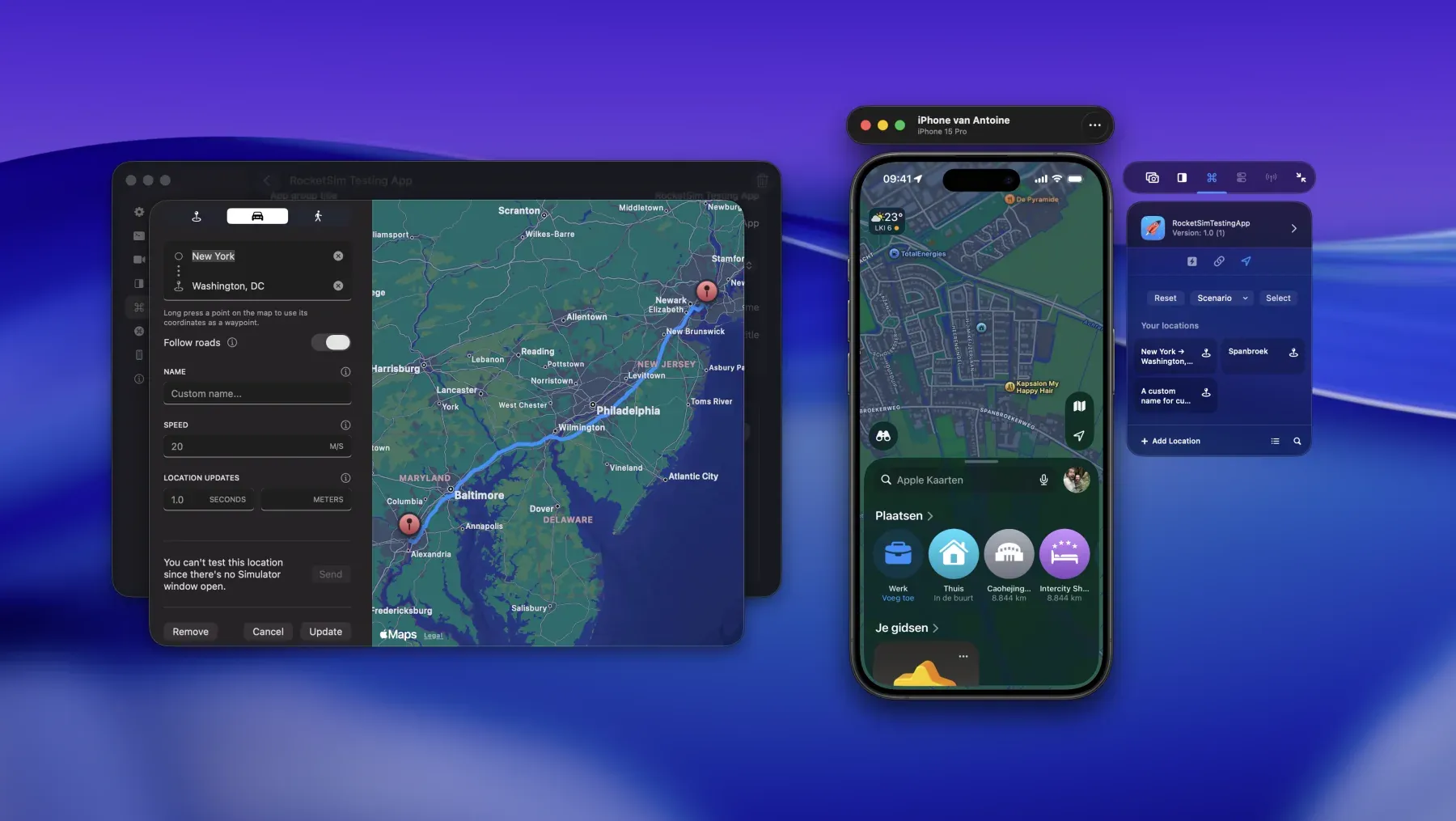
RocketSim 16 expands iOS testing beyond the Simulator. You can now capture a connected iPhone, run App Actions on physical devices, and let your coding agent inspect and control a running Simulator through the RocketSim CLI and Agent Skill.
The latest RocketSim 16.4 release completes much of the physical-device workflow we introduced in May. You can launch, relaunch, terminate, localize, and uninstall apps, open deep links, and simulate locations without reaching for the device every time. Combined with Xcode 27 and Device Hub support, this has become a much larger release than the version number might suggest.
Our previous release article covered RocketSim 15. Since then, RocketSim 15.1 added app logs beside network requests, reusable arguments for deep links, and visible pinch and rotate touches in recordings. Those improvements were useful on their own, but RocketSim 16 changed the direction of the product much more significantly.
Physical device testing in RocketSim 16
RocketSim 16.0 introduced physical device testing for USB-connected iPhones and iPads. A live preview appears beside Xcode, giving you the familiar RocketSim side window for screenshots, recordings, and design comparisons.
At first, this was mainly a capture workflow. You could record a real device with system audio, add microphone audio, and polish the result in the same post editor you already used for Simulator recordings. That was a useful start, but we wanted physical devices to support the repeatable testing actions you use throughout development.
RocketSim 16.4 takes the next step. Recent Builds now works with apps you ran from Xcode on a connected device, allowing you to:
- Launch, relaunch, terminate, or uninstall an app
- Relaunch using one of the app’s supported locales
- Open saved deep links and Universal Links
- Simulate a coordinate, route, or built-in location scenario
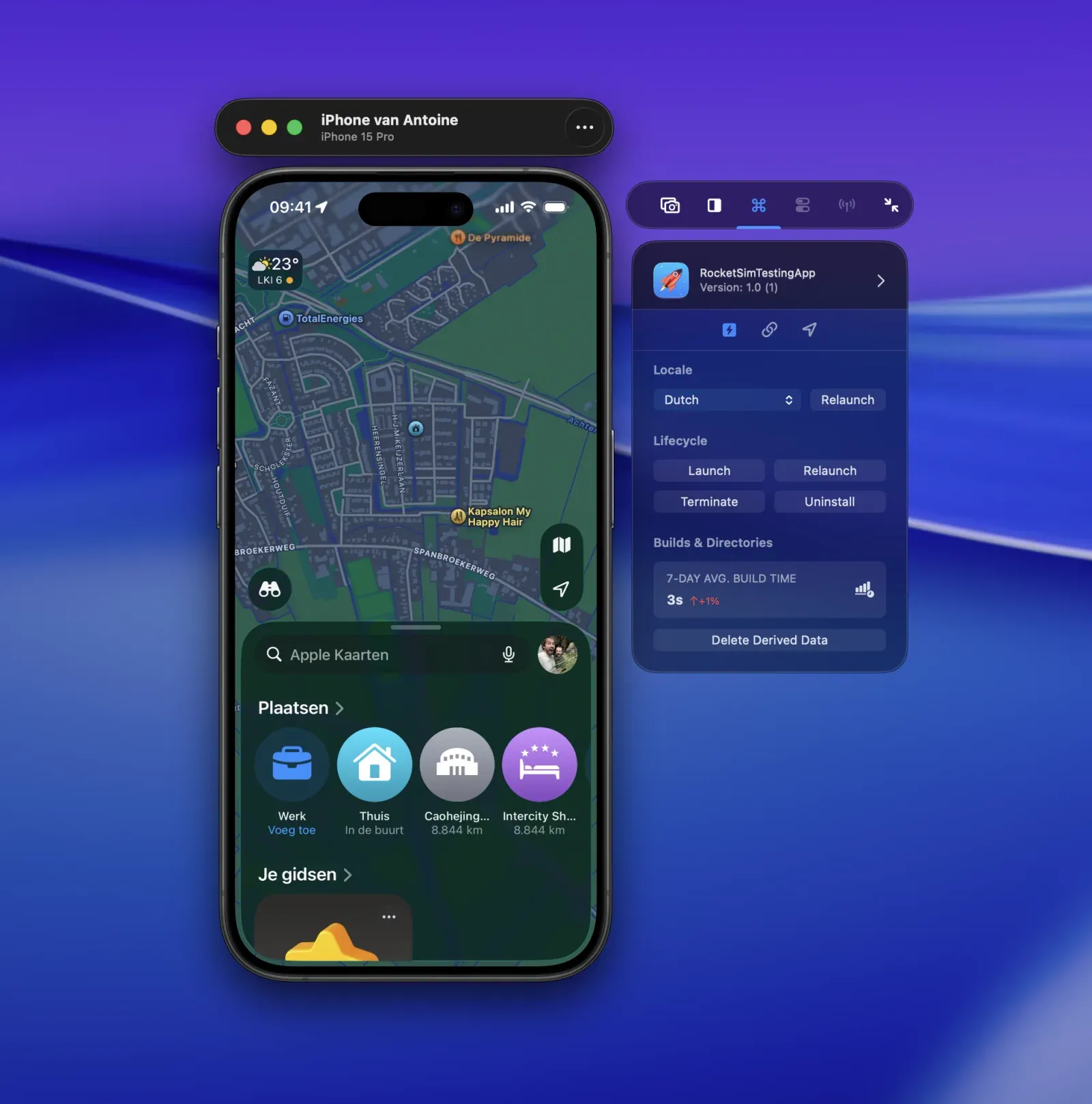
RocketSim 16.4 brings Recent Builds and App Actions to USB-connected physical devices.
We particularly like the physical-device deep-link workflow. Instead of keeping URLs in Notes or sending them to yourself, you can reuse the same bundle-identifier-based App Actions you configured for the Simulator. Dynamic placeholders and recent argument values continue to work as well.
Location simulation on physical devices creates another useful testing loop. You can run a saved route on real hardware and combine it with system behaviors such as Driving Focus or Vehicle Motion Cues. With Xcode 27, a simulated coordinate can even make iOS adopt the matching system time zone when automatic time-zone settings are enabled.
There are still differences between a Simulator and a physical iPhone. Network monitoring, privacy permissions, Keychain actions, and push notification testing remain Simulator-only today. The physical devices feature overview shows what is supported so you can pick the right target for each test.
From CLI beta to agent workflows
RocketSim 15 included the first CLI beta. RocketSim 16 turns that experiment into a version-matched CLI and Agent Skill that ship inside the app.
The goal is simple: your coding agent should be able to verify the app it is changing. Compiling a SwiftUI view is not enough when a button ends up below the fold or an onboarding flow gets stuck on the third screen. The agent needs to inspect the running UI, interact with it, wait for the result, and verify the new state.
Agentic Development with RocketSim supports that feedback loop with compact accessibility summaries and semantic interactions. Agents can tap, type, swipe, long-press, press hardware buttons, take screenshots, answer Face ID prompts, and use multi-touch gestures. Airplane Mode and Network Speed Control are also available through the CLI for testing offline and poor-network states.
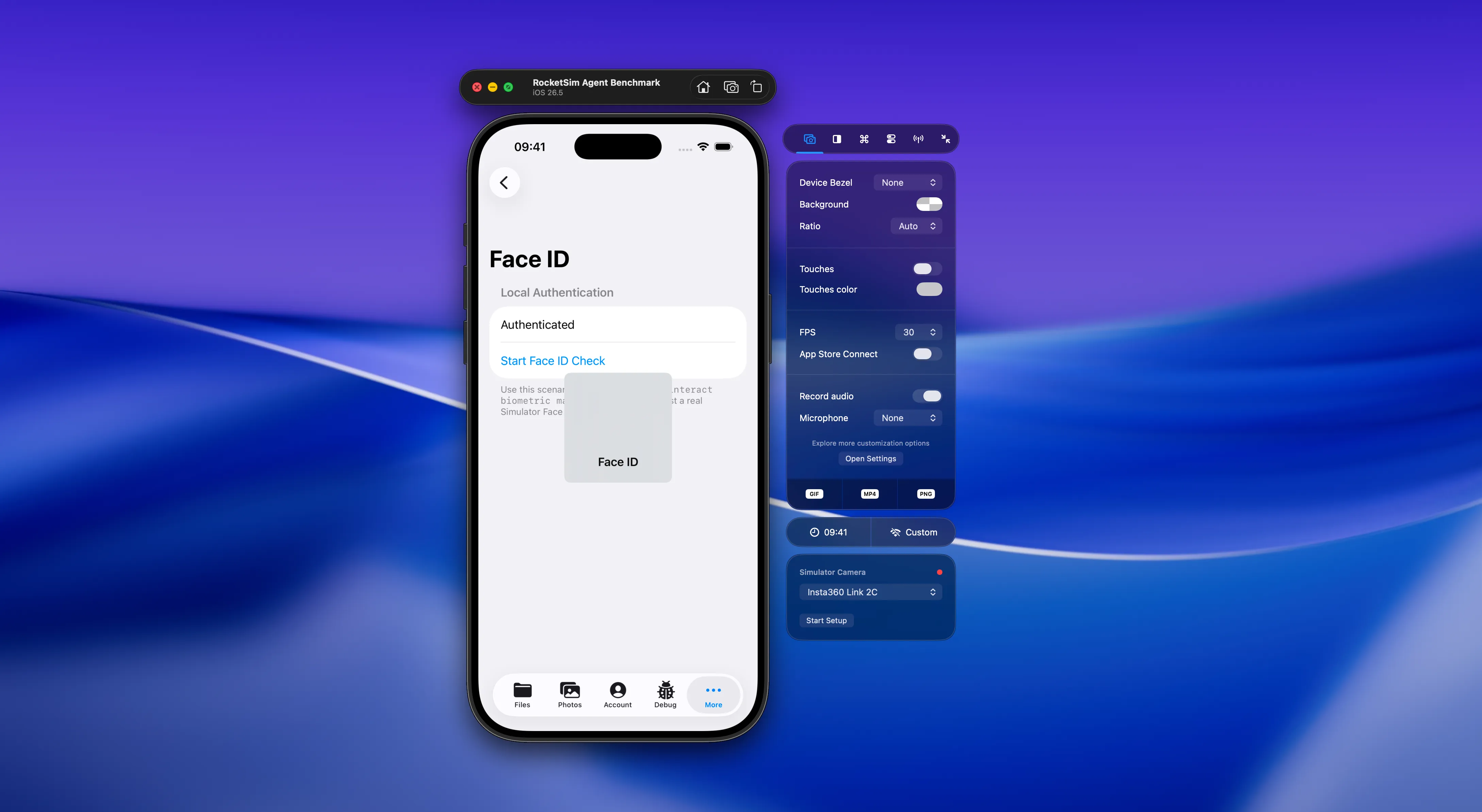
Repeatable scenarios help us improve the RocketSim CLI and Agent Skill together.
We care a lot about keeping these workflows efficient. A large accessibility tree might contain everything, but it also fills the agent’s context with details it does not need. RocketSim keeps the Mac app running, maintains useful state, and returns compact rs/1 responses designed for agents.
Our latest benchmark showed over 99% less command output, about a 95% lower byte-based context estimate, and about 24% less measured command time compared with other tools available to control the iOS Simulator. These numbers are based on repeatable command workflows rather than model reasoning, but they validate the direction: give an agent enough context to act reliably without overwhelming it.
The RocketSim Agent Skill teaches Cursor, Claude, Codex, Xcode, and other coding tools how to use the CLI. Both the skill and CLI update alongside the app, so their instructions and commands do not slowly drift apart. If you want a practical introduction first, read AI Agents for the iOS Simulator.
Ready for Xcode 27 and Device Hub
Apple introduced Device Hub at WWDC, bringing physical and simulated devices into Xcode. Our first reaction was probably similar to what many RocketSim users thought: is this the end of RocketSim?
It turned out to be the opposite. Device Hub provides a stronger foundation for working with physical devices, while RocketSim continues to add the workflows you rely on for captures, accessibility, design comparison, app actions, and agentic development.
RocketSim 16.1 added official Xcode 27 and Device Hub support. The side window works with a Simulator running inside Device Hub, and RocketSim 16.4.2 lets the CLI and rocketsim doctor resolve those Simulators as well.
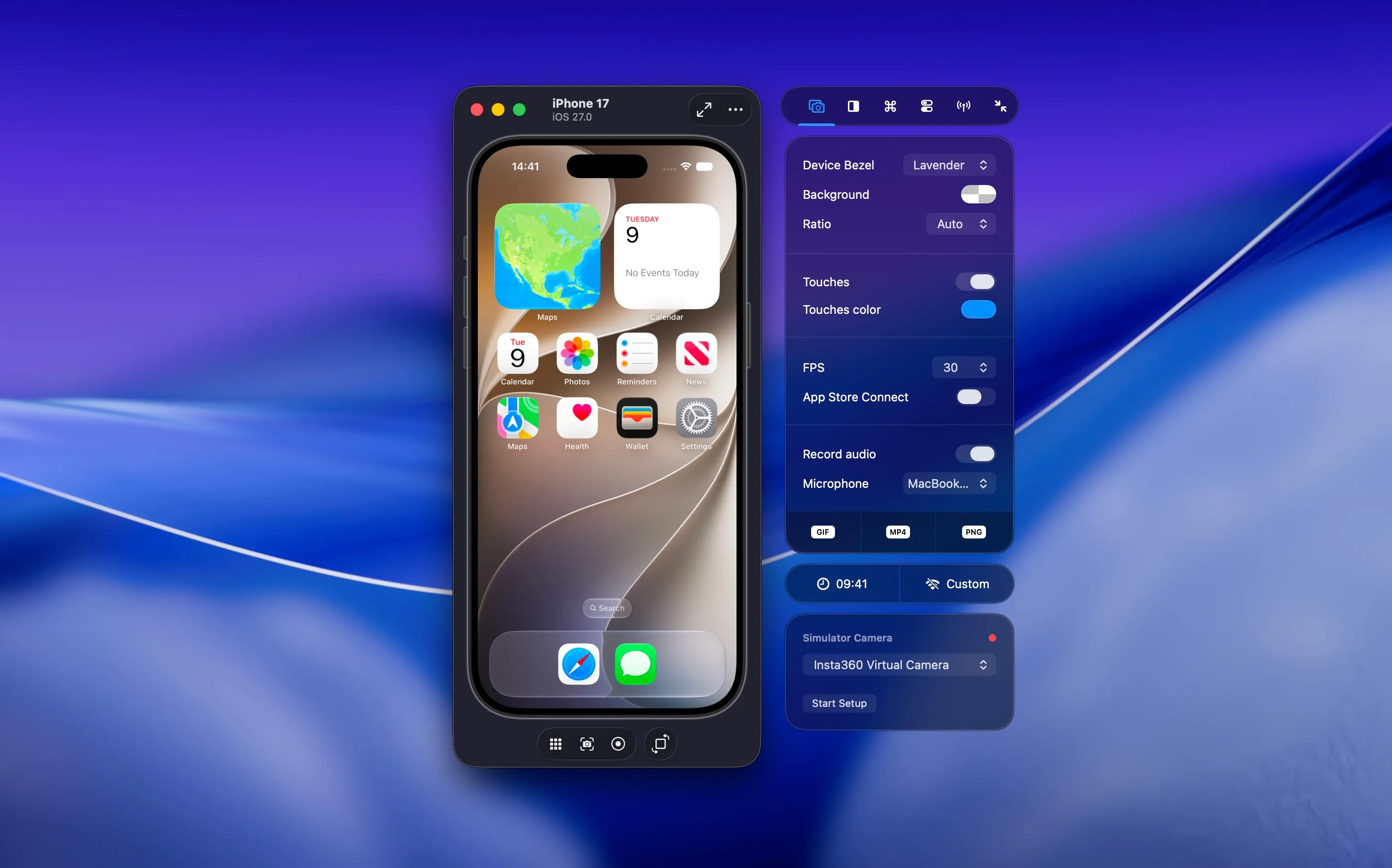
RocketSim continues to provide its side-window workflows when a Simulator runs inside Xcode’s Device Hub.
You can read more about Device Hub and the future of RocketSim or follow the Device Hub setup guide if your side window does not appear. Apple also explains the broader workflow in Get the most out of Device Hub.
Better recordings and daily workflows
RocketSim 16 also includes several improvements that are smaller than physical devices or agents, but still make a real difference during daily development.
Audio feedback now appears as a live waveform in the side window and underneath the thumbnail strip in the video editor. You can quickly confirm whether Simulator or microphone audio was captured before wasting another take. Recordings export with Simulator and microphone audio in one playback-compatible track by default, while you can still keep separate tracks for post-production.
Physical-device recordings support microphone audio as well. This makes it easier to record a real-device demo with narration and finish it in the same post-capture editor you use for Simulator recordings.
Location App Actions gained map long-press waypoints and a Follow roads toggle. Disable it when you need to simulate a golf course, hiking trail, indoor route, or another path that should move directly between coordinates.
The Simulator Camera also became much more reliable in RocketSim 16.2, including better pixel format and orientation handling, Flutter camera compatibility, and an option to make the camera unavailable for testing fallback behavior.
Finally, RocketSim Connect installation now happens automatically through an LLDB init file. RocketSim 16.4.2 further optimizes that setup for Xcode 26 and 27, lets you validate the integration later during onboarding, and warns when an App Store Connect-optimized recording falls outside the accepted 15–30 second App Preview duration.
What changed in RocketSim 16.4.2?
RocketSim 16.4 is the feature release, while 16.4.2 focuses on making the complete workflow more reliable. Device Hub Simulator discovery now works from the CLI, RocketSim Connect initializes faster, and agent commands surface actionable errors instead of hanging when accessibility or the Network Extension is unavailable.
Face ID commands now report completion correctly, and coordinate-only batches keep working when accessibility data cannot be fetched. Recent deep-link arguments preserve their full value as well, including long URLs that previously got truncated.
These changes might not create the most exciting screenshots, but they matter once agents start running longer workflows. A clear failure gives an agent a way to recover; an endless wait does not. You can find every patch-level improvement in the RocketSim changelog.
What’s new in RocketSim 16.4.6?
RocketSim 16.4.6 adds Browser Preview as a beta. The rocketsim preview command opens a live, interactive Simulator in your browser, where you can navigate the app, inspect accessibility elements, leave visual feedback across screens, and copy a structured prompt for your coding agent.
Agent commands keep this preview available automatically and include its URL in the rs/1 response context. This means your coding agent can open the Simulator in a user-visible IDE browser while it works, allowing you to follow the navigation and review the final state yourself.
The release also reduces background CPU usage from recent-build scans and accessibility refreshes during agent sessions. Compact nav and act snapshots omit irrelevant keyboard, off-canvas, and duplicate elements, while improved recovery errors help agents respond to stale Simulator services and unavailable accessibility instead of failing with a generic error.
Capture workflows improve as well. A new Open editor directly after recording setting skips the initial conversion, so you can trim the recording before exporting. RocketSim also adds real device bezels for the 11-inch and 13-inch iPad Pro (M5) and prevents physical-device preview windows from becoming too narrow.
Conclusion
RocketSim 16 expands the product in two directions: testing on physical iPhones and iPads, and letting coding agents close the feedback loop in the Simulator. Xcode 27 and Device Hub support connect those workflows, while better recordings, location testing, Simulator Camera compatibility, and RocketSim Connect setup make the complete release feel more polished.
If you already use RocketSim, install the latest RocketSim version from the Mac App Store. We recommend connecting a physical device to try Recent Builds, then opening RocketSim → Settings → CLI & Agent to install the CLI and Agent Skill. Feel free to open an issue on GitHub if you have a physical-device or agent workflow you would like to see next.
Thanks!