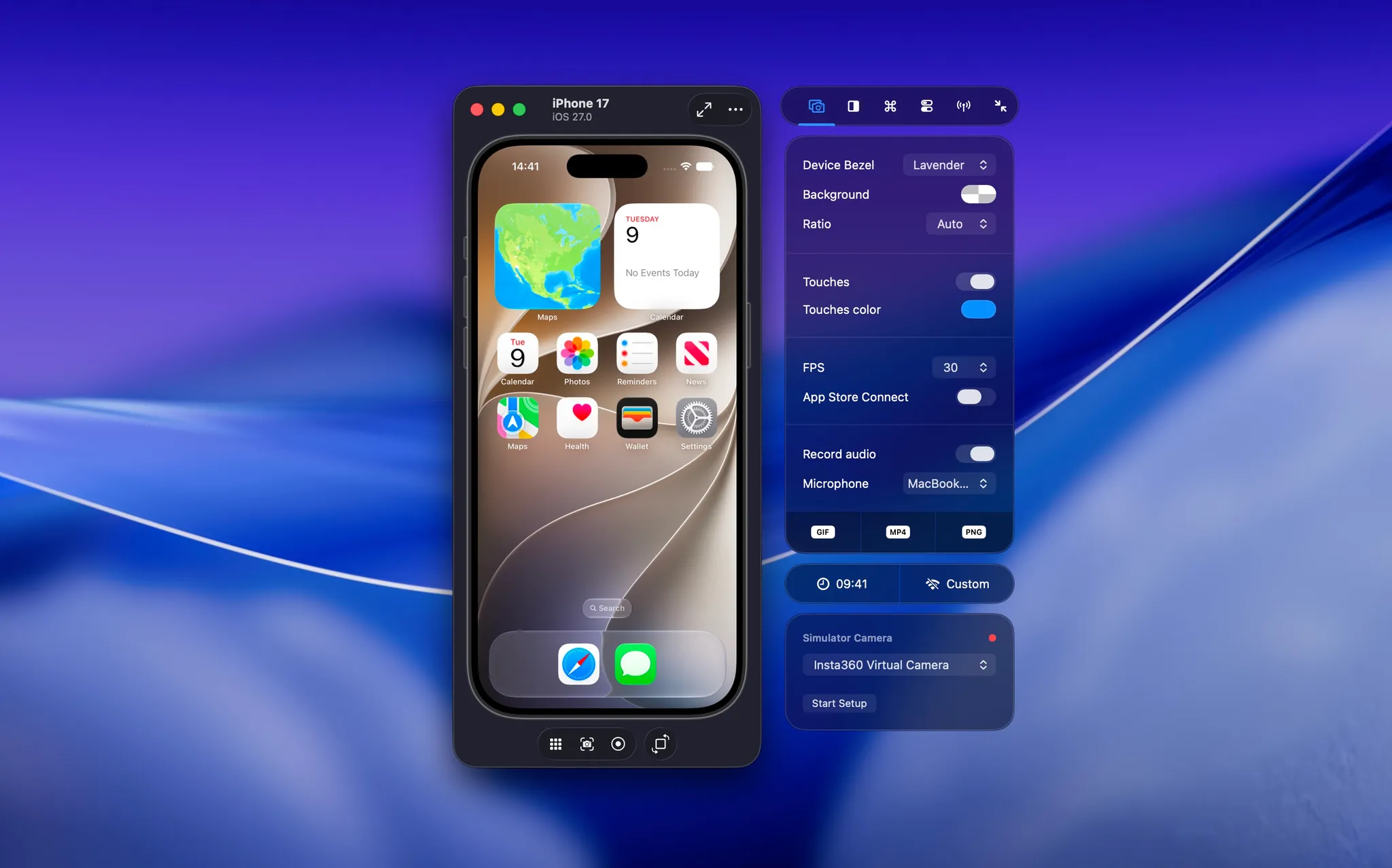
Xcode 27 Device Hub is the new app that brings Simulators and connected devices together in a single window. It replaces the standalone Simulator window you used in earlier Xcode versions, which changes how you run and test your app every day.
When Apple announced Device Hub at WWDC, I wondered if it would be the end of RocketSim. It turned out to be the opposite. Device Hub is a stronger foundation for working with simulated and physical devices, and RocketSim keeps adding the workflows it does not cover. This article explains what changed, what is missing, and how to fix Device Hub when it does not launch.
What is Xcode 27 Device Hub?
Device Hub is an app introduced in Xcode 27 that shows Simulators and connected devices in one place. Apple covers the workflow in Get the most out of Device Hub, and it relies on the same CoreDevice tooling as the devicectl command line tool.
The Device Hub support guide lists how RocketSim works with it. Both the expanded window and Compact Mode are supported.
Does Device Hub replace the Simulator window?
Yes, in Xcode 27 Device Hub takes the place of the standalone Simulator window. A Simulator, for example an iPhone 17 running iOS 27, now opens inside Device Hub.
RocketSim still resolves booted Simulators whether they run in Simulator.app or in Device Hub. For the most predictable window attachment, run Device Hub on its own instead of showing the same Simulator in Simulator.app at the same time.
What is missing in Device Hub compared to the Simulator?
Device Hub does not include several actions you might know from Simulator.app. The ones I missed most are:
- Shake
- Slow Animations
- Toggling light and dark appearance with a shortcut
- Simulating a memory warning
- Dropping files such as push payloads, certificates, and photos onto the Simulator
RocketSim 16.5 restores all of these. Read how to restore missing Simulator features in Xcode 27 Device Hub for the details and shortcuts.
Some workflows are different instead of missing. Select File → New Window or press ⇧⌘N to open multiple Simulators, and switch to Compact Mode when you want a focused window similar to Simulator.app.
What if Xcode Device Hub does not launch?
If Device Hub does not launch, restart the CoreDeviceService daemon. This force-restarts the service that Device Hub and devicectl rely on, which clears up the connection issues you might hit in this first release.
We had that at first as well. I spoke with one of the Simulator engineers in the labs at WWDC, and he gave me the command that fixed it all:
killall -9 CoreDeviceServiceWhat does RocketSim support in Device Hub today?
RocketSim supports Simulators in Device Hub for captures, design comparison, accessibility, app actions, and AI agent workflows. The side window appears for Simulators in both the expanded window and Compact Mode.
Screen-relative overlays still require Compact Mode, because RocketSim needs a single device window to align them. This applies to design comparison, grids, rulers, and VoiceOver overlays.
Since RocketSim 16.4.2, the rocketsim CLI and rocketsim doctor resolve Simulators in Device Hub as well, so your AI agent can inspect and interact without opening Simulator.app.
Does RocketSim support physical devices?
Yes. RocketSim 16.0 introduced physical device testing for USB-connected iPhones and iPads. You get a live preview beside Xcode, screenshots, recordings, and design comparison.
With RocketSim 16.4 and Xcode 27, you can also launch, relaunch, and uninstall apps, open deep links, and simulate locations on a connected device. Network Monitor, privacy and Keychain actions, and push notification testing remain Simulator-only today. The physical devices feature page shows what each target supports.
How about the side window?
The side window is still here. It works with Simulators in both the expanded Device Hub window and Compact Mode, so you can take screenshots, create recordings, and use side-window actions in either layout.
The expanded Device Hub window is large, though, and there might not be much room left for the side window. I’m still keen to see how developers end up using Device Hub. For now, switch to Compact Mode when you want design comparison, grids, rulers, or VoiceOver overlays. If the side window does not appear, focus the Simulator inside Device Hub.
Conclusion
Xcode 27 Device Hub replaces the Simulator window and brings physical devices into the same place. It leaves out a few Simulator actions, but you can restore them with RocketSim without switching back to an earlier Xcode version.
Install the latest RocketSim version from the Mac App Store and follow the Device Hub support guide to configure your setup.
Feel free to reach out on X/Twitter or open an issue on GitHub if you run into anything or have ideas for how RocketSim should fit into Device Hub.
Thanks!