Xcode Device Hub replaces the standalone Simulator window in Xcode 27, but several Simulator features are missing. Shake, Slow Animations, familiar shortcuts, and drag-and-drop imports are workflows many iOS developers use every day.
I noticed how much these features matter after replying to developers in a Reddit discussion about Device Hub. Their comments directly shaped RocketSim 16.5, which restores several missing Simulator workflows without requiring you to switch back to Xcode 26.
Shake a Simulator in Device Hub
Device Hub has no obvious replacement for Device → Shake from Simulator.app. This can block you from testing undo prompts, debug menus, and custom shake interactions.
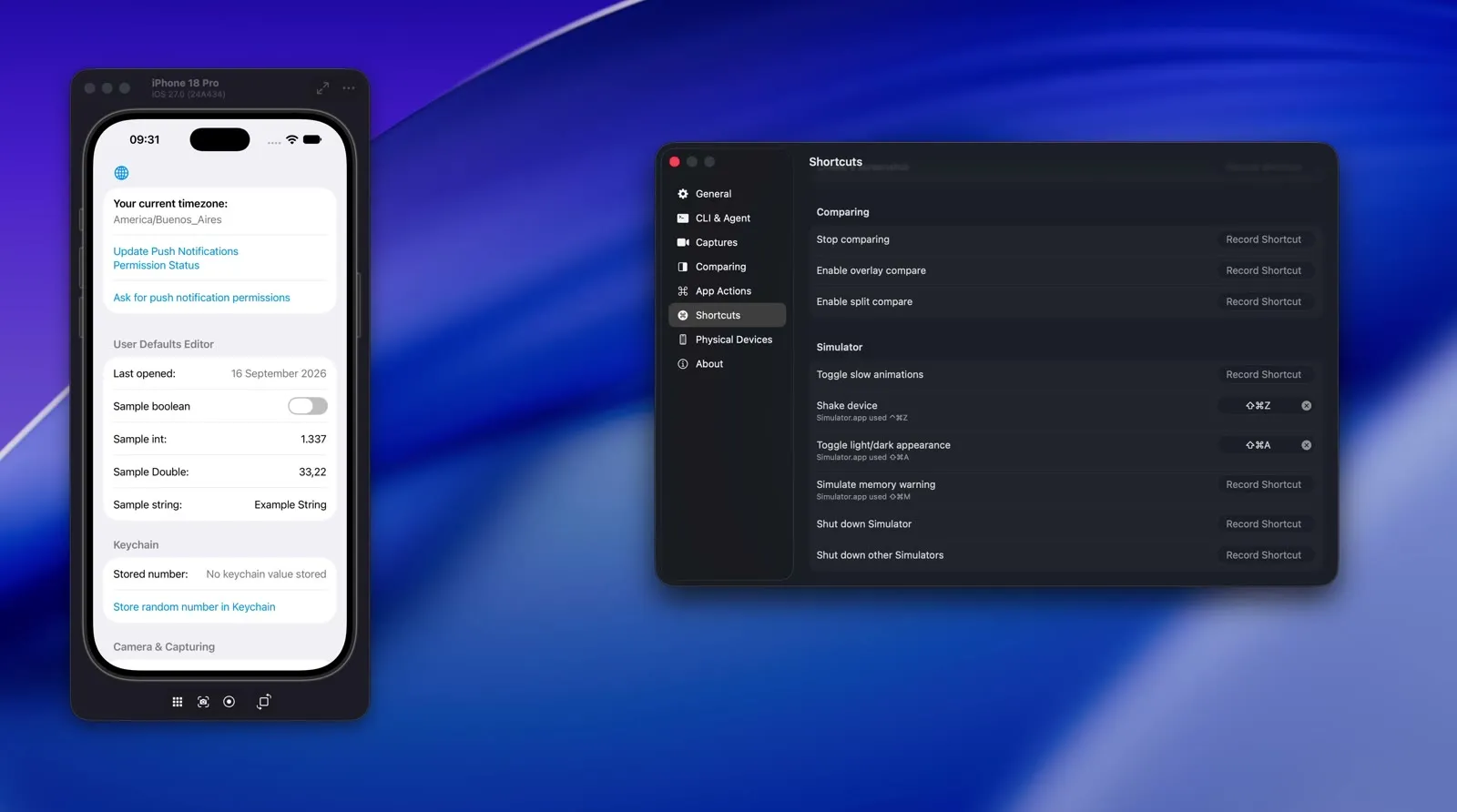
RocketSim 16.5 adds Shake to the Simulator menu in the menu bar and to the Comparing tab in the side window. You can also configure a global shortcut under RocketSim → Settings → Shortcuts → Simulator.
Assign any global shortcut to shake the focused Simulator from Device Hub.
RocketSim shows the shortcut Simulator.app used before Device Hub: ⌃⌘Z. It is only a suggestion, so you remain in control of your shortcuts. RocketSim does not assign one automatically.
Shake actions only target a Simulator. The button remains visible but disabled when you focus a physical device, preventing RocketSim from accidentally targeting another booted Simulator.
Restore Device Hub shortcuts
Shake is not the only missing Simulator action. RocketSim 16.5 adds a dedicated Simulator shortcut group containing:
- Toggle Slow Animations
- Shake
- Toggle Light/Dark Appearance
- Simulate Memory Warning
- Shut Down Simulator
- Shut Down Other Simulators
You can also find all actions in the RocketSim menu bar. Shake, appearance, and memory warnings are available directly from the Comparing tab as well.
The Comparing tab keeps common Simulator actions beside Device Hub.
Toggle light and dark appearance
I use appearance switching often while building a view. The old Simulator shortcut, ⇧⌘A, made it easy to validate both appearances without navigating to Settings.
RocketSim brings the same workflow to Device Hub. Assign the suggested shortcut or choose your own:
Toggle light and dark appearance without leaving your app or Device Hub.
The same group lets you simulate a memory warning using Simulator.app’s former ⇧⌘M shortcut. You can shut down the focused Simulator or all other Simulators too, which helps when Device Hub leaves several runtimes booted.
Enable Slow Animations
Slow Animations makes transitions easier to inspect. You can spot an unexpected jump, verify that elements move together, and compare your implementation with a design.
Device Hub does not include this toggle, but it remains available in RocketSim’s Comparing tab. You can enable it from the side window or assign a global shortcut under Settings → Shortcuts → Simulator.
The action applies to the focused Simulator and is unavailable for physical devices. Read the Slow Animations guide for the exact controls and speed options.
Drag files into Device Hub
Simulator.app accepted files anywhere on its window. Device Hub no longer provides the same general drop target, which affects much more than adding a photo.
RocketSim 16.5 turns its visible side window into a drop target for the active Simulator:
Drop supported files or links onto RocketSim to import them into the active Simulator.
The drop target supports:
.apnspush notification payloads.cer,.crt,.der, and.pemroot certificates- Photos and videos
.appbundles- HTTP(S) and custom-scheme links
RocketSim processes every dropped item, so one invalid file does not block the rest. You will see a success notification, a partial-failure warning, or an import error when the operation completes.
Push payloads need a non-empty "Simulator Target Bundle" key containing your app’s bundle identifier and an aps dictionary:
{ "Simulator Target Bundle": "com.example.MyApp", "aps": { "alert": "Testing a push notification" }}File imports are Simulator-only. RocketSim disables the drop target for a physical device because these simctl workflows are unavailable there. The Device Hub file imports guide lists every supported type and its requirements.
More Device Hub tips
Some Device Hub workflows are different rather than missing. Switch to Compact Mode when you want a focused Simulator window similar to Simulator.app. RocketSim’s side window works in expanded and Compact Mode, while screen-relative overlays require Compact Mode.
You can also open multiple Device Hub windows using File → New Window or ⇧⌘N. This is useful when testing layouts side by side, even though the workflow is less discoverable than it was in Simulator.app.
The Device Hub support guide explains window modes, AI agent support, and the complete RocketSim integration. Apple also provides a broader overview in Get the most out of Device Hub.
Conclusion
Xcode 27 Device Hub introduces a new way to work with Simulators and physical devices, but you should not have to give up the workflows that made Simulator.app productive. RocketSim 16.5 restores Shake, Slow Animations, appearance and memory-warning shortcuts, Simulator shutdown actions, and drag-and-drop imports.
Install the latest RocketSim version from the Mac App Store, open Settings → Shortcuts → Simulator, and assign the actions you use most.
Feel free to contact me or tweet me on Twitter if you have any other Simulator workflow you miss in Device Hub.
Thanks!