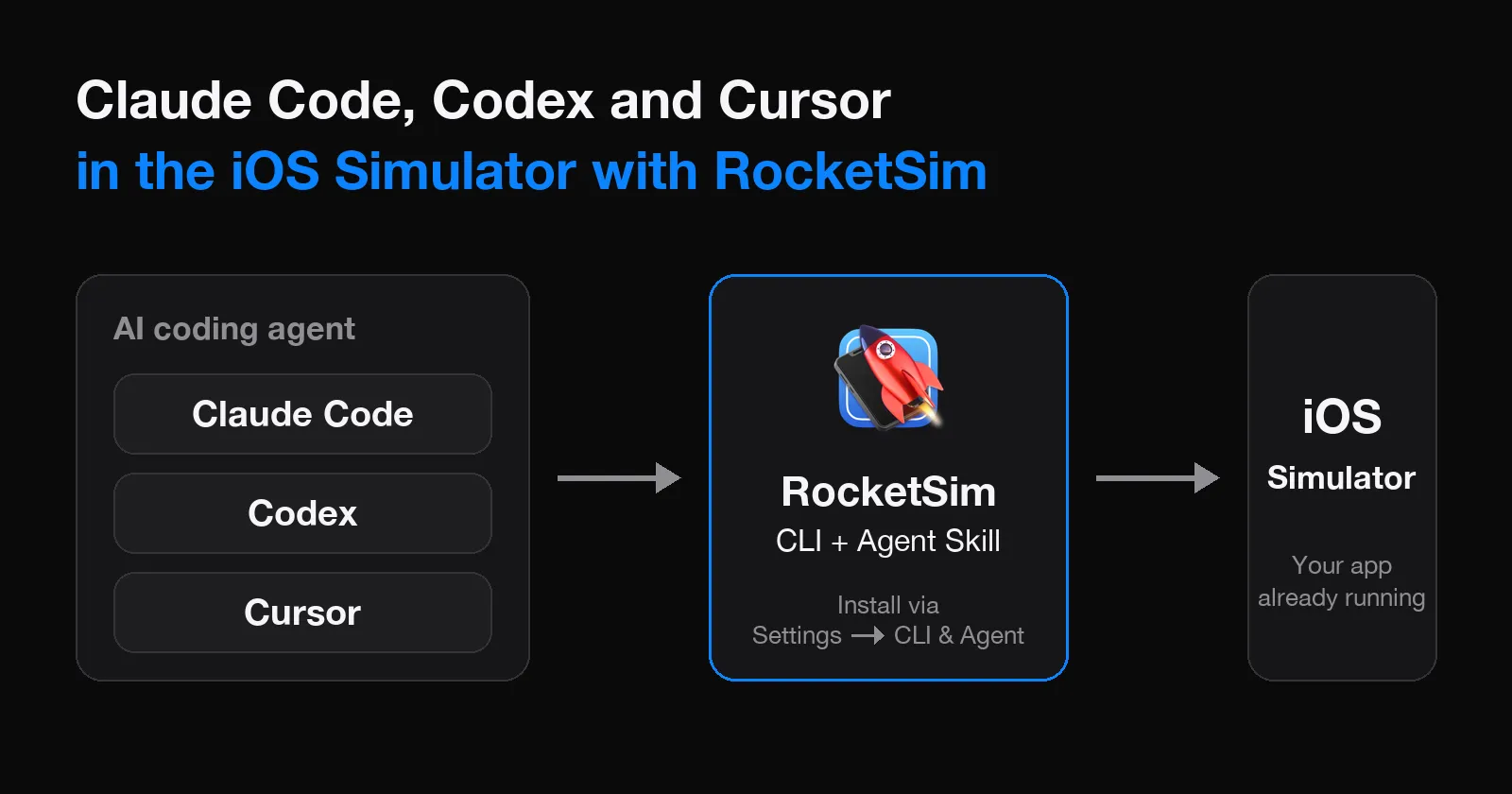
A Claude Code iOS Simulator setup has two routes. Claude Code Desktop has its own iOS Simulator pane, and for any coding agent you can install RocketSim’s CLI and Agent Skill. RocketSim works the same way in Claude Code, Codex, and Cursor: the agent builds your app with your normal tooling, then uses RocketSim to read the screen, tap, type, and verify the result in the running Simulator.
I make RocketSim, so keep that in mind. This guide explains what Claude Code covers on its own, where RocketSim differs, and how to set up Claude Code, Codex, and Cursor step by step. If you are looking for the build side, such as XcodeBuildMCP or Apple’s Xcode MCP bridge, read XcodeBuildMCP and Xcode MCP with RocketSim as well.
Can Claude Code use the iOS Simulator by itself?
Yes, in two ways, and both are documented by Anthropic.
In Claude Code Desktop, an iOS Simulator pane opens when Claude builds, installs, launches, or checks your app in a simulator. It streams the device screen next to your conversation, and you can tap through the app yourself while Claude works. The documentation lists these constraints:
- It is in public beta on macOS, for Pro, Max, Team, and Enterprise plans, except Enterprise organizations with a HIPAA configuration
- It works in local sessions only, not in cloud or SSH sessions
- It needs Claude Desktop v1.24012.0 or later and Xcode with the iOS platform installed
- Claude controls simulated devices only, not a physical iPhone or iPad
- Each device belongs to the session that launched it, and you allow Claude to use a device once
From the CLI, Claude reaches the iOS Simulator through computer use. That is a research preview on macOS for Pro and Max plans, and it needs an interactive session. Claude controls the Simulator on your screen the same way you would with a mouse, and you grant Accessibility and Screen Recording permissions.
How does RocketSim differ from Claude Code’s own support?
RocketSim is a separate Mac app with a CLI and an Agent Skill. Your agent runs rocketsim commands, and the skill tells it how to use them. The table only describes what each side documents.
| Topic | Claude Code Desktop pane | Claude Code CLI | RocketSim CLI and Agent Skill |
|---|---|---|---|
| Where it works | Claude Code Desktop, local sessions | Interactive CLI sessions on macOS | Terminal, agents, and CI scripts, with Claude, Cursor, Codex, Xcode |
| How the Simulator is driven | Directly, without computer use | Through computer use on your screen | CLI commands to the running RocketSim app |
| Builds your app | Yes, Claude builds and launches it | Yes, Claude can run xcodebuild and launch it | No, you use Xcode or your build tooling |
| Live view for you | The pane streams the device | Your own screen | Browser Preview (Beta) |
Anthropic’s documentation does not describe how Claude reads the UI, so I cannot compare output size or speed with the pane. What I can tell you is what RocketSim’s own documentation says:
- Compact element reads. The
--agentoutput returns compact rows of visible accessibility elements inside the rs/1 protocol. - Semantic interactions. Selector-based taps try semantic accessibility activation first and fall back to a precise tap at the element’s center.
- Extra checks. The CLI has
accessibility-audit, Face ID answers, and multi-touch gestures. - One setup for several tools. The same skill works in Claude Code, Codex, Cursor, and Xcode’s built-in coding assistant.
- Version-matched. The CLI and skill ship inside the app, so your agent follows the guidance for the RocketSim version you have installed.
If the Desktop pane covers your flows and you only use Claude Code Desktop, you may not need anything else. RocketSim makes more sense when you also use Codex or Cursor, run Claude Code in the terminal, or want those extra checks.
How do you set up Claude Code with RocketSim?
- Open RocketSim → Settings → CLI & Agent
- In Command Line Tool, click Install Command Line Tool and choose a folder on your
PATH - In Agent Skill, choose the Claude destination and click Install
- Restart Claude Code so it discovers the new skill
Claude Code loads personal skills from ~/.claude/skills, which is the folder the Claude destination installs into. If you use the Claude Agent inside Xcode instead, choose Agentic Coding in Xcode. Xcode keeps its own configuration under ~/Library/Developer/Xcode/CodingAssistant.
RocketSim must be running, and your app must already be running in the Simulator, because the CLI does not build or launch your project. Let Claude build with xcodebuild or Xcode’s tools, then check the setup:
rocketsim doctorNow ask Claude Code:
Use RocketSim to navigate through <your_app_name> in the SimulatorHow do you use Codex with the iOS Simulator?
Install the command line tool the same way, then choose General Agents in Agent Skill. That destination installs into the shared .agents/skills location. OpenAI’s skills documentation says Codex scans .agents/skills in your repository and in $HOME/.agents/skills, and that it follows symlinked skill folders. RocketSim installs the skill as a symlink, so this fits.
Codex detects skill changes automatically. If the RocketSim skill does not appear, restart Codex. In the Codex CLI or IDE extension, you can run /skills or type $ to see and mention available skills. For the build side, Apple documents codex mcp add xcode -- xcrun mcpbridge in Giving external agents access to Xcode.
How do you use Cursor with the iOS Simulator?
Choose General Agents here as well. Cursor’s skills documentation lists .agents/skills/ and ~/.agents/skills/ as skill directories, and Cursor also loads skills from ~/.claude/skills/ and ~/.codex/skills/. To check what Cursor found, open Customize in the sidebar and go to Skills. Choose the Cursor destination in RocketSim if it does not show up.
Cursor can also connect to Xcode’s MCP bridge for building and testing. Cursor describes that setup in its Xcode integration documentation. After that, the prompt is the same as for Claude Code.
How do you know it works?
Run rocketsim doctor and ask your agent to use RocketSim on your running app. If the skill is installed, the agent should read the visible elements and start interacting. It should also share a Live preview: URL, which you can open to follow the agent. Browser Preview explains how to use that view.
If the agent reports that rocketsim is not on its PATH, it should check /opt/homebrew/bin, /usr/local/bin, ~/.local/bin, and the helper inside /Applications/RocketSim.app. Agent shells can use a different PATH than Terminal. The Agent Skill documentation and the CLI & Agent settings cover more troubleshooting.
Frequently asked questions
Can Claude Code use the iOS Simulator?
Yes. Claude Code Desktop has an iOS Simulator pane in public beta, and the CLI can drive the Simulator through computer use. You can also install RocketSim’s CLI and Agent Skill so Claude Code uses rocketsim commands instead.
Does Codex work with the iOS Simulator?
Codex can run the rocketsim command once the RocketSim Agent Skill is installed in a location it scans. Choose General Agents in RocketSim and restart Codex if the skill does not appear.
Can Cursor control the iOS Simulator?
Yes, with the RocketSim CLI and Agent Skill. Cursor loads skills from .agents/skills/ and ~/.agents/skills/, among other folders.
Do I need an MCP server for this?
No. RocketSim does not ship an MCP server. iOS Simulator MCP vs CLI and Agent Skill explains how the two approaches differ.
Can the agent build my app with RocketSim?
No. RocketSim does not build, install, or launch your app. Your agent builds with Xcode, xcodebuild, or a build tool, and RocketSim works with the running app.
Is there a benchmark for the CLI and Agent Skill?
Yes. How We Test AI Agents for the iOS Simulator describes our scenarios and the July 2026 results against AXe and XcodeBuildMCP. It does not include Claude Code’s own simulator support.
Conclusion
Claude Code can drive the iOS Simulator on its own, and RocketSim adds a CLI and Agent Skill that work the same way in Claude Code, Codex, and Cursor. Install the command line tool, pick the skill destination for your agent, and ask it to use RocketSim on your running app.
Install RocketSim from the Mac App Store, then open Settings → CLI & Agent. The agentic development feature page shows everything the agent can do, and AI Agents for the iOS Simulator gives a broader introduction. Feel free to contact us or open an issue on GitHub if your agent struggles with a Simulator workflow.
Thanks!