An iOS Simulator MCP server is a program that exposes iOS Simulator actions, such as reading the screen, tapping, typing, and taking screenshots, as tools an AI agent can call through the Model Context Protocol. It is one way to give a coding agent control over the app it is changing.
RocketSim takes a different route: we ship a CLI and an Agent Skill instead of an MCP server. I make RocketSim, so keep that in mind. I stick to what our documentation and benchmark show, and I name every tool we compared.
What is an iOS Simulator MCP server?
MCP is an open-source standard for connecting AI applications to external systems. An MCP server describes its tools with schemas, and the AI application can discover and call them.
To be useful for development, an agent needs the same loop a developer follows in a booted Simulator:
- Read what is on screen
- Choose an element
- Tap, type, or swipe
- Wait for the screen to change
- Read again and verify the result
An iOS Simulator MCP server can offer that loop as tools. A CLI can offer the same loop as commands. The difference is how the agent reaches it, not what it can do in principle.
When does an iOS Simulator MCP server make sense?
An MCP server fits when your agent setup is already built around MCP. You configure the server once in a client that supports it, and its tools show up next to the others. The tool schemas are also part of the protocol, so the agent knows which arguments each tool accepts.
That route makes sense when your tooling only talks to MCP servers, or when you already run other MCP servers and want to manage them in one place. Before you choose one, check what that specific server supports. Capabilities differ per tool: in the benchmark below, XcodeBuildMCP 2.7.0 sat out several scenarios.
Why does RocketSim ship a CLI and Agent Skill?
RocketSim does not ship an MCP server. Agents use the RocketSim CLI and the RocketSim Agent Skill. Our documentation describes these properties of that design:
- The CLI talks to the running Mac app. RocketSim stays connected to the Simulator and keeps state warm, so there is no reconnection overhead between steps.
- Output is compact and consistent. Every agent-facing command returns one JSON envelope in the rs/1 protocol, with typed errors, screen hashes, and compact element rows instead of a full accessibility tree.
- The skill carries the workflow. It teaches the agent when to read elements, when to wait, when to interact semantically, and when to fall back to a screenshot.
- Both are version-matched. The CLI and the skill ship inside the app, and the installed files are symlinks. After an App Store update, your agent uses the guidance that matches the RocketSim version it controls.
- One command for agents and scripts. The
rocketsimcommand is available from Terminal, agents, and CI scripts, and always matches the RocketSim version you installed.
We have not published a comparison that isolates MCP as a protocol against a CLI. That means I cannot tell you MCP itself is slower or heavier, and I will not claim it. What I can show is a measured comparison between specific tools, in the benchmark section below.
iOS Simulator MCP vs CLI and Agent Skill
| Topic | MCP server | RocketSim CLI and Agent Skill |
|---|---|---|
| How the agent calls it | Tools described by schemas in the server | Shell commands guided by the skill |
| Output format | Defined by each server | Always the rs/1 JSON envelope |
| Workflow guidance | Depends on the server | Agent Skill with a documented interaction loop |
| Install | Configure the server in an MCP client | RocketSim → Settings → CLI & Agent |
| Updates | Depends on the server | Symlinks into the app, updated with RocketSim |
| Builds or launches your app | Depends on the server | No, use Xcode or your build tooling |
The right column only describes RocketSim. For any MCP server, read its own documentation.
What did the July 2026 benchmark show?
We benchmarked RocketSim against two tools in July 2026, using the same scenarios and three rounds per scenario. The pinned versions were RocketSim 16.4.2 build 326, AXe 1.8.0, and XcodeBuildMCP 2.7.0, driven through its MCP server interface. The scenarios and method are described in How We Test AI Agents for the iOS Simulator.
These tools sit at different layers, and credit goes to Cameron Cooke, the author of both AXe and XcodeBuildMCP, for this nuance. AXe is deliberately a raw, non-agentic primitive layer. Returning the full accessibility tree is a design choice, not a flaw. XcodeBuildMCP builds on AXe and adds state management and compact output. That compact output follows the approach of rs/1, and Cameron mentioned to me that he found it a good direction and incorporated it into XcodeBuildMCP.
The results, as published in that post:
- Against AXe 1.8.0, RocketSim showed 119.3× fewer output bytes, a 21.0× lower byte-based context estimate, and 66.5 seconds less total command time. This compares against a primitive layer that returns the full accessibility tree on purpose.
- Against XcodeBuildMCP 2.7.0, over the fourteen scenarios both tools ran head-to-head, XcodeBuildMCP produced 3.0× RocketSim’s tool-response bytes, an 8.2× higher byte-based context estimate, and finished 171.5 seconds slower in total. The estimate charges its MCP tool catalog once per scenario, like the skill files for the CLI tools.
- Command turns went the other way. RocketSim used more of them: XcodeBuildMCP needed 0.79× as many turns, and AXe 0.70×.
- Capability coverage differed. Face ID and two-finger input were RocketSim-only, and XcodeBuildMCP 2.7.0 sat out six of the twenty scenarios.
- No tool had a perfect run, including RocketSim. RocketSim recorded seven wrong interactions and one unexpected failure, AXe fifteen wrong interactions, and XcodeBuildMCP nine. Almost all of them, across all three tools, came from the frozen Settings scripts hitting iOS 26 UI drift.
Two caveats matter. The context figure is a byte-based estimate, not actual model tokens or billing. And this is a benchmark of tools and their recommended workflows, not a ranking of AI models. It also compares one MCP server with one CLI, so it does not say anything about every iOS Simulator MCP server.
How do you set up RocketSim’s Agent Skill?
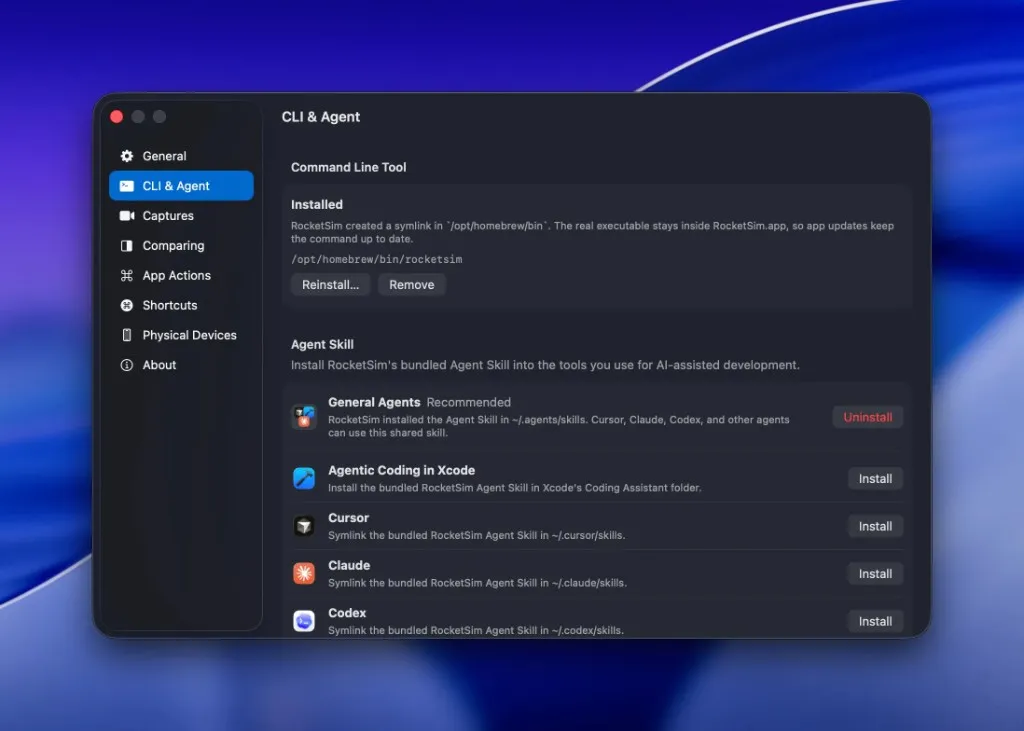
Install both the command line tool and the skill from RocketSim:
- Open RocketSim → Settings → CLI & Agent
- In Command Line Tool, click Install Command Line Tool and choose a folder on your
PATH - In Agent Skill, choose General Agents for broad support or Agentic Coding in Xcode for Xcode’s built-in coding assistant
- Click Install
- Restart or refresh your tool if it does not detect new skills automatically
Which destination you pick depends on the tool:
- Cursor, Codex, and other agents: start with General Agents, which installs into the shared
.agents/skillslocation so several tools can reuse one skill. Use the Cursor or Codex destination if your tool only scans its own skill folder. - Claude Code: use the Claude destination if the shared location is not picked up. It installs into
~/.claude/skills. - Xcode: choose Agentic Coding in Xcode for Xcode’s built-in Claude Agent or Codex integration, then restart Xcode. Do not use the Claude destination for this.
RocketSim must be running, and your app must already be running in the Simulator, because the CLI does not build or launch your project. Check the setup with rocketsim doctor, then ask your agent:
Use RocketSim to navigate through <your_app_name> in the SimulatorFor the full steps, see the Agent Skill documentation. The agent also shares a live preview URL, which you can follow in Browser Preview. For the broader picture, read AI Agents for the iOS Simulator and the agentic iOS Simulator development overview.
Frequently asked questions
What is an iOS Simulator MCP server?
It is a Model Context Protocol server that exposes iOS Simulator actions, such as reading the screen, tapping, typing, and taking screenshots, as tools an AI agent can call.
Does RocketSim have an MCP server?
No. RocketSim provides a CLI and an Agent Skill. Your agent runs the rocketsim command, and the skill tells it how to use the command reliably.
Which AI coding tools work with RocketSim?
The Agent Skill documentation covers Cursor, Claude, Codex, and Xcode’s built-in coding assistant, and offers a custom skill folder for other tools.
Can an agent build my app with RocketSim?
No. RocketSim does not build, install, or launch your app. Start the app with Xcode or your usual build tooling, then let the agent use RocketSim to inspect and interact with it.
Is the benchmark a ranking of AI models?
No. Fixed drivers ran documented command patterns, so it measures tools and their recommended workflows, not an LLM’s reasoning.
Conclusion
An iOS Simulator MCP server and a CLI with an Agent Skill both give an agent a way to read and control the Simulator. MCP fits when your setup is built around it. RocketSim’s CLI and Agent Skill fit when you want compact output, version-matched guidance, and one setup page that covers Xcode, Cursor, Claude Code, and Codex.
If you want your coding agent to navigate a running app, install RocketSim from the Mac App Store, then open Settings → CLI & Agent to install the command line tool and Agent Skill. Feel free to contact us or open an issue on GitHub if you have a Simulator workflow your agent struggles with.
Thanks!