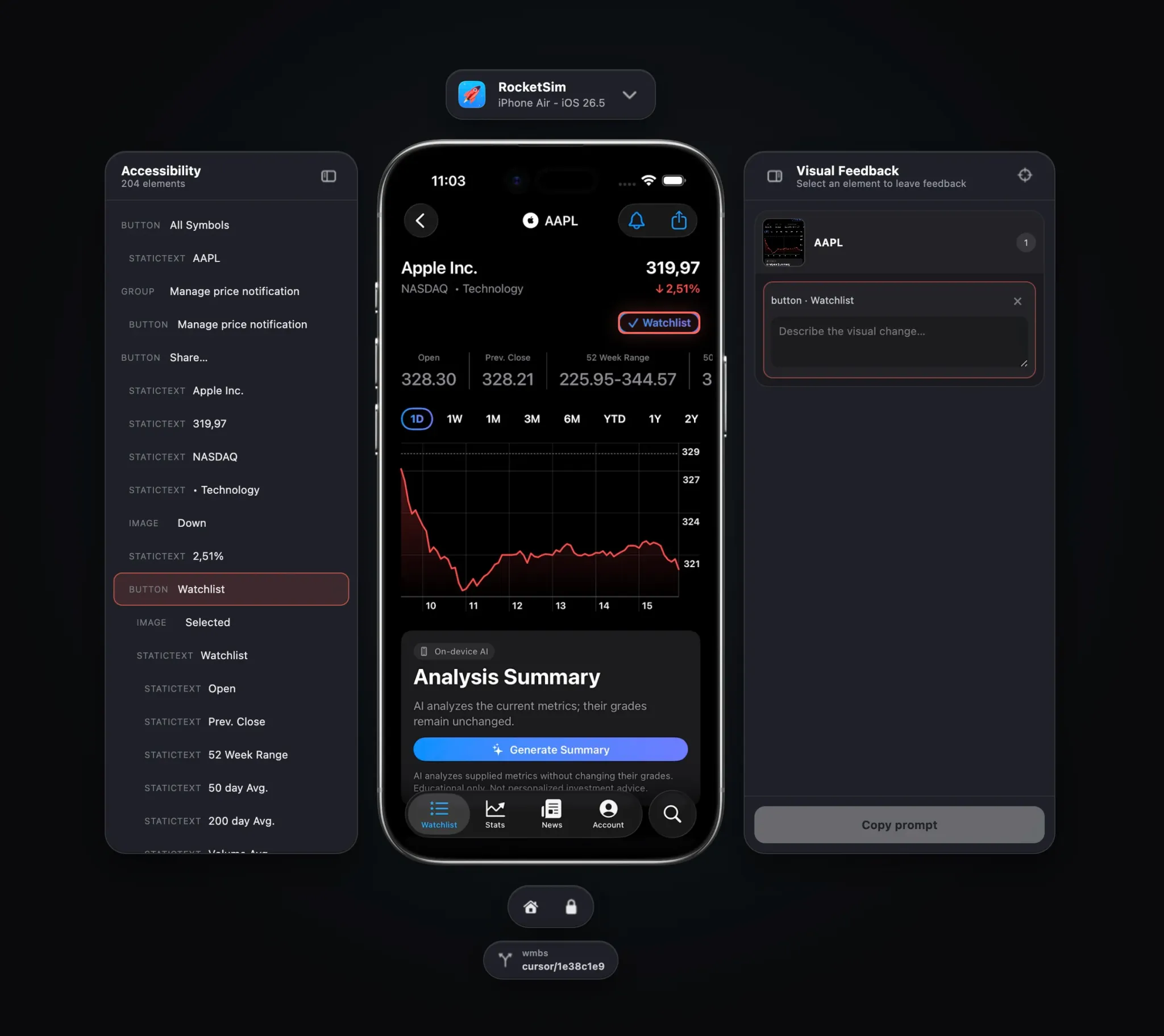
An iOS Simulator browser preview lets you follow your AI coding agent while it navigates your running app. When you use the RocketSim Agent Skill, your agent automatically starts a local preview, tells you it is available, and opens it when your coding tool supports an integrated browser.
RocketSim 16.4.6 introduces Browser Preview as a beta. You can watch the agent work, take over to inspect the result, and turn visual feedback into a prompt the agent can immediately work with.
Watch Browser Preview in action
The video below shows the complete workflow, from opening a live Simulator in the browser to selecting an element and copying an agent-ready prompt:
The preview is not another iOS emulator running in the cloud. Your app keeps running in the local Simulator you already use for development. RocketSim streams that Simulator into a token-protected localhost page and forwards your interactions back to the same device.
This distinction matters. You keep the build, app data, and Simulator on your Mac while gaining a browser-based review surface that fits naturally beside an AI coding agent.
Follow your coding agent live
The RocketSim Agent Skill uses Browser Preview automatically during Simulator tasks. You do not have to start the preview yourself: commands that target a Simulator make sure a local preview is available and include its URL in the rs/1 response context.
When your coding tool supports an integrated browser, the skill asks the agent to open that localhost URL at the start of the task. Otherwise, the agent shares the URL so you can open it yourself. This allows you to follow its taps and navigation without bringing Simulator.app to the foreground.
The agent shares the preview again when it finishes. You can inspect the final state, click through the result yourself, and turn any remaining visual feedback into the next prompt. In other words, the same preview supports both sides of the loop: the agent performs the task, and you review its result.
Control the Simulator in your browser
The live preview behaves much like the Simulator window itself. You can click to tap, drag to perform a gesture, scroll using your mouse or trackpad, and type with your keyboard. Home and Lock controls are available underneath the device.
This is useful even when you are not using an agent. You might have your editor and browser arranged in one workspace while Simulator.app is on another display or hidden behind Xcode. Browser Preview keeps the running app available where you are already reviewing the implementation.
However, direct control is only half of the feature. The bigger improvement is that the preview understands what is visible on screen.
Inspect accessibility elements
The Accessibility panel lists the elements RocketSim can read from your app. Selecting an entry highlights its frame in the preview, helping you connect an accessibility label such as Watchlist to the rendered button.
I prefer structured elements over screenshot-only feedback because they give an agent a concrete target. “Update the Watchlist button” is much more useful than “update the button on the right.” The element role, label, state, and frame remove part of the guesswork before the agent starts changing code.
Good accessibility metadata benefits both VoiceOver users and your coding workflow. If an element is hard for the preview to identify, that can also be a useful signal to review the app’s accessibility implementation.
You can learn more about the underlying interaction workflow in the RocketSim CLI guide.
Turn visual feedback into a prompt
Some feedback starts with what you see rather than an accessibility label. Browser Preview lets you Option-click an element or enter inspect mode from the Visual Feedback panel. You can select one element, drag over a group, and describe the change you want.
Your feedback remains attached to the captured screen where you created it. You can continue navigating through the app, leave comments on another screen, and return to the earlier state without losing context.
Once your review is complete, click Copy prompt. RocketSim creates a structured prompt containing:
- The selected Simulator and captured screen
- The accessibility elements you selected
- Their labels, roles, and frames
- The feedback you entered
Paste that prompt into your coding agent. Instead of asking it to interpret a standalone screenshot, you give it a list of implementation targets tied to the exact UI state you reviewed.
Start Browser Preview manually
You can also start Browser Preview without asking an agent. RocketSim includes the rocketsim command line tool and Agent Skill, which you can install from RocketSim → Settings → CLI & Agent.
With RocketSim running and at least one Simulator booted, run:
rocketsim previewThe command returns a token-protected URL on 127.0.0.1. Open it in your browser to see the active Simulator. If you have several Simulators booted, target one directly:
rocketsim preview --udid <udid>You can also switch between available Simulators from the device picker at the top of the preview. The selected device appears with its bezel, making it easier to review spacing and screen composition in the right context.
Check out the Browser Preview documentation for all startup options and requirements.
Can the iOS Simulator run online?
Browser Preview does not make the iOS Simulator run online or on a non-Mac computer. Apple’s Simulator still runs locally through Xcode on your Mac, while RocketSim exposes a local browser interface for the booted device.
That local setup is intentional. The preview URL is token-protected and bound to localhost by default, keeping your app and Simulator data on your development machine.
If your goal is to let an AI coding agent inspect and control the app you are building, this gives you the browser workflow without replacing your normal Xcode setup. Apple’s Simulator documentation remains the source of truth for running apps on simulated devices.
Conclusion
An iOS Simulator browser preview brings your running app into the same workspace as your coding agent. You can interact with the Simulator, inspect accessibility elements, capture visual feedback across screens, and generate a prompt with much more context than a screenshot alone.
Browser Preview is available as a beta in RocketSim 16.4.6. Install RocketSim from the Mac App Store, then open Settings → CLI & Agent to install the command line tool and Agent Skill. Feel free to contact me or tweet me on Twitter if you have any additional tips or feedback.
Thanks!