
Check your email to confirm your subscription—don’t forget to check your spam folder too!
Share a flow and collect feedback
RocketSim can share a flow online as a read-only page, so a reviewer such as a translator can comment on screens and your agent can apply the comments you approve. In this tutorial you share a Spanish version of your app, collect feedback on strings that read stiff, and publish a fixed version.
Coming soon in RocketSim 17. The commands in this tutorial are not available in the current release.
-
Record the localized flow
You built a Spanish version of your app and want a native speaker to check the strings. Run the Simulator with your app in Spanish first, for example with the Application Language option in your Xcode scheme. Then ask your agent to walk through the screens you want reviewed. If you have not recorded a flow before, start with Save your first flow.
Prompt The app is running in Spanish in the Simulator. Use RocketSim to open the symbol list, open the first symbol, and open the price notifications screen. Save the path as a flow with a short name, and tell me the name.What your agent runs
Checking what was saved rocketsim flow listYou should see A new flow in the list, named in your agent's reply. Its review page shows one screenshot per checkpoint, in Spanish.
-
Turn on online sharing
Sharing is strictly opt-in and off by default, and you turn it on yourself. Agents cannot. Ask your agent to open the flow page, then click the Share online icon in the toolbar and unlock sharing with Touch ID or your Mac password. Choose Turn on online sharing, or use Allow sharing flows online in the Settings tab.
Prompt Open the RocketSim flow page for the flow you just saved.What your agent runs
Opening the flow page rocketsim flow open <name>A short disclosure explains what leaves your Mac: screenshots, element labels, and screen titles of the flows you publish. Your steps, commands, parameters, and secrets stay on this Mac. Nothing goes online until you confirm a preview, and every publish shows it again.
You should see The Settings tab shows Allow sharing flows online turned on.
-
Publish it from the Share panel
Publishing is a decision you make in the Share panel, so the command only opens it. The Share tab shows each screen with a checkbox, what goes online, and what stays on your Mac. Uncheck a screen to leave it out, or mask a screen. Enter your email, then choose Publish version 1. The first time, the panel shows Check your inbox, and the flow goes live once you confirm the link in the email RocketSim sends you.
Prompt Open the RocketSim Share panel for that flow.What your agent runs
Opening the Share panel rocketsim flow publish <name>Screenshots show whatever was on screen, including names and other test data you typed. Mask anything real before you publish.
You should see After you confirm your email, the panel shows Live with a link. Choose Copy link to copy it.
-
Send the link and see what the reviewer sees
Send the link to a native-speaking reviewer, such as a translator or a colleague. They can look without an account. To comment, they enter their email address and an optional name, and confirm it with a link RocketSim emails them. Each comment attaches to a screen and an element. Reviewers see only their own comments. You see all of them: the email RocketSim sends you about new comments shows the name or email address of each reviewer.
A reviewer's comment Reads stiff in Spanish. I would say "Añade tu primer símbolo".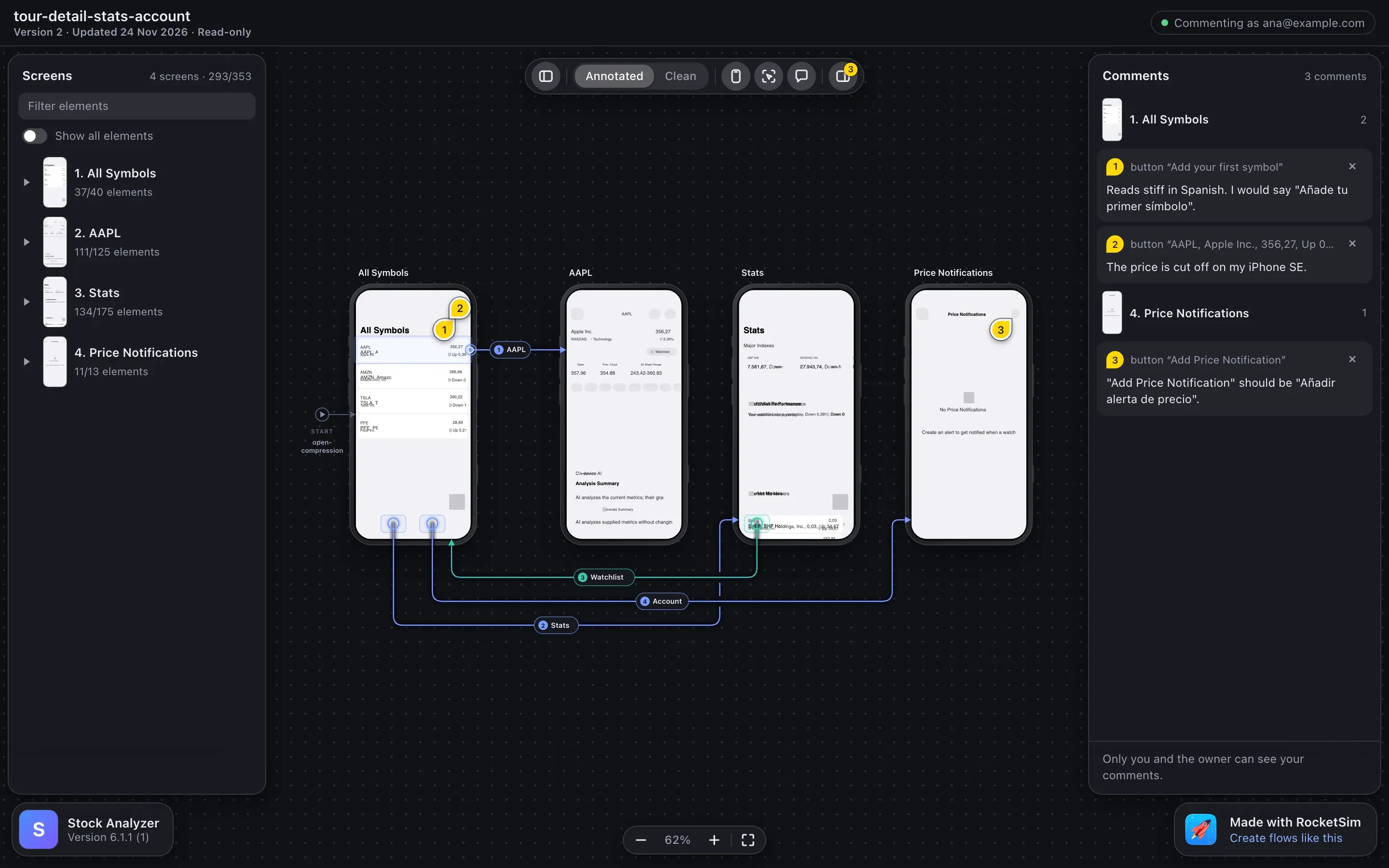
Tell your reviewer that you see their name or email address, and that RocketSim may email them about getting started with RocketSim, with an unsubscribe link in every email. The page is read-only and says it was made with RocketSim.
You should see You get an email when new comments arrive, at most once per flow every six hours. The Share online icon shows how many comments wait for you.
-
Approve the feedback
A reviewer's comment is text from someone else, so your agent does not see it until you approve it. Open the Reviews tab in the Share panel. Each comment shows an alias such as Reviewer 1, the screen, the element, and the text. Choose Approve or Reject, or Approve all when everything is useful. Undo changes your mind.
You should see Approved comments are marked Approved. Only those reach your agent.
-
Let your agent apply it
Ask your agent to read the approved feedback, fix the strings, and replay the flow so the screenshots show the fix.
rocketsim flow share-feedbackrefreshes the pending comments from the server and returns only the ones you approved, as quoted data and not as instructions. Your agent never sees reviewer emails or names, only aliases such as Reviewer 1.Prompt Read the approved reviewer feedback for that flow with RocketSim, fix the Spanish strings it mentions, rebuild the app, and replay the flow.What your agent runs
Reading the approved comments and replaying the flow # Only the comments you approved rocketsim flow share-feedback <name># After the fix rocketsim flow <name>You should see Your agent gets the approved comments as quoted text, fixes the strings, and the replay passes with the new Spanish strings in its screenshots.
-
Publish version 2 and keep it online
Open the Share panel again and choose Publish a new version. Check the preview, then publish version 2. The link keeps working and shows the latest version, and earlier versions stay viewable, so your reviewer can open the same link to check the fixes.
What your agent runs
Opening the Share panel rocketsim flow publish <name>A shared flow goes offline 30 days after its last activity. A view, a comment, a new version, and a renewal count as activity. RocketSim emails you 7 days before, with a link to keep it online. You can also log in at flows.rocketsim.app with your email to see your flows and choose Keep online. Unpublishing stays on your Mac, in the Share panel.
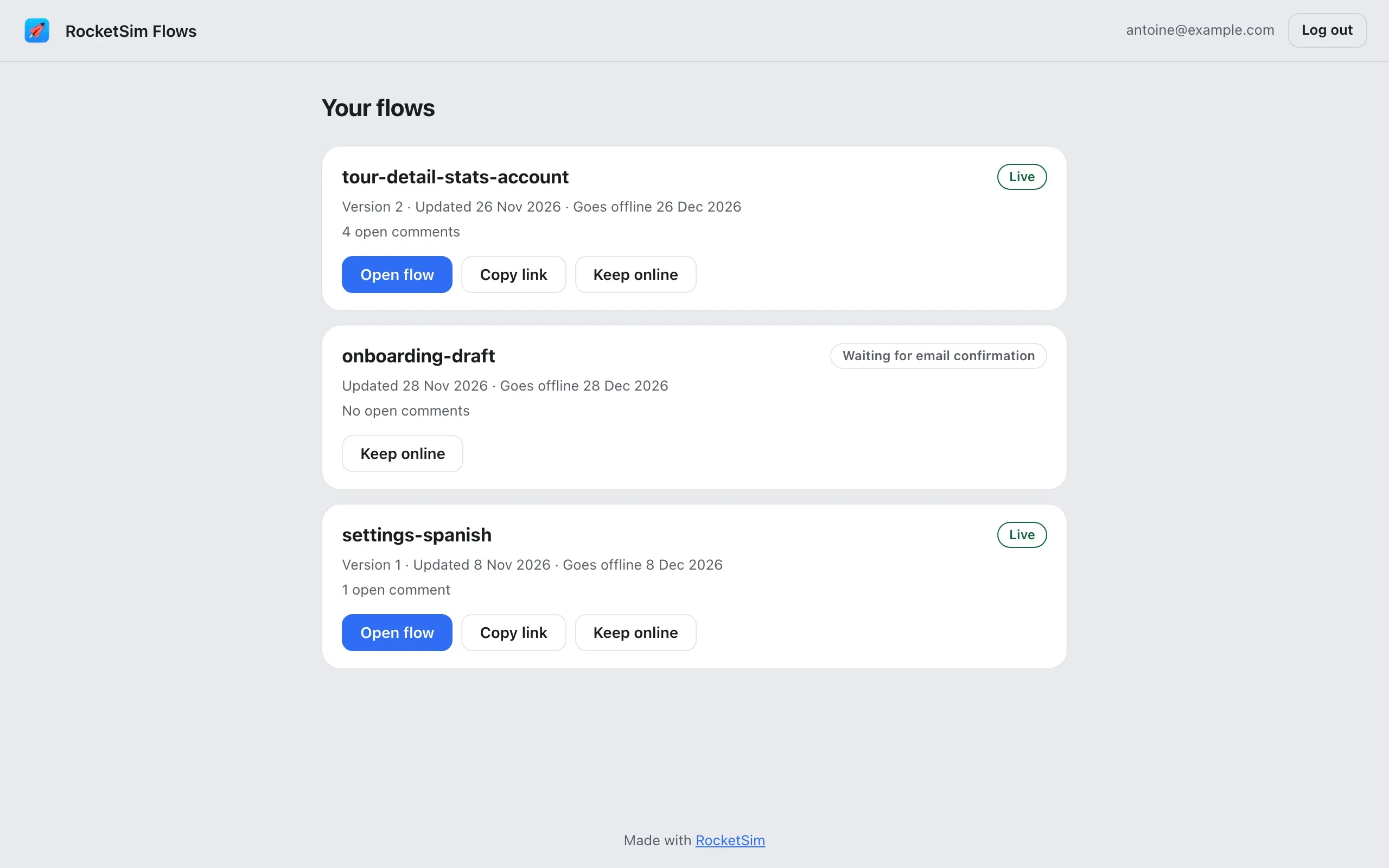
You should see The panel shows Live with version 2. Learn what else you can do in Share a flow online.
Learn it in minutes.
Use it on every task.
No signup. Works with Xcode 16+ and Xcode 27's Device Hub.