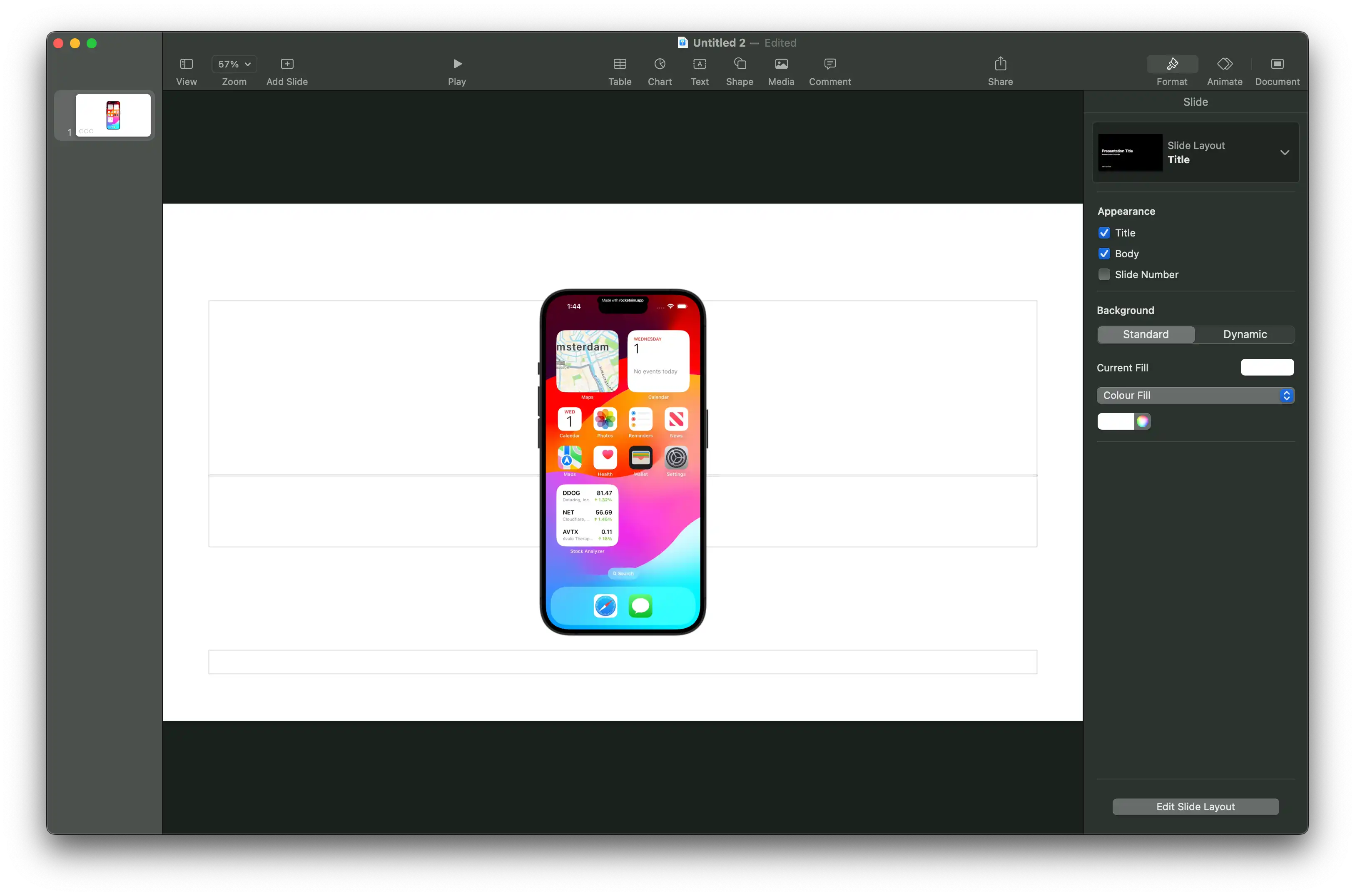
Screenshots & Recordings

Professional captures that make your app shine

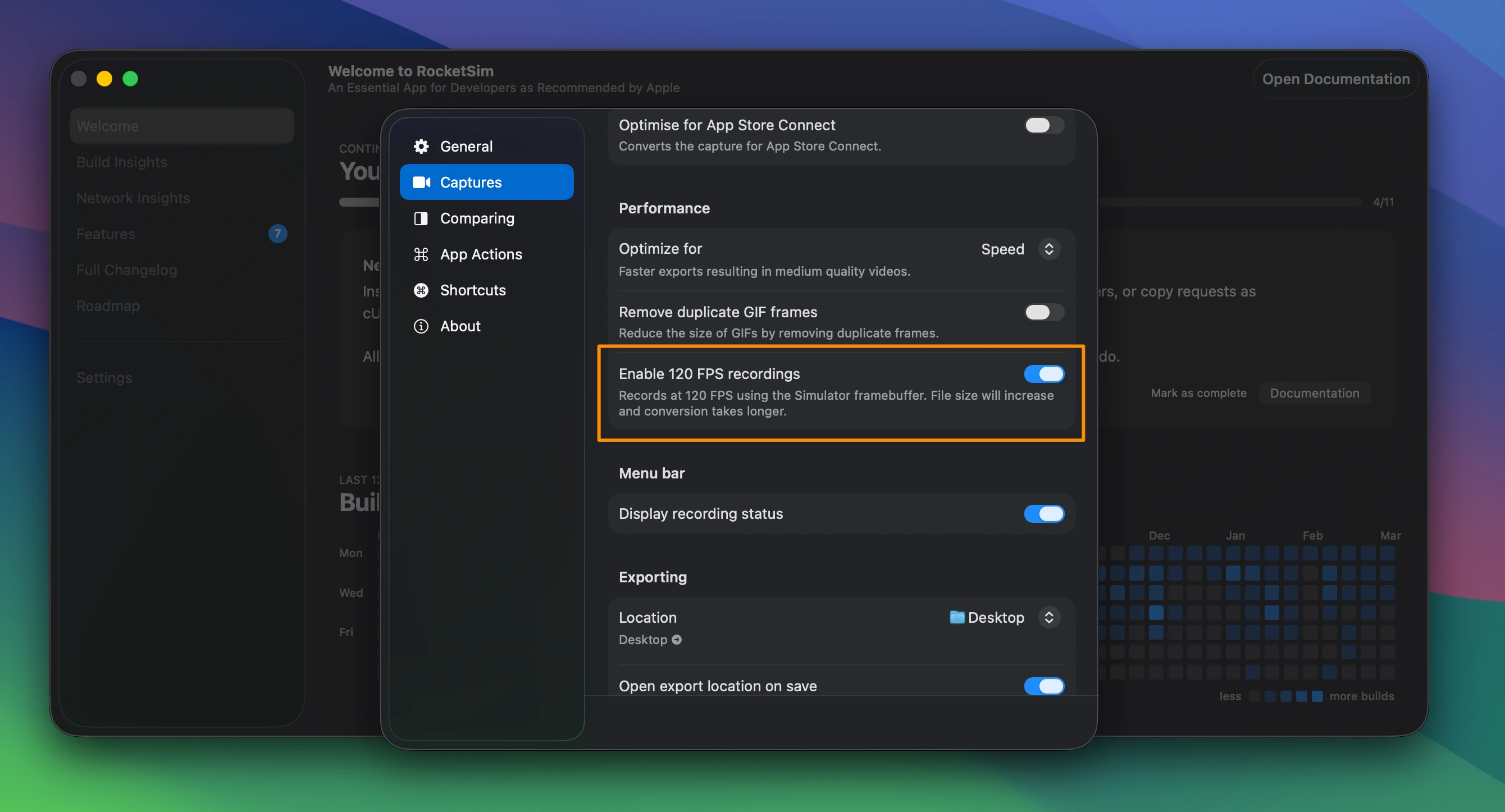
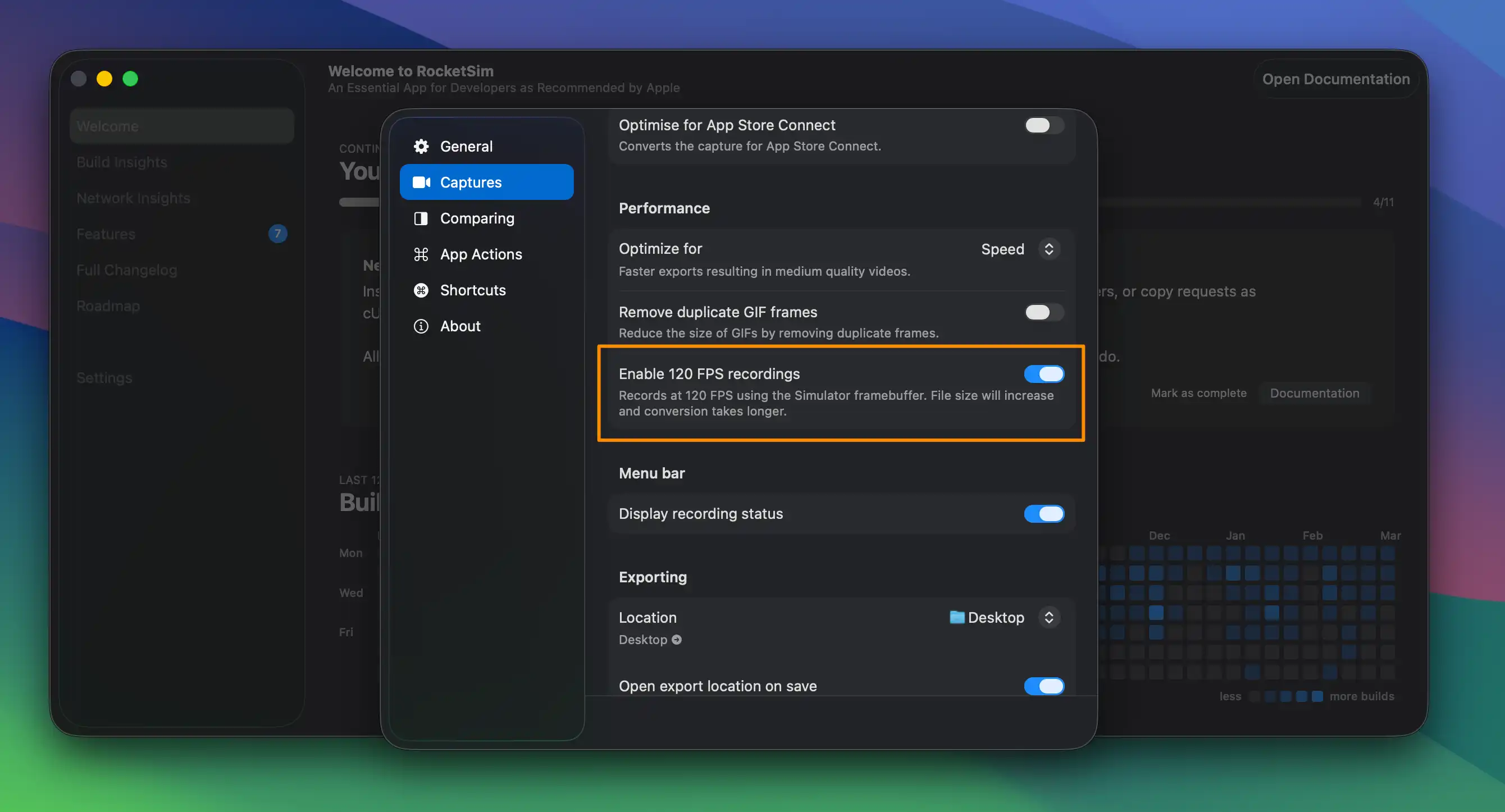
120 FPS Recordings

Record at 120 FPS for ultra-smooth video output. Great for smooth scrolling, animations, and transitions.

120 FPS Recordings
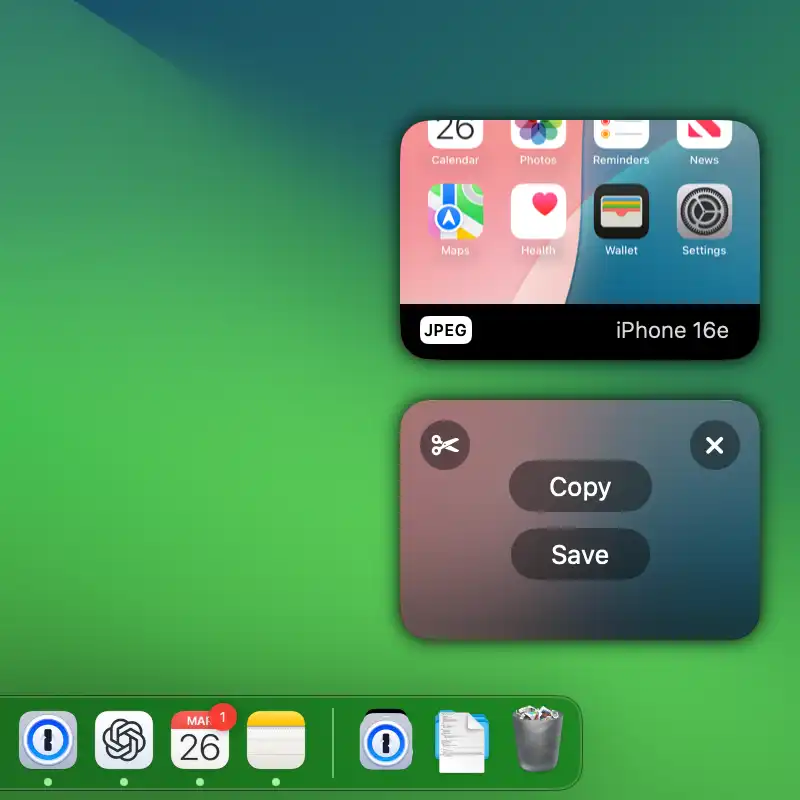
Floating Windows

Floating Windows

Stack multiple captures in floating windows and drag them anywhere.

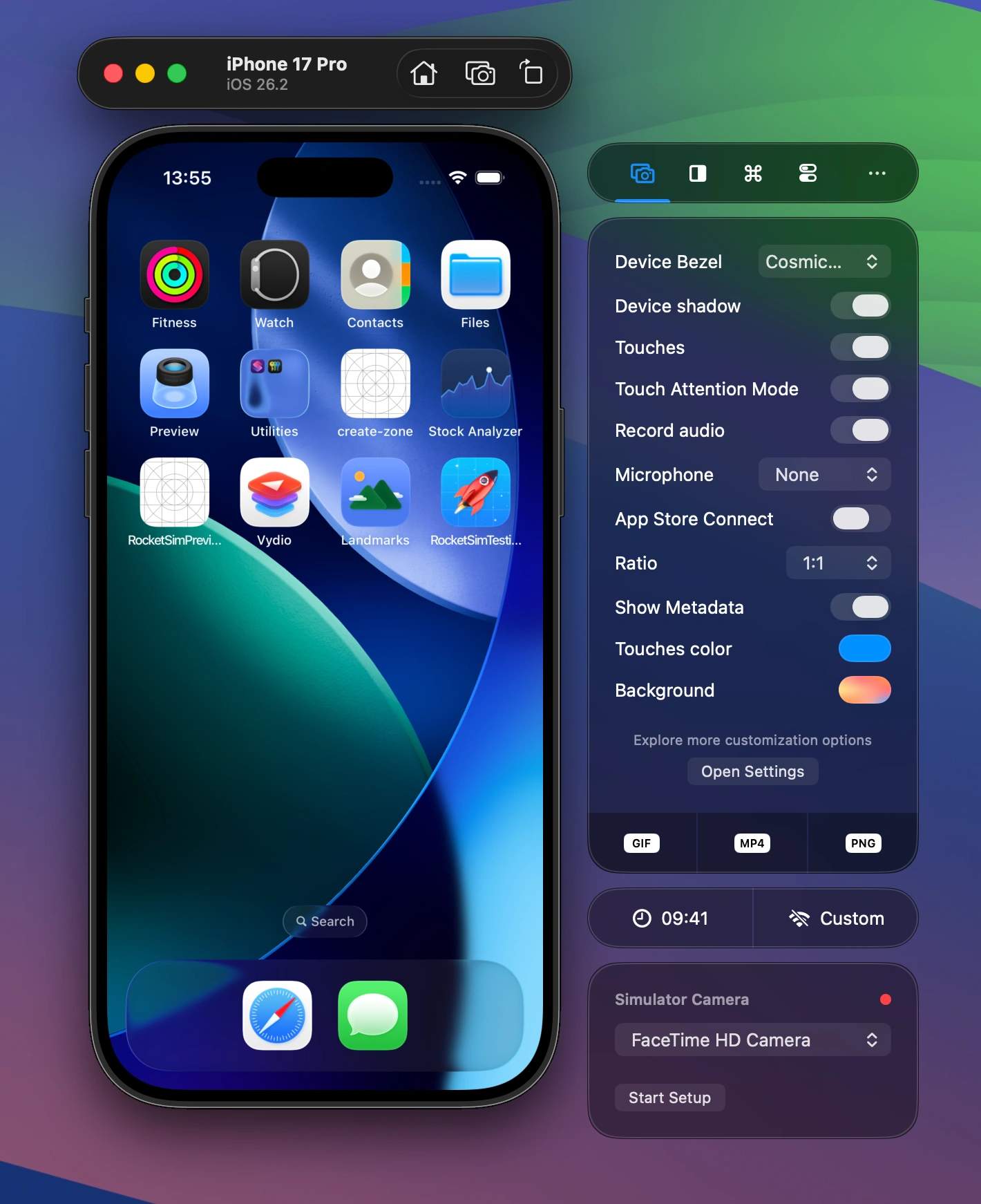
Professional Recordings & Screenshots

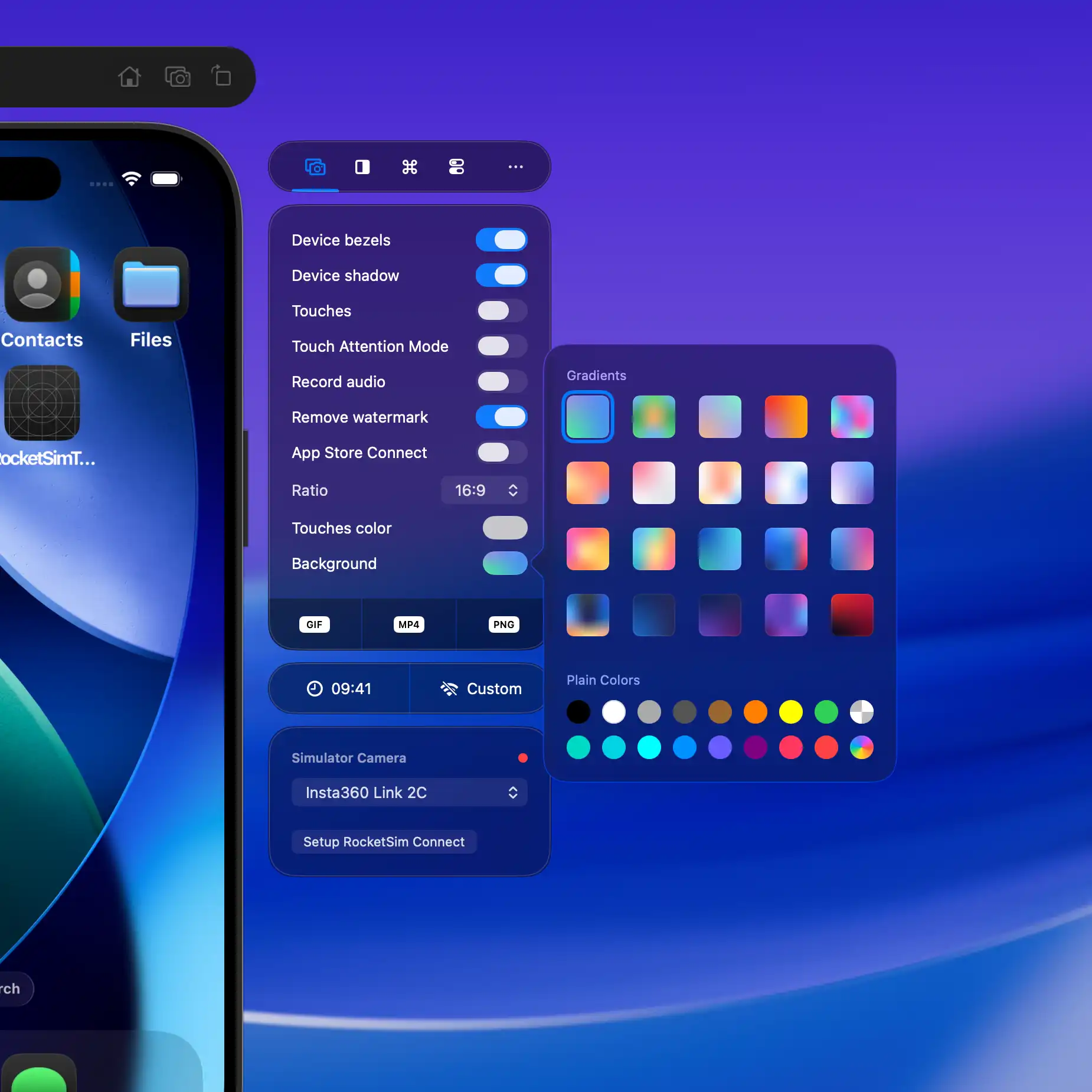
Capture MP4, GIF, or PNG with device bezels and audio recorded.

Professional Recordings & Screenshots

Professional Recordings & Screenshots

Capture MP4, GIF, or PNG with device bezels and audio recorded.

Professional Recordings & Screenshots

Explore all Screenshots & Recordings features

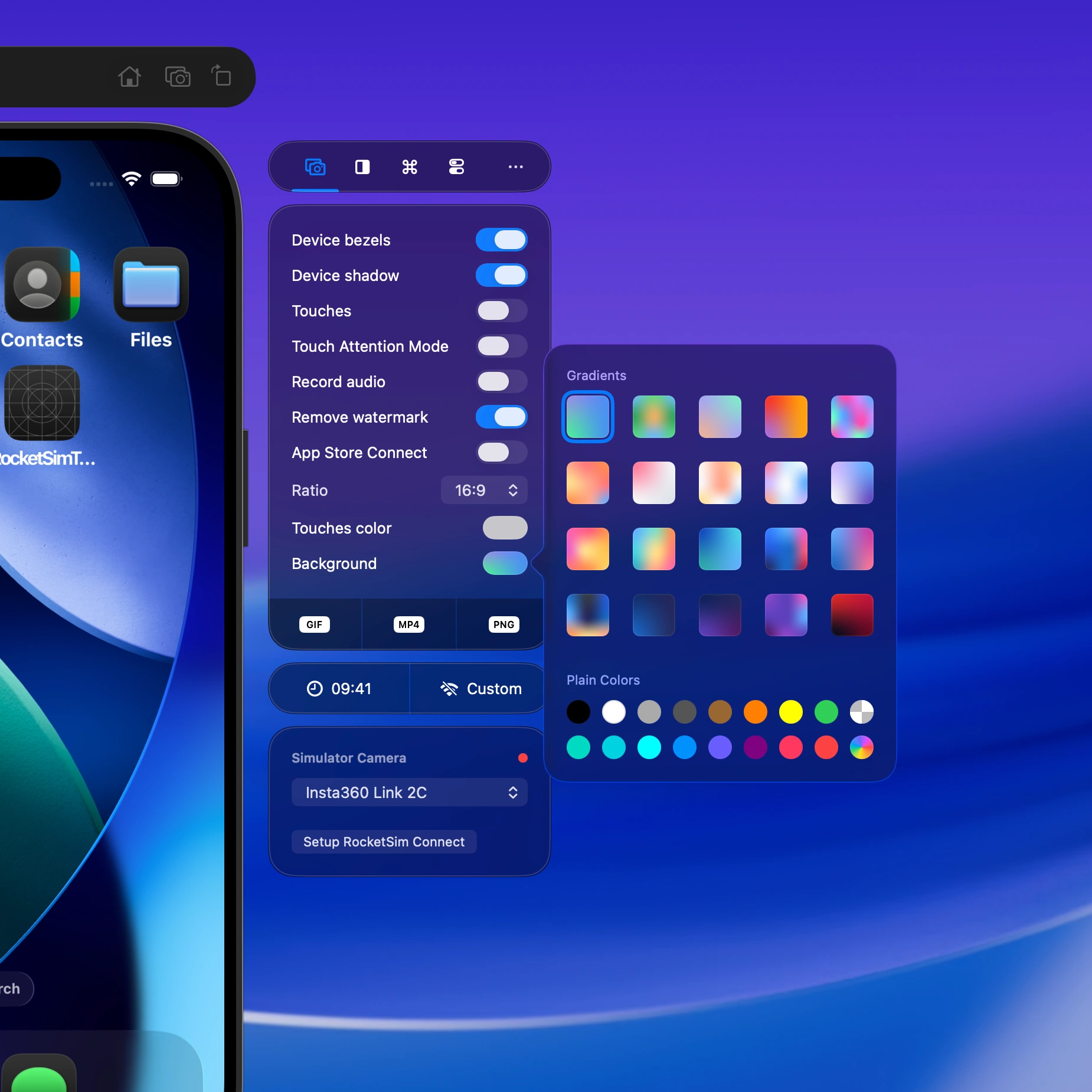
Professional recordings & screenshots

Capture MP4, GIF, or PNG.

  • You’ll blow away your colleagues after adding device bezels to your screenshots & videos
  • Apply a custom ratio like 16:9 to create social media assets
  • Touches make a difference in telling a story. Share professional recordings of a new feature with your friends and colleagues
  • Create easy-to-follow demos by using Touch Attention Mode.
  • Optimize for App Store Connect App Previews and stop wasting time using tools like FFmpeg to conform to the App Preview specifications.
  • Record audio to make it complete
Create profession recordings & screenshots with device bezels and audio recorded.

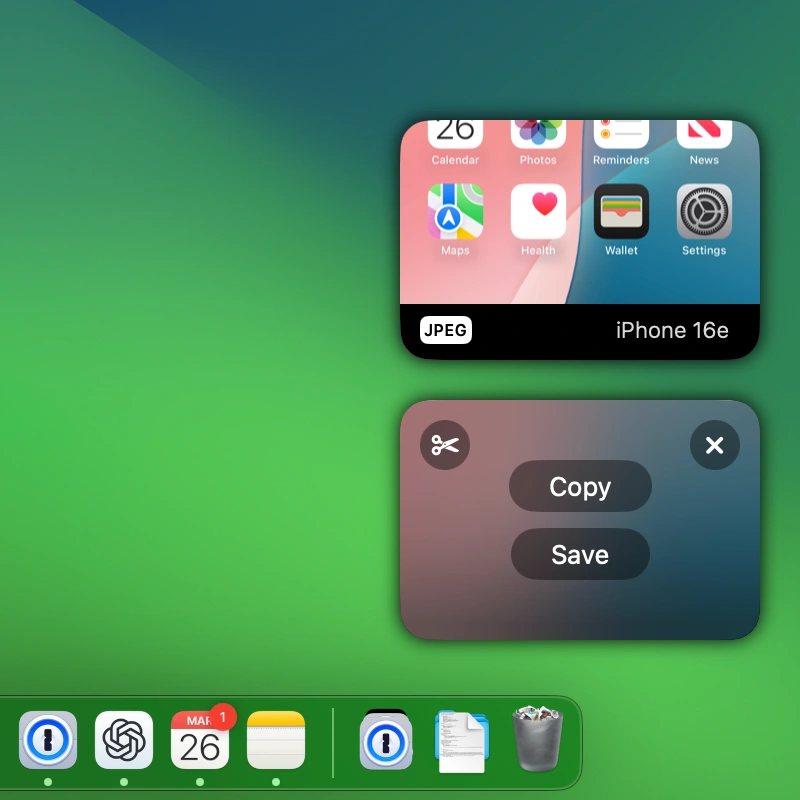
Floating windows for quick access

Stack multiple captures in floating windows and drag them into any destination.

  • Copy your capture to your clipboard and paste anywhere
  • Edit and trim your video to get the exact result you’re looking for
  • Store your captures in a configurable destination using the save action
All your simulator captures appear as floating windows on the side, stackable.

A RocketSim recording in action

Touches + Bezels = Professional Recording.

RocketSim’s touch-attention mode ensures your demo is easy to follow since a touch indicator will be constantly visible. The 16:9 aspect ratio makes it a beautiful video to share on socials.

The Power of Drag and Drop

App Store Connect. GitHub. Slack. Twitter. iMessage.

Drag your recorded MP4 or GIF into any destination. Use it as an App Store Preview video or share a visual representation inside GitHub issues and pull requests. Directly share what you’re working on in Slack or on Twitter.

Touch Indicators

Show touch indicators in your recordings and screenshots. Enable Touch Attention Mode for a constant indicator that follows your pointer — the same technique Apple uses in their demo videos.

Show touch indicators in your recordings and screenshots with Touch Attention Mode.

120 FPS Recordings

Record at 120 FPS for ultra-smooth video output. Great for recording smooth scrolling, animations, and transitions. Uses the HEVC codec for optimal quality.

Record at 120 FPS for ultra-smooth video output with HEVC codec.

Ready to Build Apps Faster?

Boost your productivity and streamline your workflow with our powerful Xcode Simulator tools. Developers report building, testing, and verifying apps up to 2x faster with RocketSim.